Product Templates
Last updated: December 8, 2025
Replo supports the creation of product templates for Shopify storefronts. This guide walks you through how to create and customize a Replo Product Template.
What are Replo Product Templates?
Product Templates are new on Replo and enable customers to build killer Product Pages. These Replo Product Templates can be built with the same easy-to-use editor you typically build pages with, but include some key differences. Product Templates allow you to assign multiple products from your Shopify store to the same product page layout AND have that product's URL be the typical '/product/product-name' structure you get from using a Shopify template.
Using Product Templates in Replo
Product Templates live on a /products/product-slug URL and display product information as per your Shopify product catalog. They are the specific pages where customers can place orders, add items to the cart, and make purchases.
Login to Replo: Access the editor by logging into your Replo account.
Navigate to Your Project: Click on your project corresponding to your Shopify store.
Creating a New Product Template
Navigate to Product Templates: Click on the Product Templates tab.
Create a New Template: Click the "+" button to create a new product template.
Template Name: Enter a descriptive name for your new product template in the "Template name" field. This name is internal and helps you identify the template within Replo.
Template Path (Slug): The system automatically generates a template path or "slug" based on the template name. This slug forms the latter part of the URL for product pages using this template, following the format '/products/[product-slug]'.
Select Products: Choose which products from your Shopify store will assign to this new template. Click the checkbox next to each product you want to assign to the template. Once you publish the template, these products will then use this template for their PDPs on your live site.
Include your Shopify Header/Footer: Decide whether you want Shopify theme’s header and footer to appear on the product pages using this template. Use the toggle to include or exclude these elements.
Choose Products: Select which products this template will apply to. Upon publishing, this template will override the current live template for the chosen products. There is no limit to the number of products that can be applied to a single Product Template.
Previewing Different Products in your Product Template While editing your template, you can preview it with the different products you've selected. In the product preview toggle on the upper left-hand side of the editor, use the left and right arrows in the editing UI to cycle through the products. This changes the product details being previewed but doesn't affect the template layout itself.
Designing Your Product Template
Basic Components: A basic template includes the product image, title, description, price, and an "Add to Cart" button.
Adding Quantity Selector: Drag in a quantity selector from the components section if needed.
Including Additional Components: Add elements like images, reviews, or subscription components (e.g., Recharge or Skio) as needed.
Customizing Content: Customize the content and styling as you would on any Replo page by using the Editing tools found on the right-hand column of the editor when a component is selected.
Using Dynamic Data on Product Templates
Dynamic content refers to the content that changes and adapts based on the data it's connected to. In Replo, this concept allows you to design product pages that have unique content based on the product information from your Shopify store. This feature is particularly beneficial for stores with a large number of SKUs, as it enables teams to incorporate unique product information across various product pages.
How Dynamic Data Works in Product Templates
Viewing Products in Templates
Within Replo on a specific Product Template, there is a product picker in the upper lefthand side of the editor. This allows you to scroll through and select which product data should be displayed.
Use the navigation arrows to scroll through and select different products. This action updates the embedded product component within the page to showcase information relevant to the chosen product
Understanding the Product Component
The product component embedded in your page is dynamically linked to the products selected in your template settings.
If you disconnect the dynamic link and select a specific product (e.g., a long sleeve shirt), the component will always display data for that fixed product, regardless of other selections.
Implementing Dynamic Links
For dynamic content display, ensure the product component is linked to the 'templated product'—the product currently in use in an instance of a template.
With this dynamic link, the product component will update to display information for any product selected on the template page.
Dynamic Content Updates:
Text components (like product titles) and image components within the template are tied to the current product instance.
These components will automatically populate with the relevant data, such as the product's title or featured image, based on the product currently selected in the template.
Previewing Dynamic Changes:
As you scroll through different products within the template page, you'll notice the product information (text, images, etc.) dynamically updates.
This functionality allows for real-time previews of how each product page will appear, providing an efficient process for managing multiple product displays
Previewing and publishing your product template
Once you've had an opportunity to ensure all the products assigned to your template look flawless, it's time to preview your page & press that publish button! See this page for more detail on how to preview your page without publishing.
Preview Your Product Pages in the Editor: Preview your page with different products in the editor with the preview function in the lower middle bar to ensure content updates dynamically and the layout is correct on web, tablet, and mobile.
Preview Your Product Pages with Page Previews: You can use page previews (the down arrow next to the publish button) to create a URL or QR code with a preview of the page that you're working on. The product in that preview will be equal to the one you are viewing in the editor.
Publish with or without the assigned products: For Product Templates, whenever you hit preview, you will update the live /product URL for the products that are assigned to the page. You can publish a page without assigning any products if you want to see how the page will look, but we recommend using the page preview feature. Otherwise, for whichever products that you've assigned to that template, the live page will update on publish. Don't worry, there will be a pop-up modal asking you to confirm that you want to do that when the time comes.
NOTE: Publishing for Product Templates will make updates to your product pages on your live Shopify storefront. Be sure that everything is exactly as you wish before publishing.
Now you are ready to create high-converting, branded product pages for your Shopify store using Replo’s Product Page Templates feature. The power to design just about every page for your Shopify theme entirely within Replo is now in your hands!
Integrations in product templates
A great product page needs more than just a buy box where potential customers can add products to a cart. It also needs supporting elements such as review widgets, subscriptions, upsell tools, and more. Additionally, you want to make sure that these integration widgets update dynamically, based on the specific product page they are referencing.
Upsell Integration Options
For upsell functionality on your product templates, Replo offers several options:
Zipify One Click Upsell (OCU): Officially supported integration for post-purchase upsells. Learn more about Zipify integration
Vitals: Includes upsell functionality among other features. Learn more about Vitals integration
Other upsell apps: If your preferred upsell app (like AfterSell) isn't officially integrated, you can try using the liquid component to embed their code. Contact the app's support team to confirm compatibility with Replo pages. Note that apps requiring Shopify App Blocks won't work on product templates.
Note: Post-purchase upsells that appear in Shopify checkout will work with Replo product templates since Replo integrates with the standard Shopify checkout process.
Replo product templates support all of these integrations out of the box. To see a full list of Replo integrations, click here.
Note: Shopify App Blocks are only compatible with Replo sections, not product templates (pages). If you need to use a Shopify app that requires App Blocks on your product pages, consider using the Custom HTML component with the app's embed code instead.
How to add integrations to your product template
In order to place any integration onto your product template, you should —
Click on “Components” on the left-hand menu within the editor
Scroll down to find your desired component OR use the search feature to find your component
Drag and drop your component onto your product template page, making sure that you place the content inside the product box. You can find out more about any extra configurations needed within the documentation for each individual integration.
For apps not in our integrations list: If the app you need isn't available as a native Replo integration, you can use the Custom HTML component to embed the app's provided embed code. Note that Shopify App Blocks are not supported on product templates.
To learn more about how to integrate with specific apps, please refer to our integration documentation here.
How to add subscriptions to your product template
Subscription integrations are supported through Replo's native integration with selling plans through our selling plans component. This is extremely neat because it allows you to directly customize the look and feel of each subscription purchase flow down to the pixel. To learn more about how to integrate selling plans with your product template, please refer to the Selling Plans documentation.
Unsetting the product template
After creating and publishing custom product templates in Replo, there may be instances where you need to revert a product's PDP from a custom Replo template back to the default template provided by Shopify. This section guides you through the process of reverting a PDP from a Replo page to the Shopify default.
Navigate to the Custom Product Template From your Replo dashboard, access your project (your Shopify store), and click on the "Product Templates" section in the left sidebar.
Access Template Settings
Identify the custom product template with the assigned products you want to modify. Click on the template to open it.
Once the template is open, locate and click on the "Settings" tab. This tab allows you to modify the configuration of your product template, including which products use this template.
Unselect the Product
Under the "Select products this template applies to" section, you'll see a list of products currently using this custom template. Find the product you wish to revert to the default template.
Click the checkbox next to the product's name to unselect it. Unchecking this box will disassociate the product from the custom Replo template.
Update the Template After unselecting the product, click the "Update template" button. This action saves your changes and initiates the process of reverting the selected product's template back to the default Shopify product template.
Verify your Changes To verify the change, visit your Shopify store and navigate to the product page you modified. You should see that the product page now uses the default product template instead of the previous product template within Replo.
Multiple views of the same product using the view= parameter
If you want to make multiple product template layouts available to be shown simultaneously on your Shopify store, for example as part of an A/B Test or a specific ad campaign, you can publish a template through Replo and use the view= parameter. To do this:
Ensure the product template in Replo is not assigned to any products
Publish the template
Click the "View Live" button next to the publish button
You'll see that the browser URL has a
view=parameter at the end of it. You can copy/paste this URL anywhere, and users who visit that URL will see the layout for the template you just published. However, users who browse your store directly will not see this layout, since it was not assigned to the product.You can use the
view=parameter with as many product templates simultaneously published as you need - as long as you use theview=URL, any visitors to that URL will see the published template.
Bulk assigning many products to a template
If you want to use one product template for 10s or 100s of products, sometimes the product assignment UI in Replo can be a bit clunky. As a workaround, the easiest thing to do is to use the bulk product edit feature within Shopify to do this:
Go to your Shopify Admin > Products
Select all of the products you want to assign to the relevant template and click "Bulk edit"

In the top right, make sure the Template column is checked on
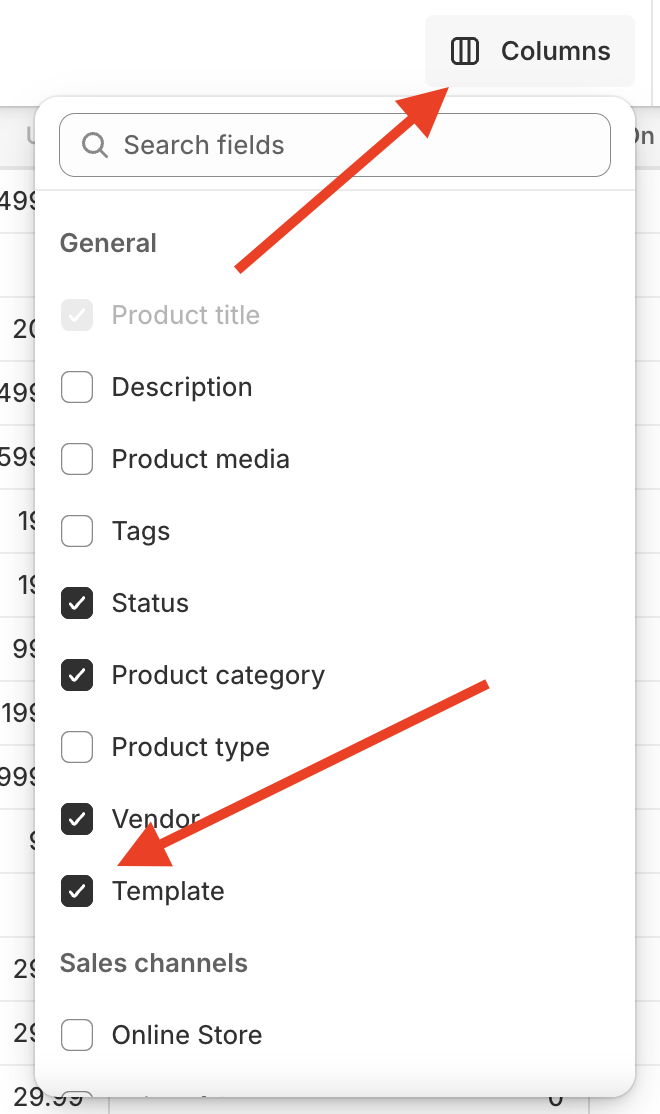
In the Template column of the Bulk Edit UI assign all the relevant products to the correct template, where the name is
product.replo.{id}where this{id}value is what's found as the last ID in the URL of the Replo editor
This Shopify admin feature in theory allows you to manage all template assignments at scale and in bulk.