How to create a sticky component
Last updated: April 1, 2025
Sticky and fixed elements will not behave correctly in the Replo editor, but will work on live pages.
If you want to have a component that is "sticky" and scrolls with your customer along the page, you can build one with Replo!
Select the component you want to make sticky
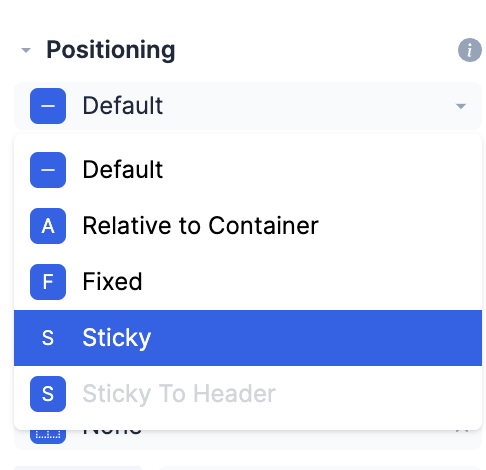
Navigate to the "Positioning" menu on the right hand panel
Choose "Sticky" from the drop down
Create a sticky Header
Select the container component you want to make sticky
Navigate to the "Positioning" menu on the right hand panel
Choose "Sticky" from the dropdown
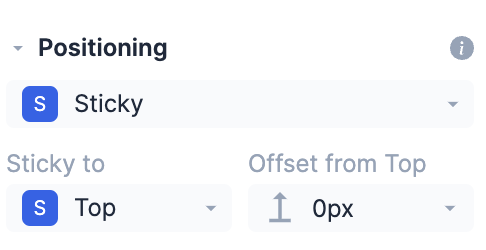
Then choose "Top" from the "Sticky to" dropdown
Create a sticky Footer
Select the container component you want to make sticky
Navigate to the "Positioning" menu on the right hand panel
Choose "Sticky" from the dropdown
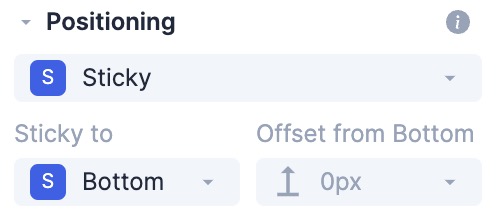
Then choose "Bottom" from the "Sticky to" dropdown
Using custom state "Pixels From Top Of Page"
Sometimes, you might want the sticky component to appear only after scrolling down a certain distance on the page. You can achieve this by using the custom state "pixels from top of page".
Note: In the video, fixed positioning was used, but the same steps applies to sticky positioning as well.
Sticky not working
Sometimes you will set the positioning of a component to Sticky but it is not sticking?, This happens due couple of reasons:
The most common reason is a CSS rule setting
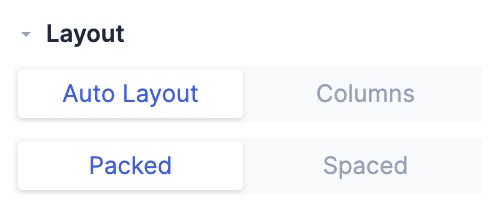
overflow: hidden. Your theme might have this rule applied to the parent container of the page, such as the body or main tag. This will disable the sticky positioning and prevent it from working. You can fix this by using custom CSS to change the overflow from hidden to visible. This is explained in more details here.The layout of the sticky component is set to Columns. Ensure that it is set to Auto layout instead.