Using Shopify Metafields
Last updated: August 7, 2025
Shopify Metafields help you add and store additional structured information for your store and products. For example, you can use metafields store additional information about a product, such as a feature description, specifications, expiration dates, and size charts.
All the metafields you create on Shopify can be used on all your Replo pages using Dynamic Data, as long as Replo supports their metafield dype. You can learn more about Shopify Metafields via Shopify’s documentation.
Displaying your Shopify Metafields on Replo Pages
Ensure you have correctly stored the added metafields in your Shopify admin.
Drag a Text or Image component into a Product container that has an assigned product with metafields.
Select the text component, then select the database icon in the pill to assign whichever metafield relates to that product.
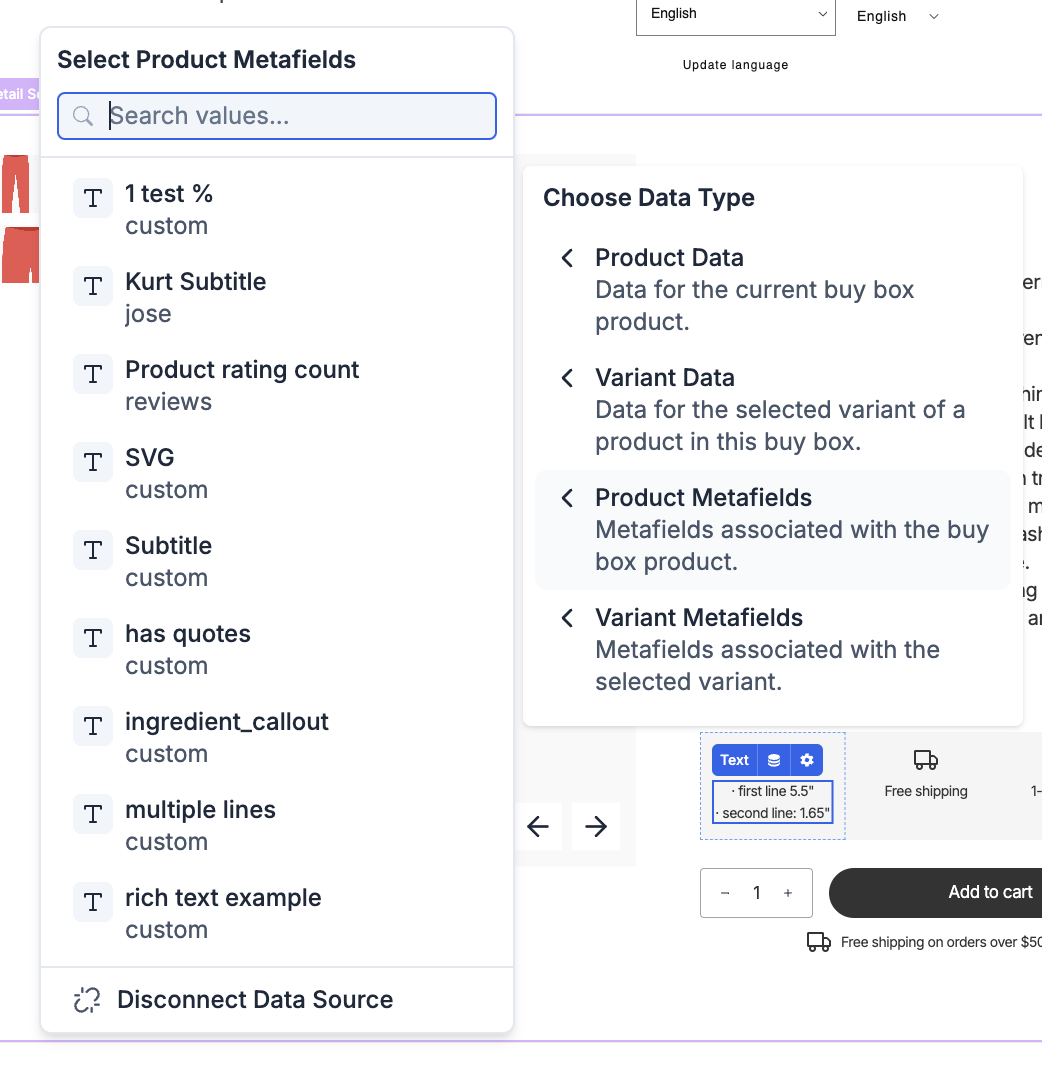
If everything is correctly setup and you are still not seeing your metafields data, see 📄 Getting Help - How can I contact Replo support? to get assistance from the Replo support team.
Supported Metafield Types
Replo supports the following types of metafields:
Single line text
Multi-line text
Number (decimal and integer)
Color
URL
File Reference (this includes image and video files)
Rich Text
Not all metafield types are supported by all component settings. For example, the File Reference field type won't work with a 📄 Videoscomponent's URL option, because the Video Component's video URL option requires a URL, not a file. The correct metafield to create for this would be a URL metafield.
Displaying your Shopify Metafields on Replo Product Templates
You can use metafields to enhance your product pages by adding custom data such as texts, images, or any other content specific to a product listing.
Example
Consider you have two types of products:
A long-sleeve shirt with specific care instructions.
A non-clothing item that doesn't require any care instructions.
You want the shirt to display its custom care guide, but not the non-clothing item.
How to Set up Metafields in Shopify
Navigate to your Shopify admin and select the product you wish to add custom content to.
Locate and click on Metafields.
In the Metafields section, add your custom data. For the shirt, you might add a field named "Custom Care Guide" and input the care instructions.
Note: For the non-clothing item, you wouldn't add any care instructions.
Displaying Metafields on Replo Product Pages
Open a product details page or other templated layout in Replo.
Add a text component to the page where you want the metafield data to appear.
Click the dynamic data selector and select the metafield you’d like to use (in this case, “Care instructions”). For products with the specified metafield (like the care guide for the shirt), the custom text will be displayed. If you switch to a different product, like a non-clothing item without care instructions in this case, the component will be hidden since no metafield was assigned.