Junip
Last updated: June 17, 2024
Reviews are a great way to build trust with your customers. You can use the Junip reviews widget to display your customers' reviews on your Replo pages where they will have the most impact.
Junip offers two main widgets: the Product Reviews widget and the Product Ratings widget. The process for adding them to your Replo page is outlined in this video:
To add a Junip widget to Replo page
Go to the page in the Replo editor where you want to add a Junip widget.
On the left side of the editor, click the "Components" toggle. Then, search for "Junip".
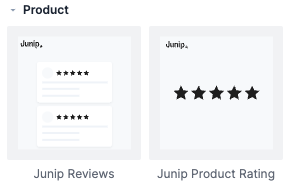
Drag the Junip Product Reviews Widget or Product Rating Widget into a Product component within the page.
Make sure that this product container is configured to reference the correct product, based on which reviews or star ratings you want to show.
These widgets should mainly be styled directly from the Junip app. However, high-level design details (for example width/height, padding, background colors, and borders) can be added directly to the widget via the Replo editor.
Styling the Junip Widget
To style the Junip widget you will need to follow the documentation on Junip
On Replo you will need to go to the "config" tab and click on "launch code editor"
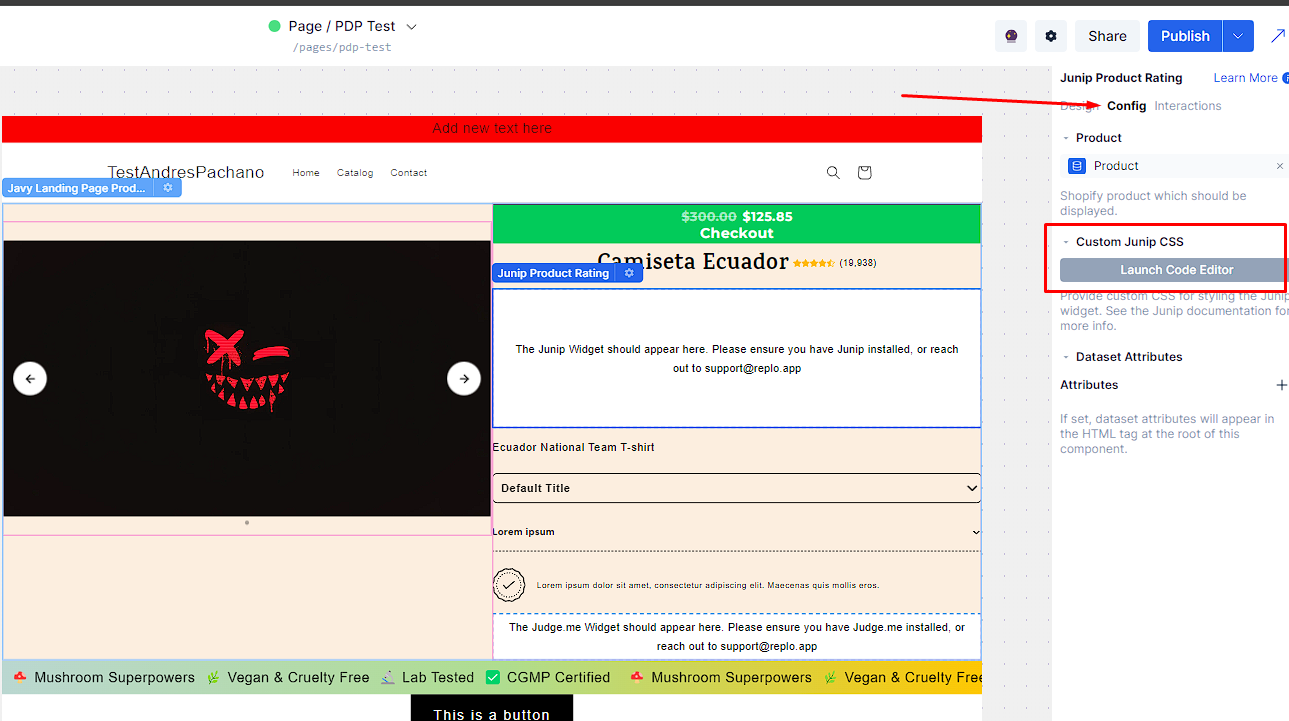
Along with the Junip Documentation, you will be able to edit the way the reviews are displayed on screen.
Note: Using custom code is an advance feature and we are unable to debug or write custom code.
Troubleshooting
Note that the widget will not display correctly in the Replo editor/preview mode, but it should appear correctly on the live page once published.
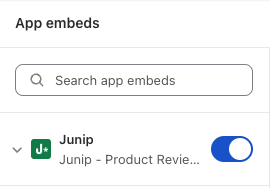
Make sure that you have properly installed Junip on your Shopify store and that you have enabled App Embeds for Junip (Shopify Admin > Online Store > Themes > Customize > App Embed).
If you need help, please contact the Replo Support Team for assistance.