Tooltips
Last updated: July 30, 2024
Tooltip components allow you to add informative pop-up text over an element. Tooltips provide additional context or information without cluttering your main design and only appear when hovering over an element.
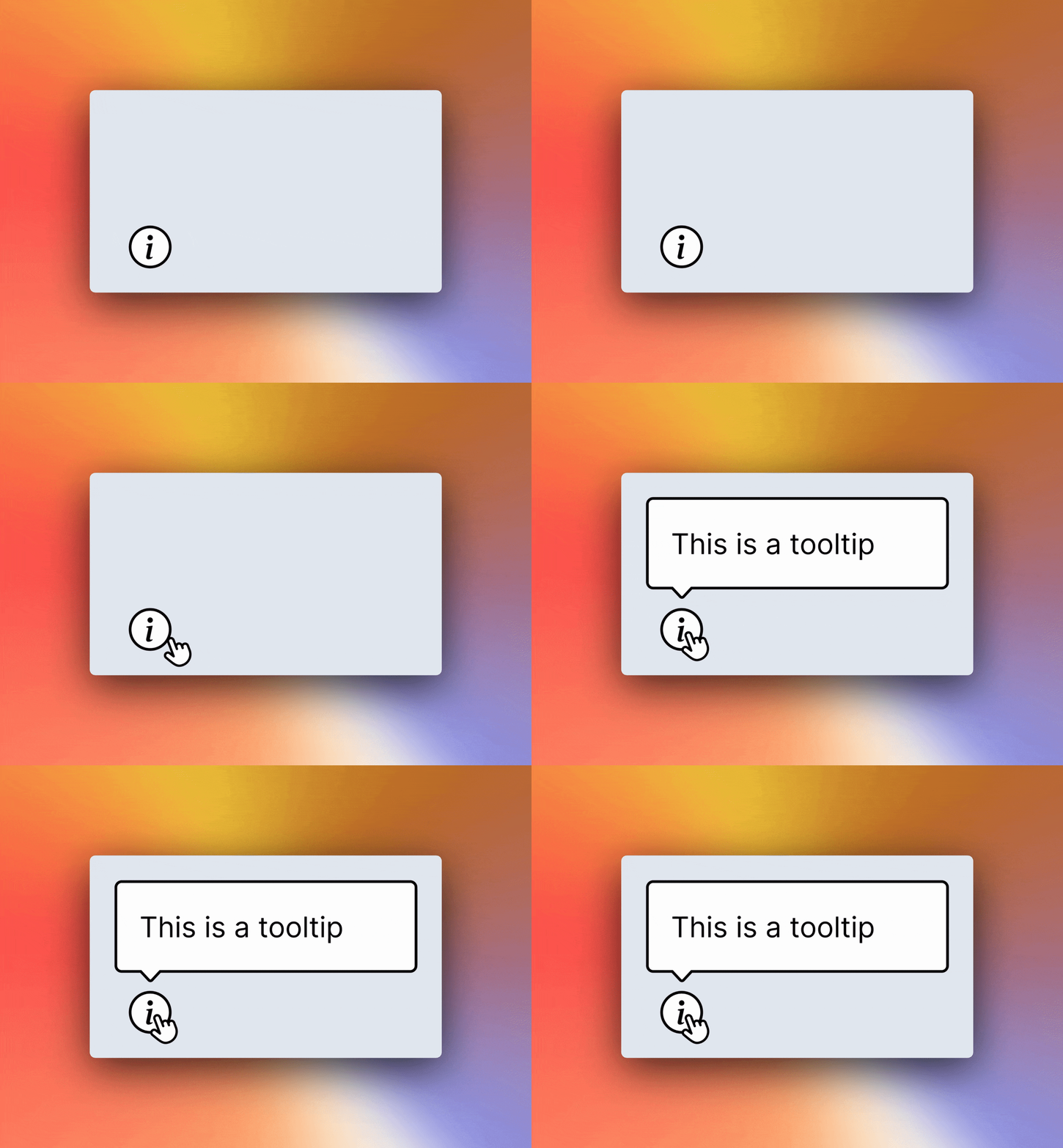
To add a tooltip
From the Component Panel:
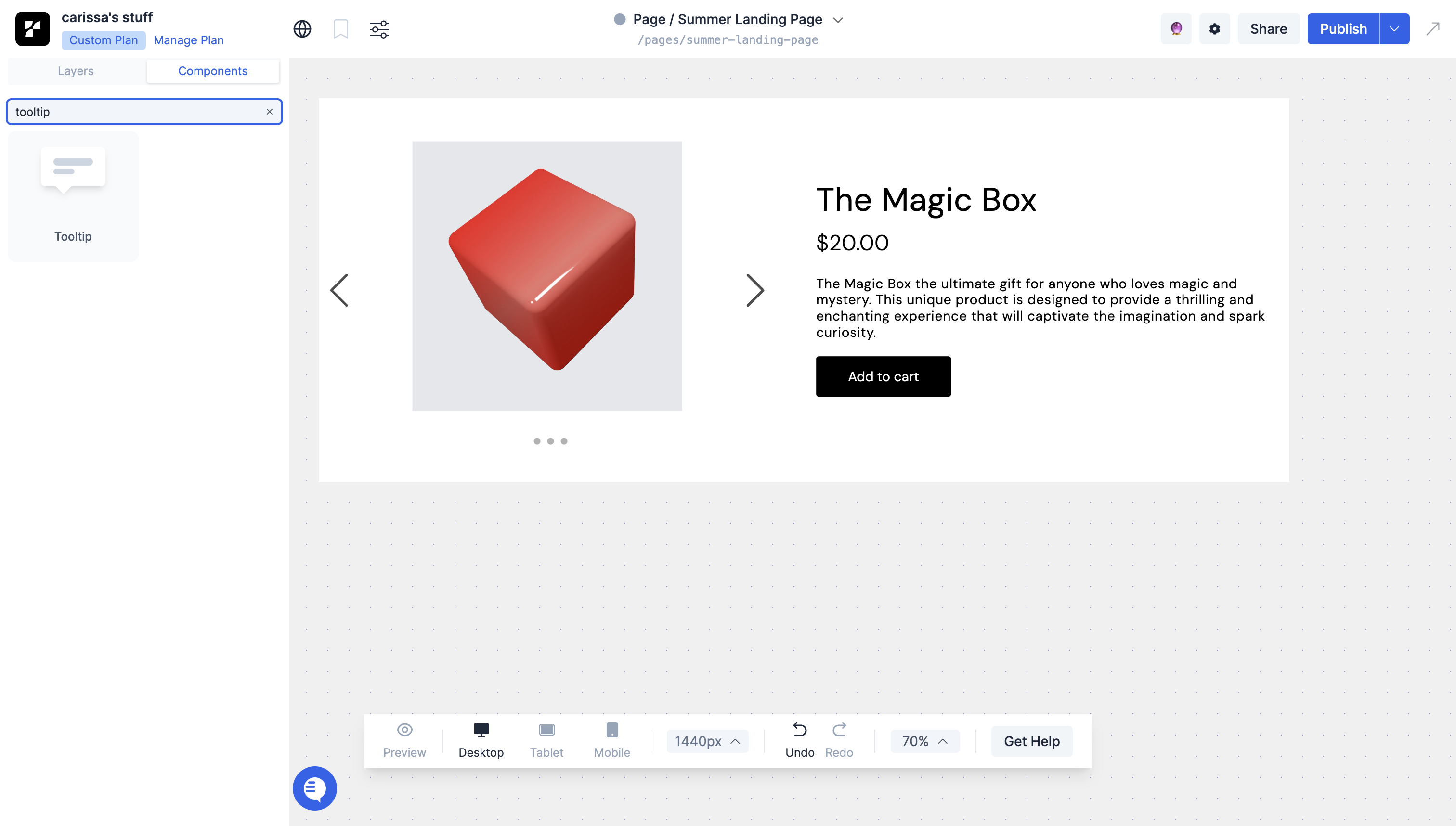
Find the Tooltip component in the component library on the left panel.
Drag the Tooltip onto your page.
From an existing element:
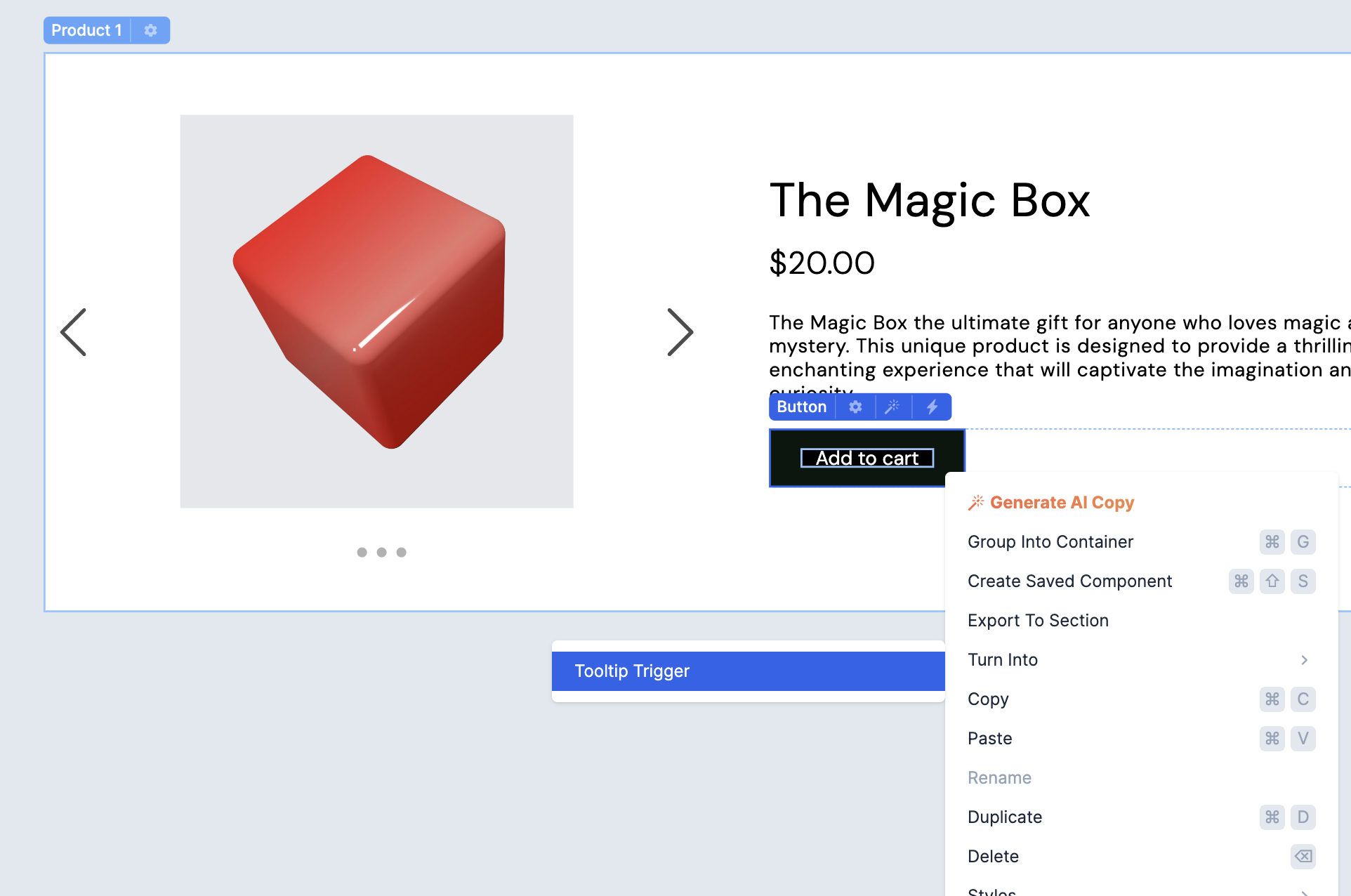
Right-click the element you want the tooltip to appear on.
In the dropdown, hover over “Turn into” and select “Tooltip Trigger” in the pop-out menu.
This element will automatically be grouped with the tooltip into a Tooltip Wrapper container.
To Show/Hide the tooltip while editing
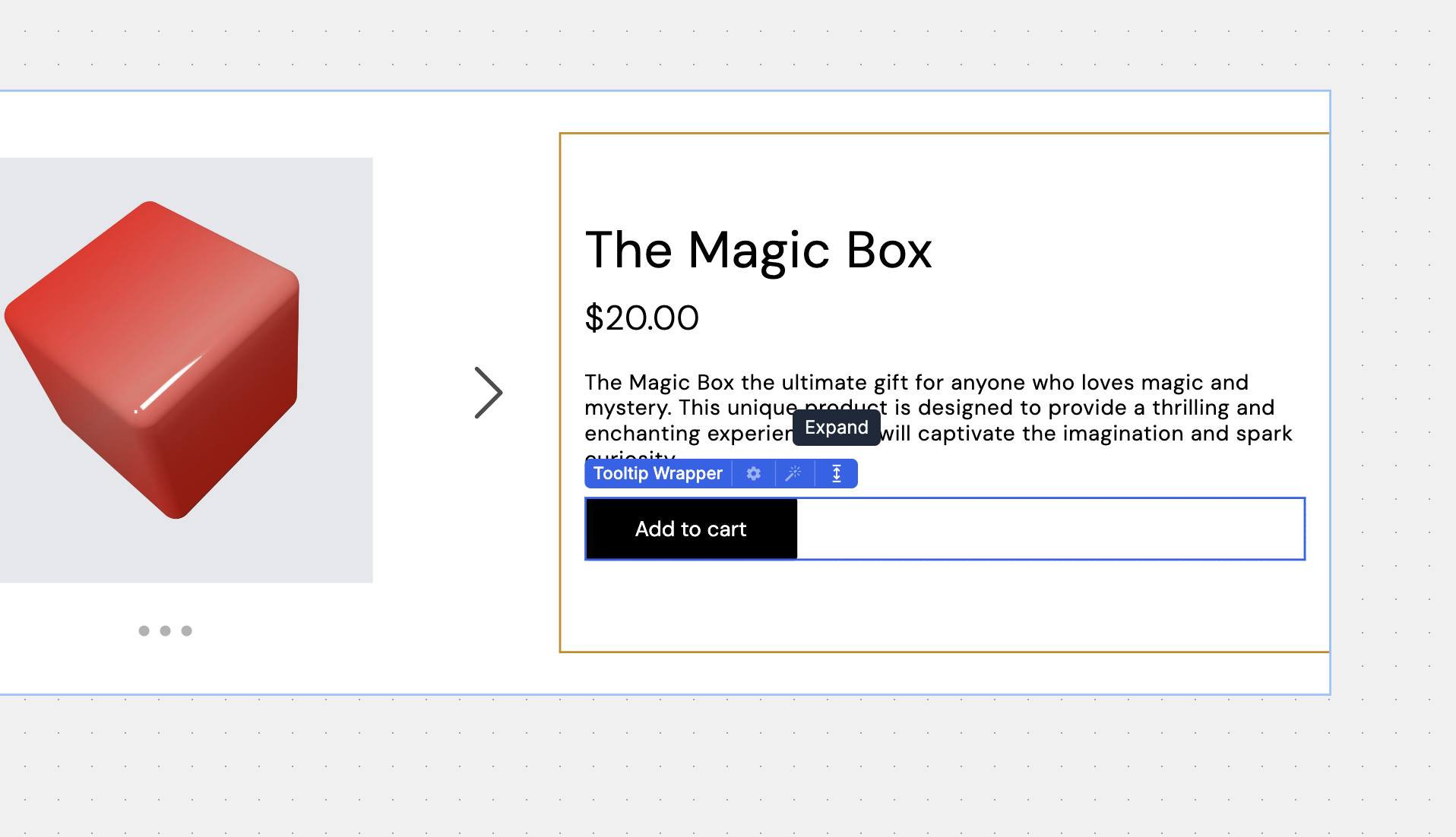
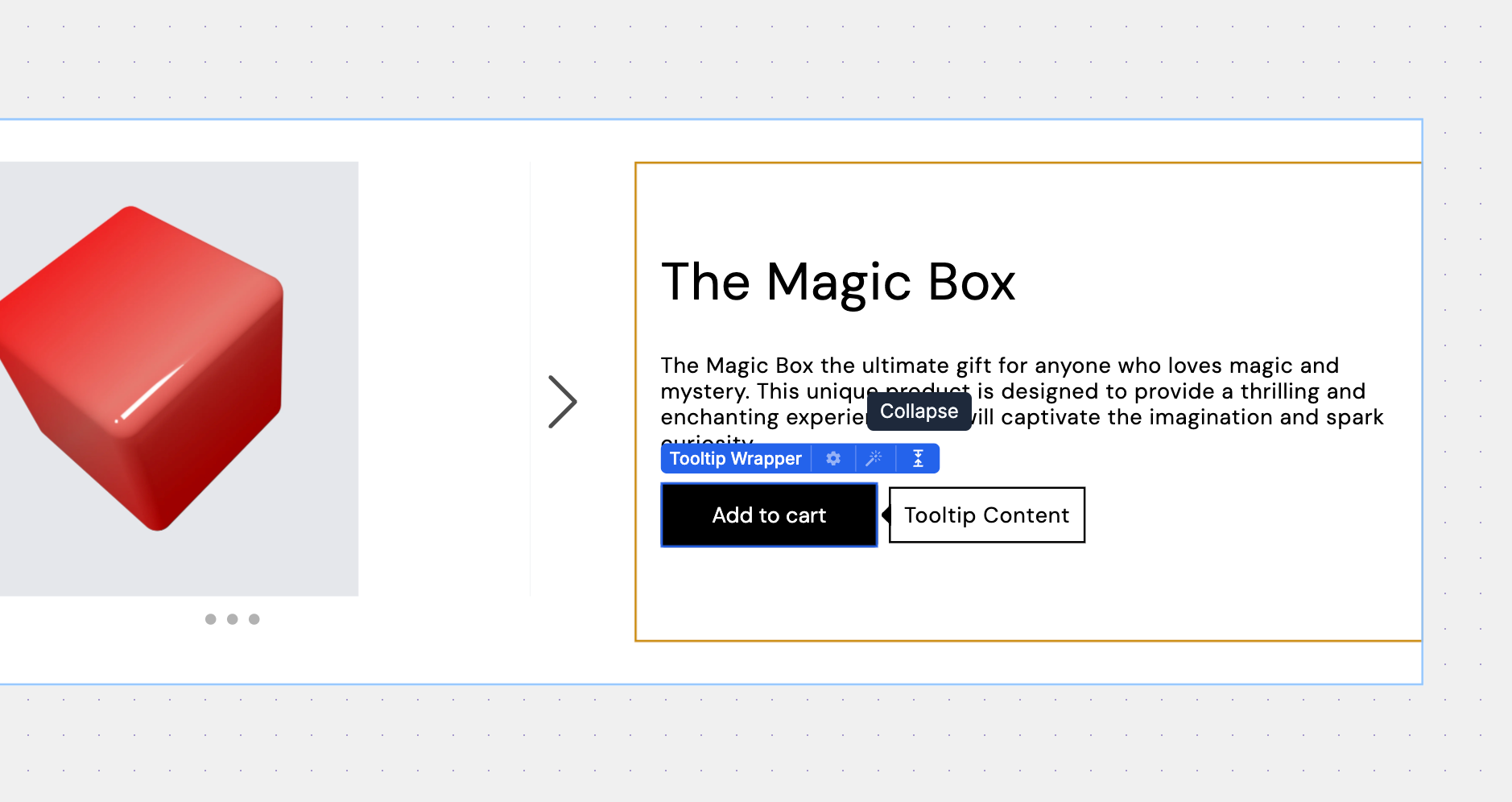
Click on the Tooltip Wrapper container.
On the top left corner of the container, click on the Expand/Collapse button.
Tooltip Configurations
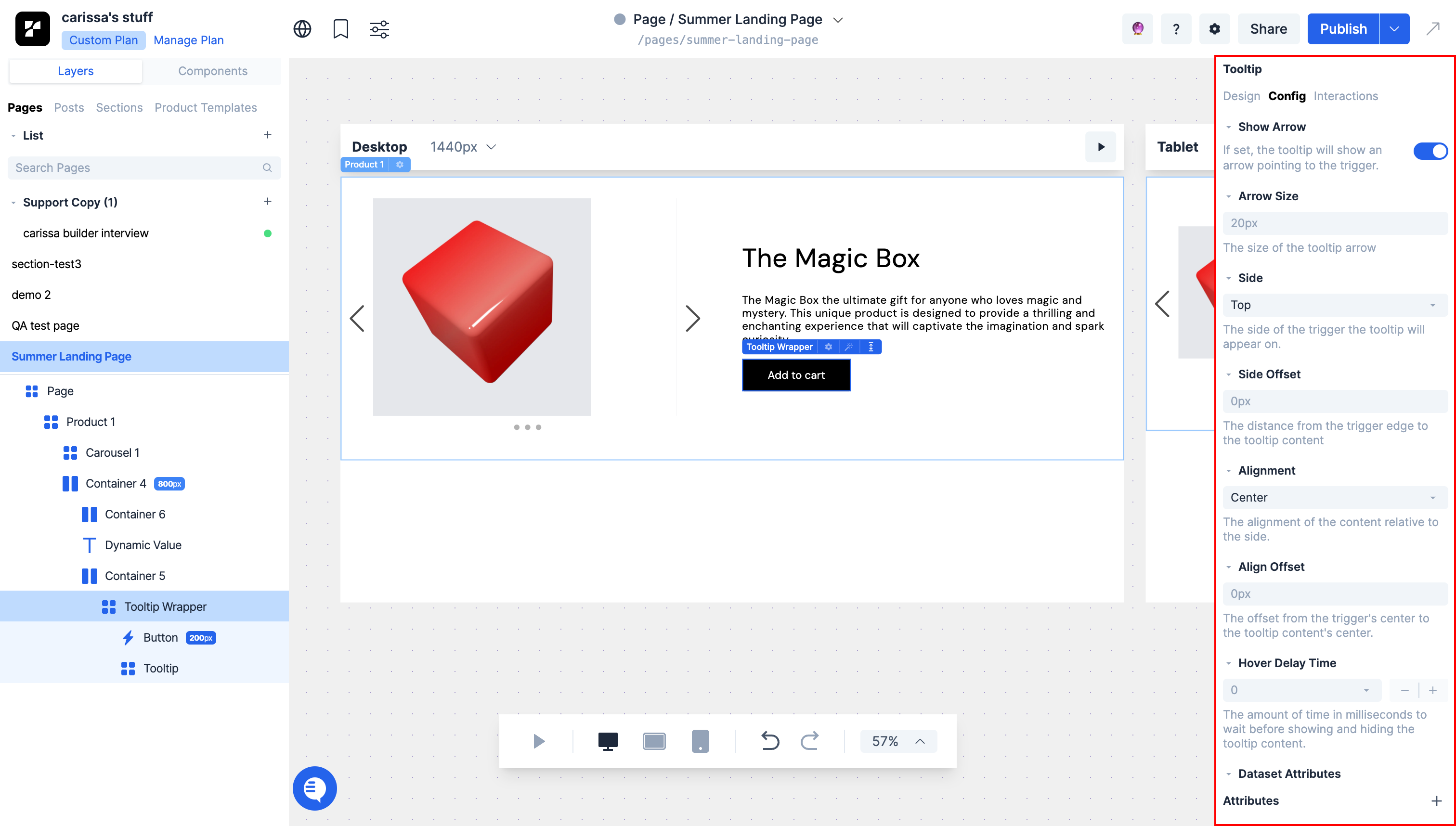
Arrow
Show/Hide Arrow: Show or hide the tooltip's arrow. By default, we show the arrow.
Arrow Size: Adjust the size of the arrow.
Side
Side: Choose which side of the container the tooltip will appear on.
Side Offset: Adjust how far away the tooltip will appear from the selected side of the container.
Alignment
Alignment: Choose how the arrow aligns to the container relative to the selected side
Alignment Offset: Adjust the distance of the tooltip's center from the alignment position.
Hover Delay
Adjust the amount of time it takes for the tooltip to appear after the user hovers over the component