Shopify Product Collection
Last updated: May 13, 2025
The product collection component makes it easy to display multiple products with the same styling. Instead of having to manually style each product, you only have to edit one component. Saving you time and ensuring a consistent design across any product collection.
How it works
The product collection component contains one product component, which acts as a blueprint for all products in the collection. Any changes made to this product component are automatically applied to every product displayed, eliminating the need for repetitive styling. You also have the ability to configure which products are displayed as well as the order in which they appear.
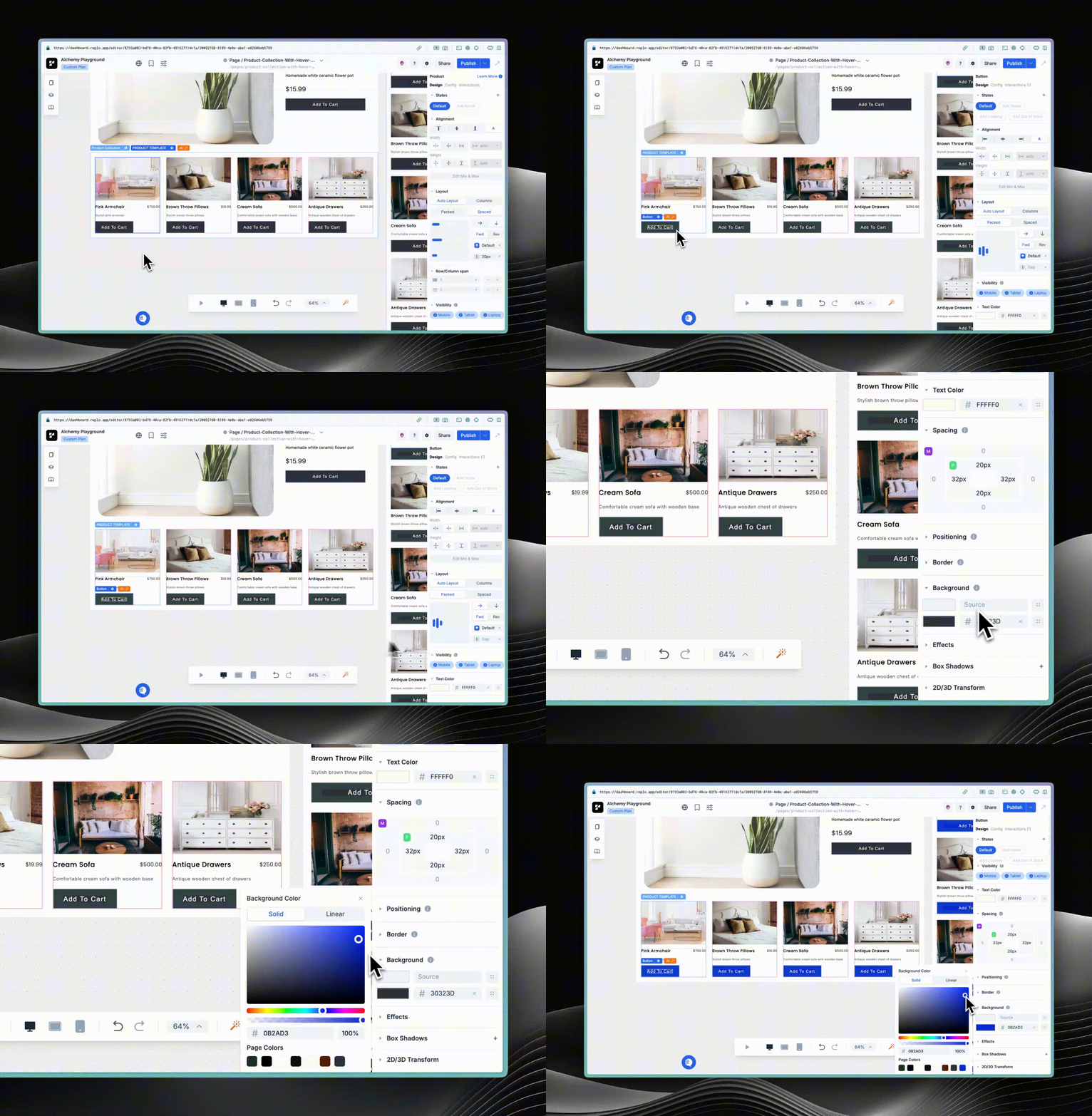
Adding the product collection component
Open the components library on the left side of the editor, and add the product collection component into the canvas.
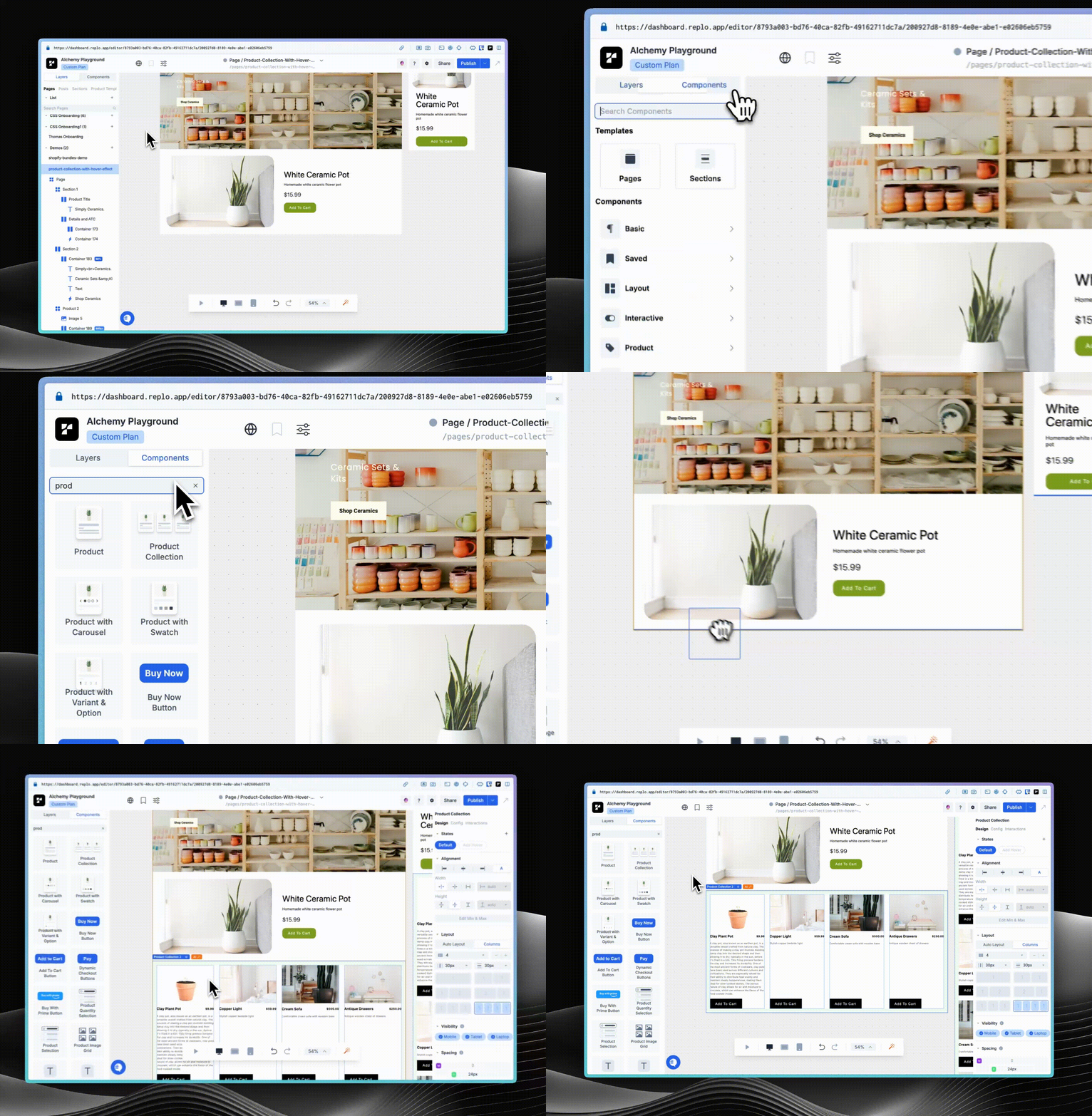
Configuring products
You can add, remove, reorder, and select which products are displayed in the collection. To configure products, select the product collection component by clicking the component in the canvas or in the layers section. Then open the config tab on the right side of the editor. You can find the list of products displayed, under the Products section.
Adding products
To add products:
Click on the plus icon located at the top-right corner of the Products section.
Search for the product either using its name or the product ID.
Click on the product from the search results to add it to the list.
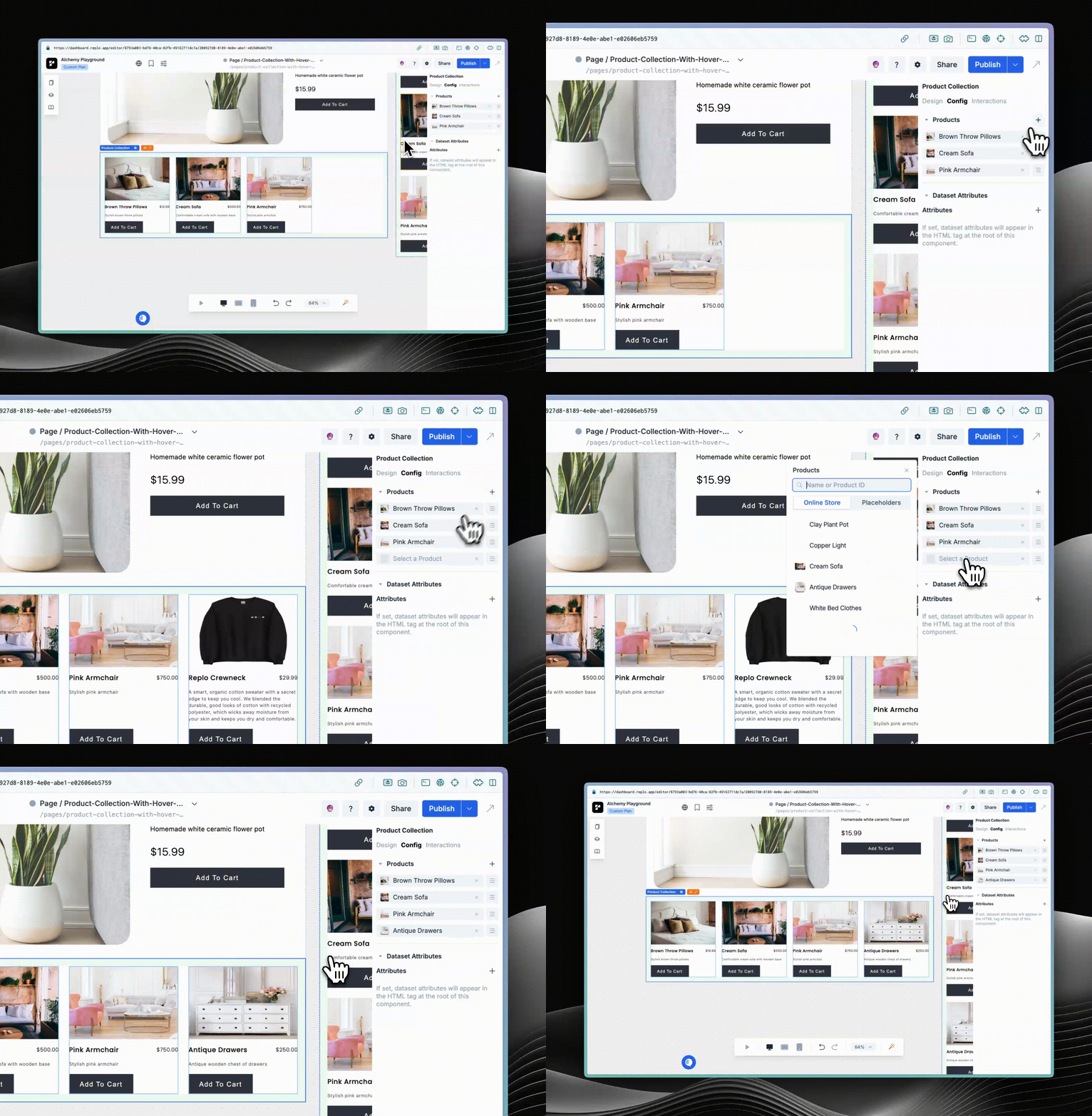
Removing products
Use the X icon next to each product's name to remove products.
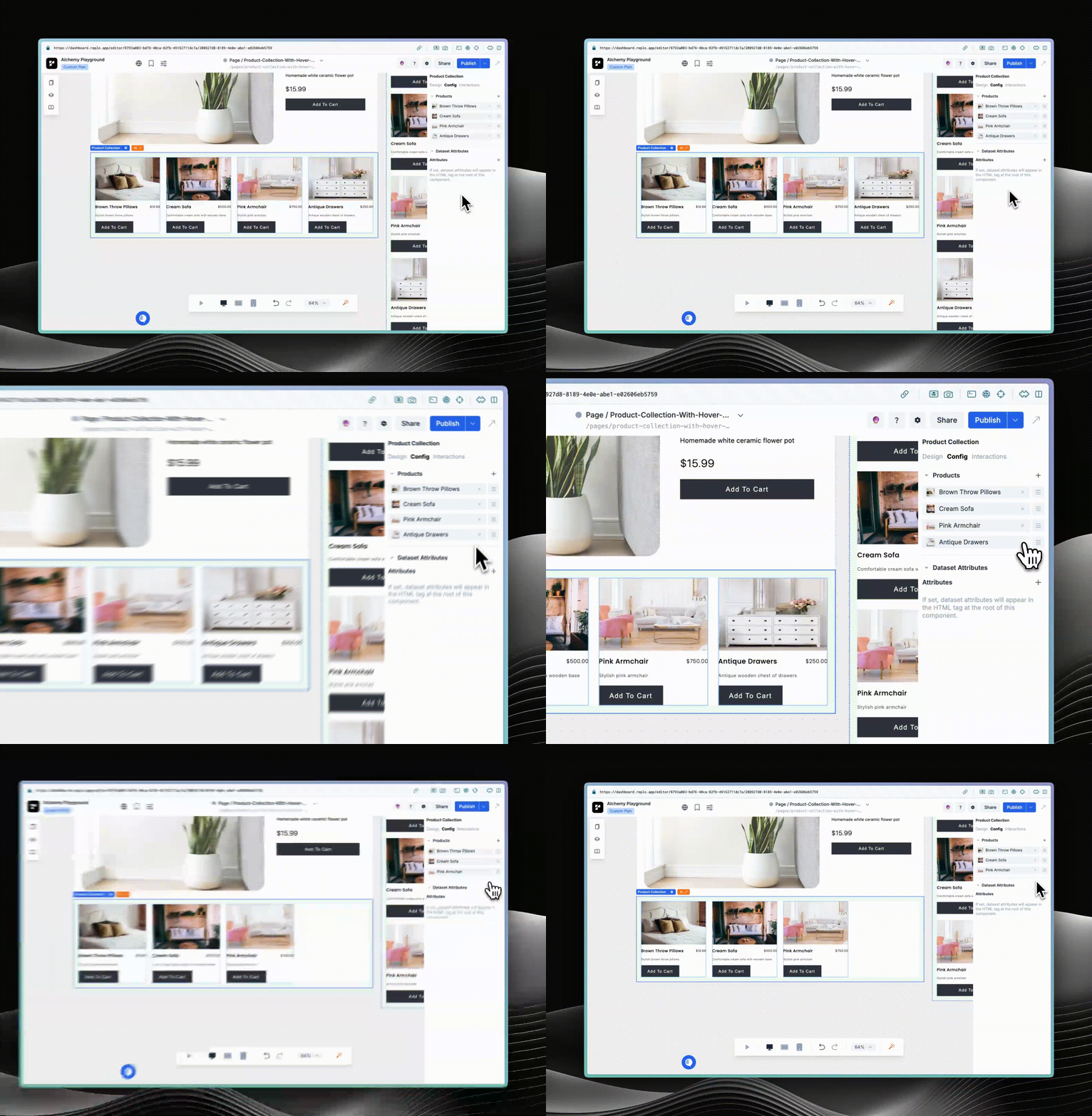
Reordering products
To reorder products, use the menu icon next to each product's name to drag and drop it to the desired position
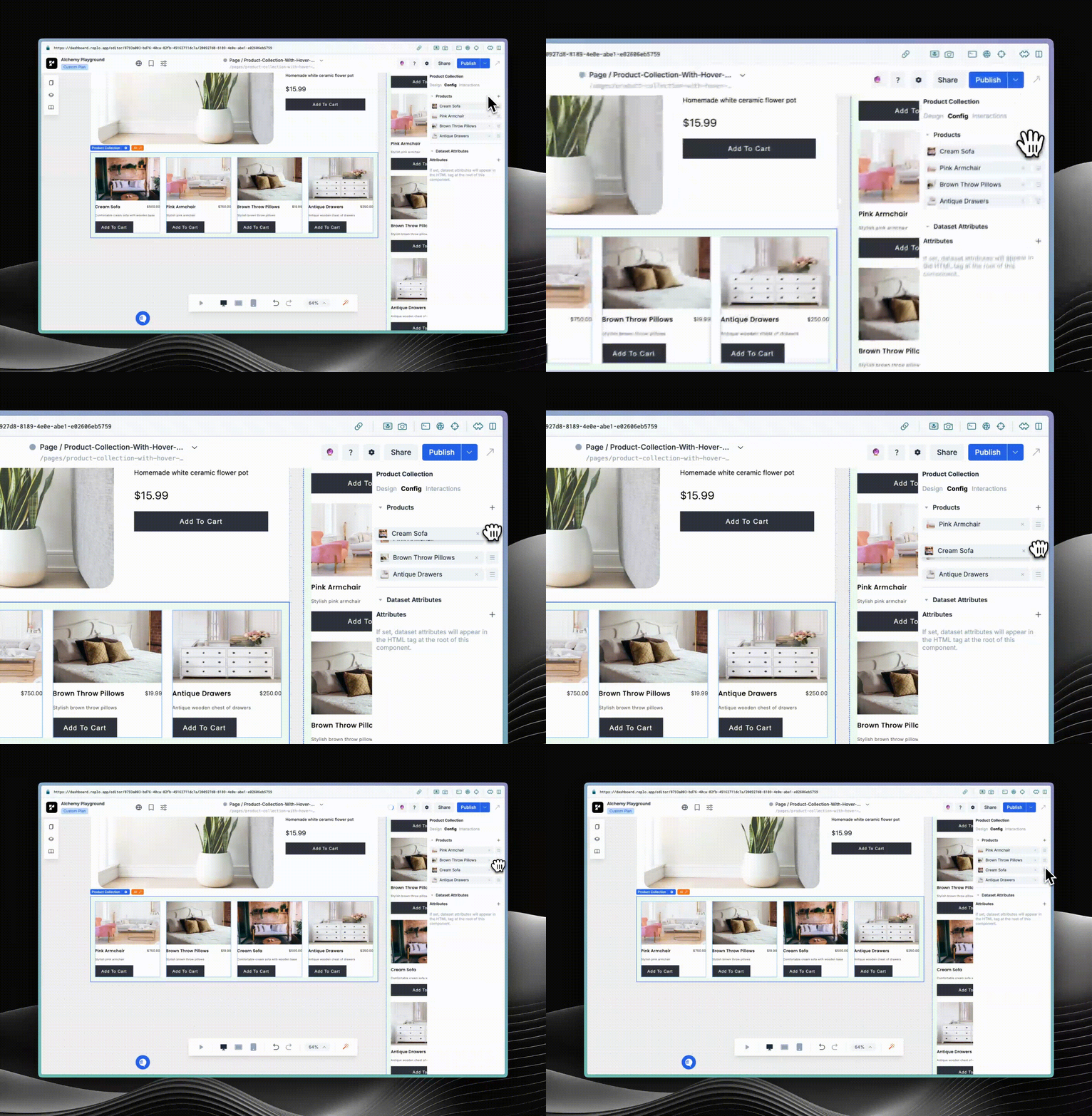
Changing products
To change which products are displayed:
Click on the product you want to change.
Search for the product either using its name or the product ID.
Click on the product from the search results in order to change it.
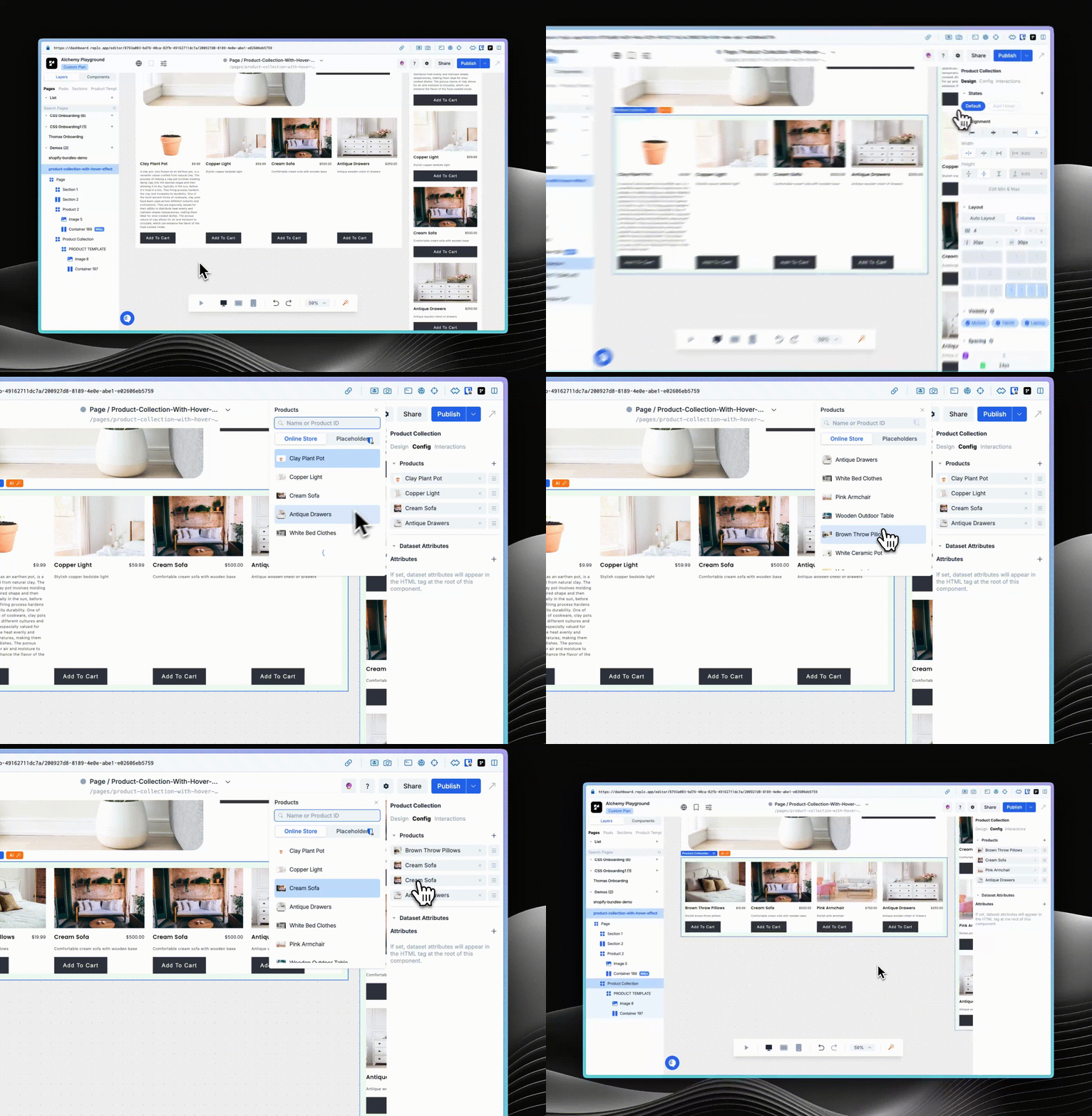
Troubleshooting
Liquid Integrations
Some integrations rely on liquid code which assumes the product liquid variable which is set, which might not be the case in all product collection components in Replo. If you see integrations not showing inside some products but not others, for example 📄 Shopify Product Reviews integrations, your review provider may rely on liquid rendering.
In this case, you can create a 📄 Containers filled with individual 📄 Shopify Product Components which you copy and paste, instead of using the Product Collection component directly.