Images
Last updated: March 28, 2025
In Replo, you can upload and use many types of images and videos — logos, product photos, hero banners, blog visuals, slideshows, and more.
You have full control over how images appear. Replo’s editor allows you to crop and resize images. Replo automatically handles image optimization through our content delivery network (CDN) to keep your shop fast and responsive.
Supported Types
You can upload images, videos, and fonts to Replo. Below are the file types we support and the maximum file sizes allowed.
Images
The maximum supported image size is 10MB.
png, jpg, jpeg, webp, svg, gif
Videos
The maximum supported video size is 250MB.
mp4
Fonts
woff, woff2
If your file is too large, try compressing it before uploading. Make sure the file extension matches one of the supported formats. Note that Replo will automatically optimizes all your images into webp format.
Uploading Images into Replo
Open the Asset Library in the left panel or at the image modifier.
Drag and drop your images/video into the drop-zone.
Setting the Image Source
Initially, an image will be empty and display a placeholder icon.
To Set the Image Source of an Image
Select the image you want to edit.
Under "Image Source" in the right panel of the editor, click "Select Image".
Click "Select Image" to open the Asset Library.
Select the image you want to use, or enter a URL to use an image from outside of your Shopify store.
Click "Insert Image" to set the image source
Why upload images in Replo?
We recommend uploading images directly into Replo instead of copying/pasting a URL of the image or using an image from one of our integrations (e.g. Shopify).
1. Automatic Format Conversion We automatically convert images to WebP, even if you upload images in other formats (e.g. PNG, JPEG). If a browser doesn’t support WebP, we serve the original format.
2. Compression & Resizing Images are automatically compressed and resized based on the user’s device, balancing quality and speed.
3. Global Caching Images are served from our global network in over 300+ cities, reducing latency and ensuring fast load times worldwide.
Image Positioning and Alignment
Images can be configured to cover or stretch to their box's size using the image controls in the right-side editor panel. To edit the positioning of an image, click on the image preview displayed under "Image Source", then use the controls there to control the positioning.
✨ Images in AI
When you use Replo to build and edit your pages, Replo automatically uses images you've uploaded into the Assets Library in all its edits. Replo will automatically apply the most relevant images from your library to your page based on your AI prompts.
Accessibility
Alternative Text
Setting the alternative text (alt-text) of an image is important for your page's accessibility (e.g. for screenreaders). To set alt text, click on the image preview displayed under "Image Source", then use the field there to input the alt text.
Presentational Images
If an image is purely decorative and should not be included in the accessibility tree or read to screenreaders, you can set the image to be "presentational." To do this:
Select the image you want to make presentational
Under "Accessibility" in the right bar, toggle "Accessibility Hidden" to on.
This means Replo will add an empty alt-text and a presentation role to the image, in accordance with the Web Accessibility Initiative's recommendations.
Different Images on Mobile
Replo supports setting a different image on the same component on different device sizes. To add an image for a specific device size, simply toggle to that device size in the editor header, then edit the Image Source normally. See Responsive Design for more information.
Lazy vs Eager Loading
Images Eager load by default in Replo but you can update this setting in Image configuration’s Loading dropdown:
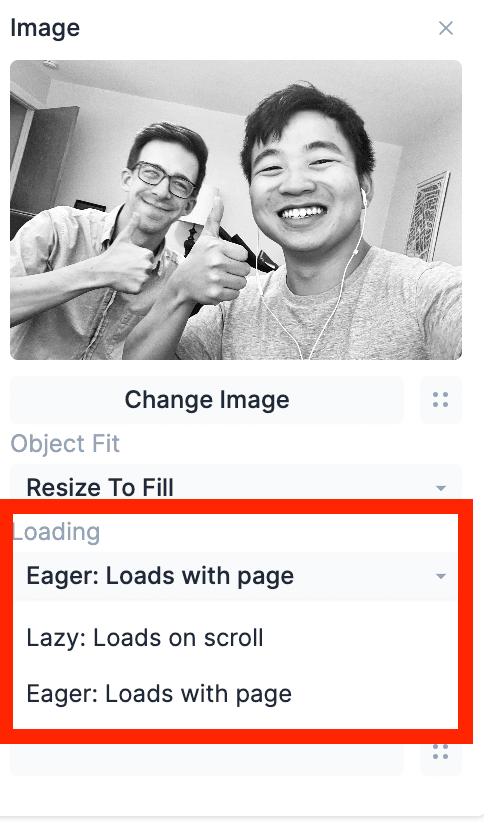
Lazy loading images can improve page speed by deferring the loading of non-critical resources until they are needed. Eager loading may be preferred when the images are small, located above the fold, or the number of images is low. Ultimately, the choice to use Lazy or Eager loading depends on the specific needs.
Browser-specific issues with Lazy Loaded Images
Lazy loading of transformed images (i.e, an image which was rotated using the "Transform" option in Replo) can fail to load in Chrome and Chromium based browsers. This is a bug within Chrome. If a lazy loading image is failing to load, removing any transforms on it may fix this issue - please reach out to [email protected] if you need help verifying whether this is the case.
SVG Images
Replo supports Scalable Vector Graphics (SVG) images. SVG images can scale to large sizes without becoming blurry or using a large file size, which makes them perfect for logos, icons, geometric shapes, and much more. SVG images can be exported from popular tools like Adobe Illustrator, Figma, and Sketch.
To use an SVG image, simply upload the SVG file to the Asset Library when choosing an image. You can adjust the image component's width and height in Replo, and the SVG image will scale to fit those dimensions.
SVGs are not compressible. As such they might have a negative impact on page speed. See📄 Optimizing Shopify Page Speedsfor more info
Animated GIFs
Replo supports using animated GIFs as the source for image components. To use an animated GIF, simply upload the .gif file to the Asset Library when choosing an image. The animated GIF will play automatically in the Replo preview. Animated GIFs can be styled exactly like normal images.
GIFs are not compressible. As such they might have a negative impact on page speed. See📄 Optimizing Shopify Page Speedsfor more info
Shopify Integration
If you have Replo's Shopify integration added to your Replo shop, Replo will automatically pull in images and videos located in your Shopify Files. As of March 27th 2025, you can no longer upload images directly into your Shopify Files.