Workspaces, Shops, and Permissions in Replo
Last updated: December 8, 2025
In Replo, workspaces contain shops. At the workspace level, you can manage permissions by assigning members to your workspace or specific shops.
Workspace: In Replo, a workspace acts as the hub where your team accesses various shops. Permissions and billing are managed at the workspace level.
Shop: A shop in Replo is where you can create pages, conduct AB tests, and analyze shop-specific insights.
Members are part of specific workspaces. They may have access to all shops in a workspace or limited access to a single shop as a guest.
Workspaces in Replo
Workspaces within Replo contain billing tiers, member access, and Shops.
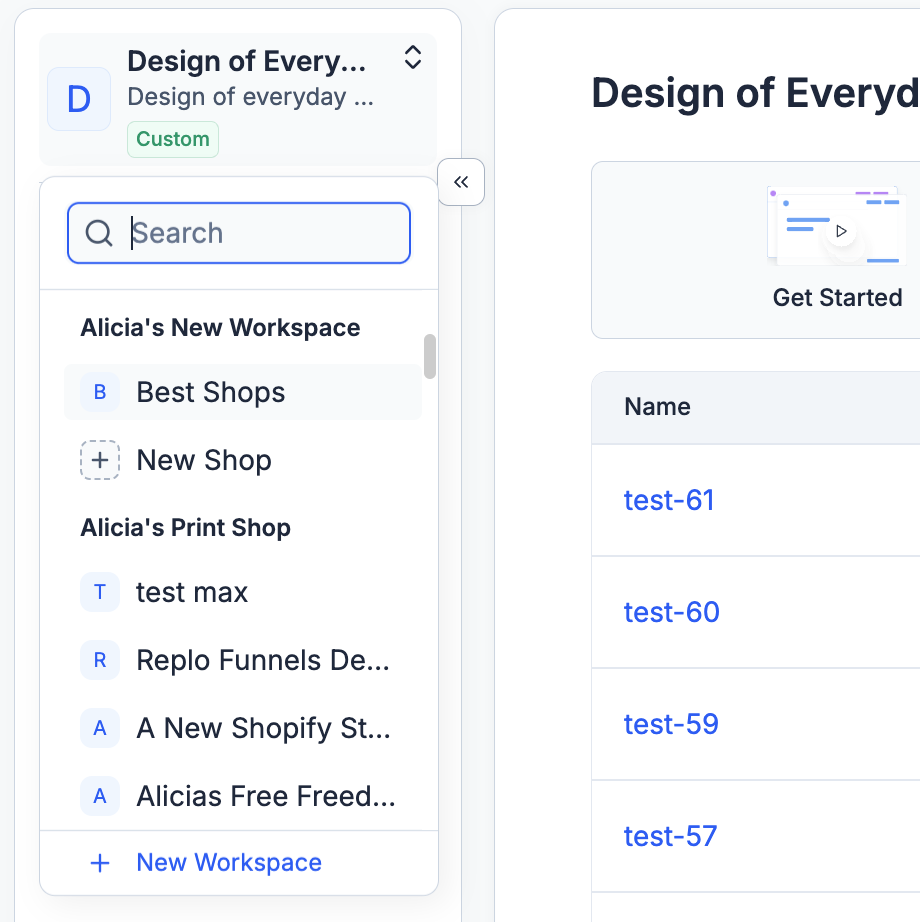
Users can view and navigate through all their workspaces and shops via the dropdown located in the upper-left panel of the dashboard. Shops are grouped by workspaces, which contain both billing and member permissions.
This dropdown is also where users can create a new workspace or shop.
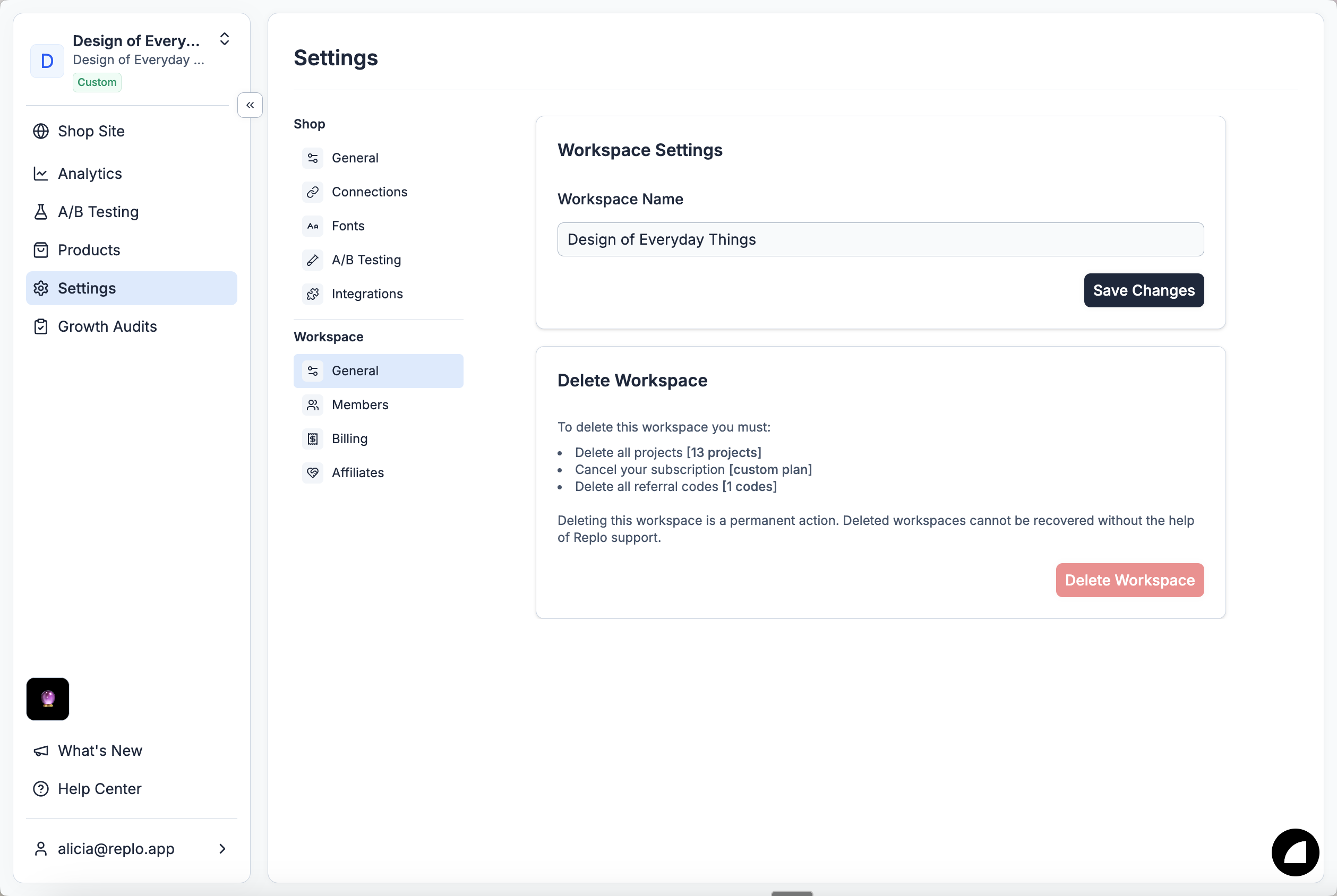
Workspace Settings
General
In the workspace general settings, you can update the workspace name and delete the workspace.
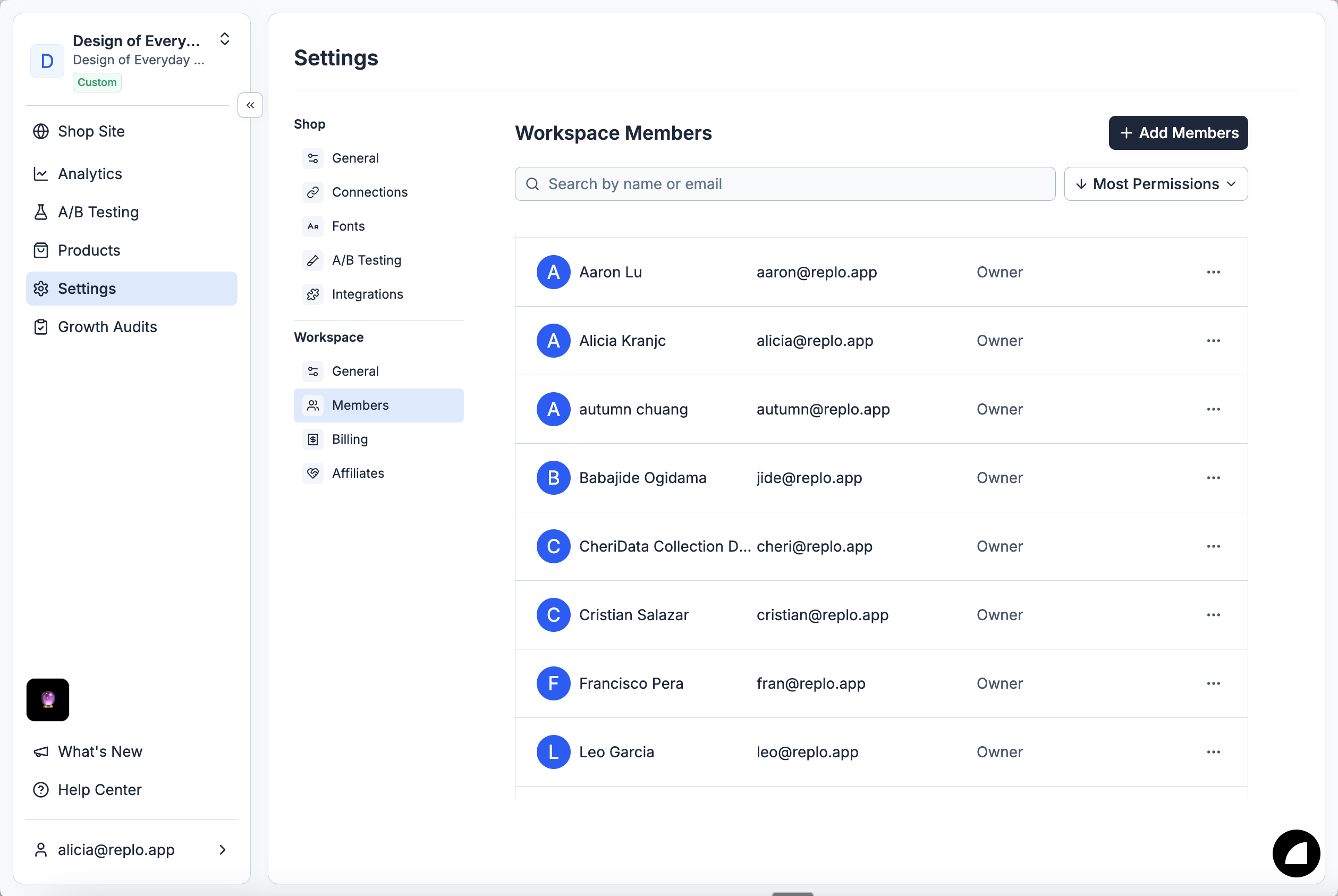
Workspace Members
On the Workspace Members tab, users can perform the following actions:
View all members that belong to a workspace or individual shops.
Add new members to the workspace or a specific shop.
Remove members from the workspace or a specific shop.
There are two permission tiers available at the workspace level:
Owner: Owners have access to all actions, including shop or workspace deletion and billing management.
Member: Members have access to view and edit all shops that belong to the workspace.
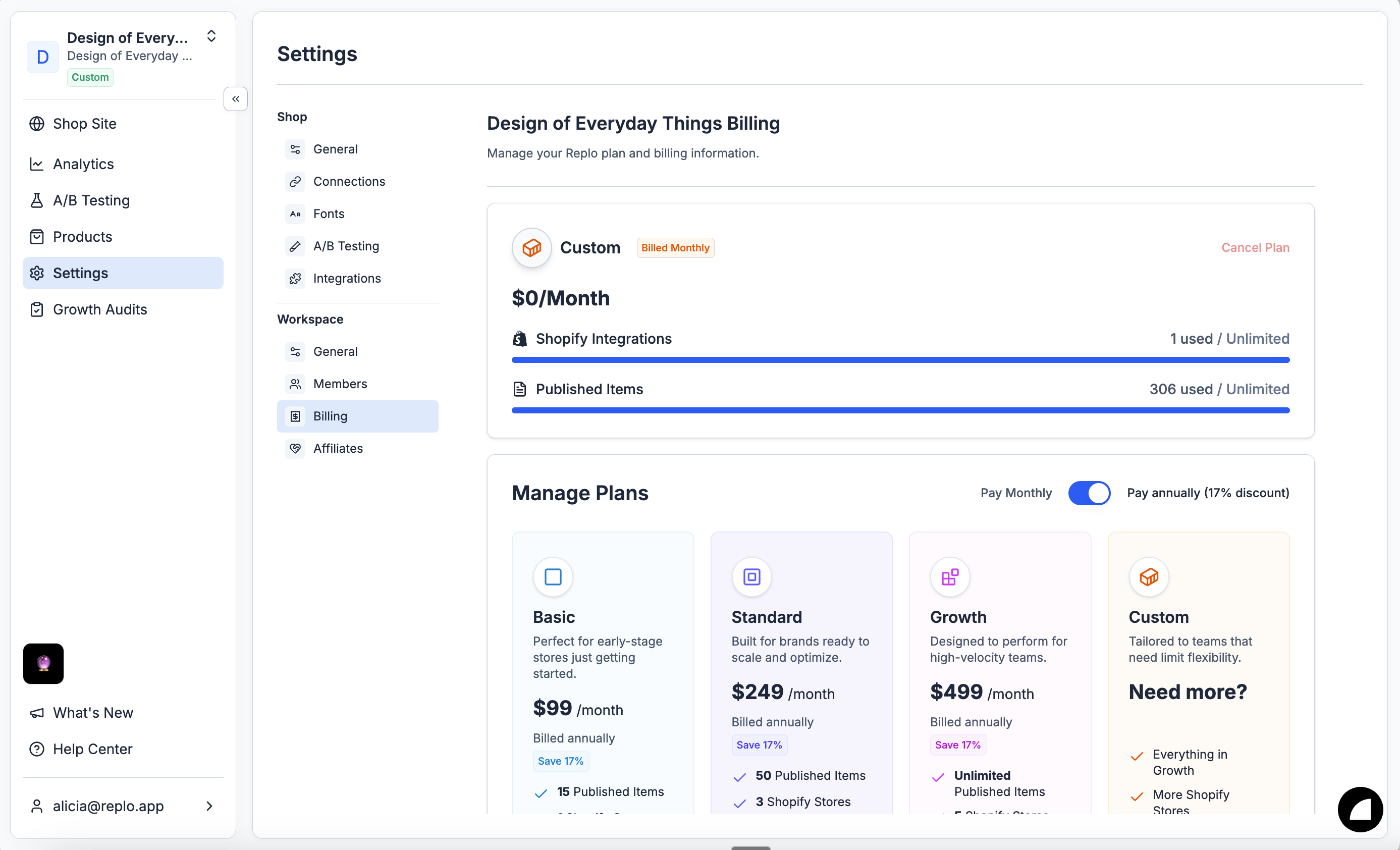
Workspace Billing
On the billing tab, workspace owners can manage the overall billing plan for that workspace. Here users can upgrade, downgrade, or cancel their plans.
Affiliates Program
Read more about the workspace-level affiliates program in our docs here.
Shops in Replo
Shops are the core collaboration space within Replo. Shops relate to a single online storefront, where customers can manage their site pages, products, A/B tests, and insights.
Typically a Shop is equal to a singular Shopify integration, which can be manage in the settings.
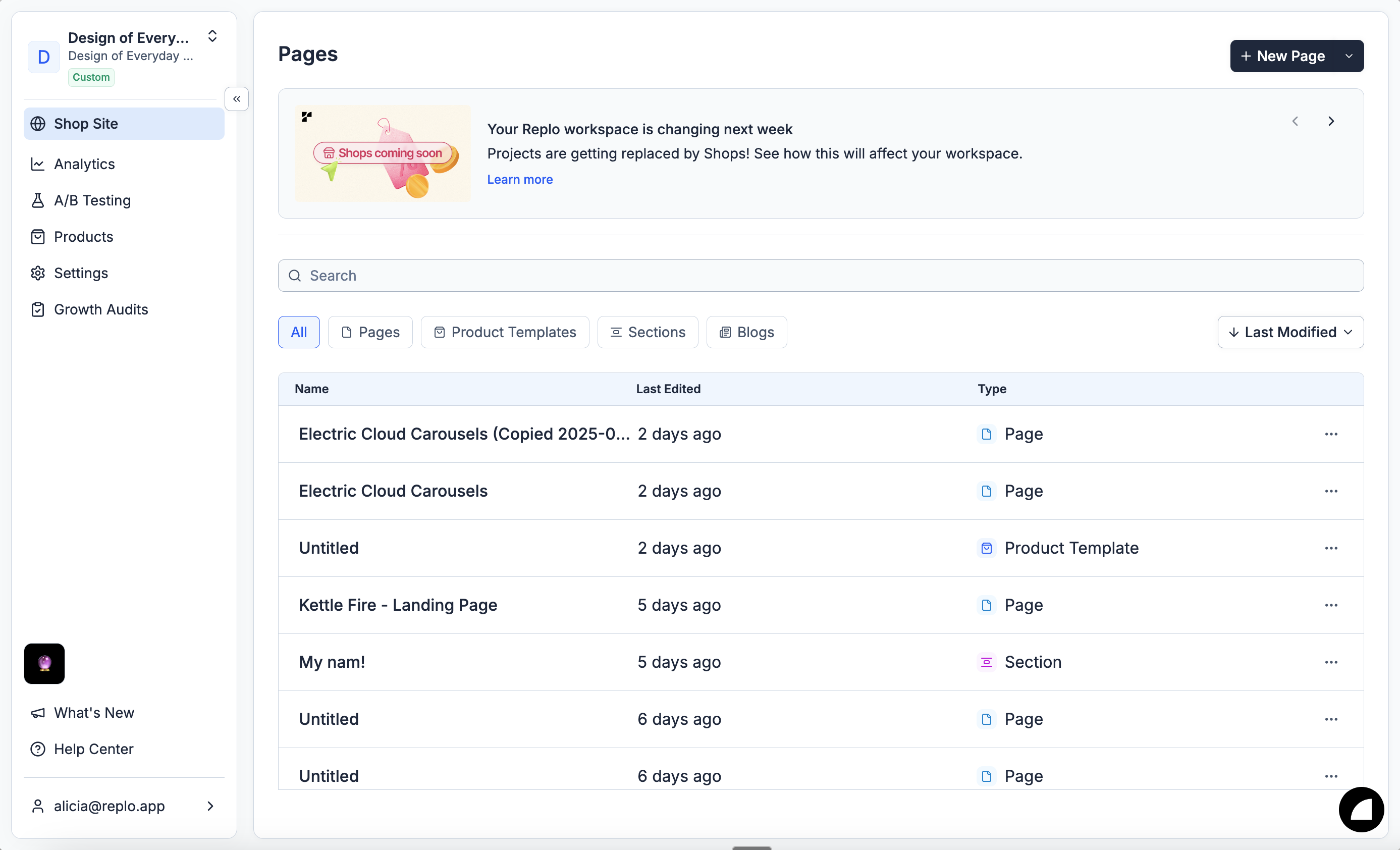
Shop Settings
In the shop settings, teams can configure important details about their shops, such as operational settings and preferences.
General
In the general settings for the shop, you can customize the shop’s name, set the preferred timezone, and define the currencies in which shop data will be displayed.
Additionally, you can transfer shops between workspaces or delete them, if necessary.
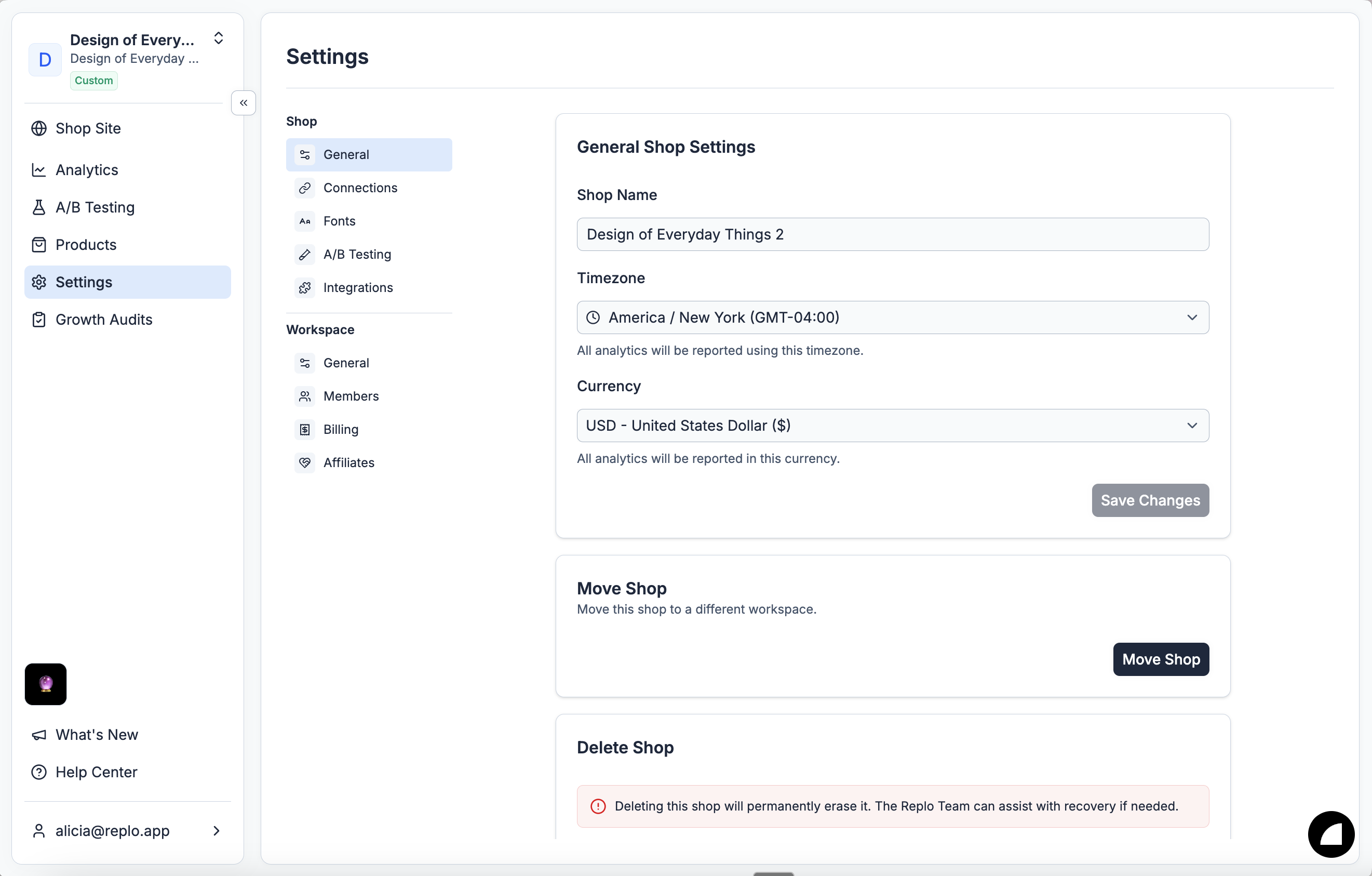
Integrations
Integrations is where you can manage your Shopify integration inside of Replo.
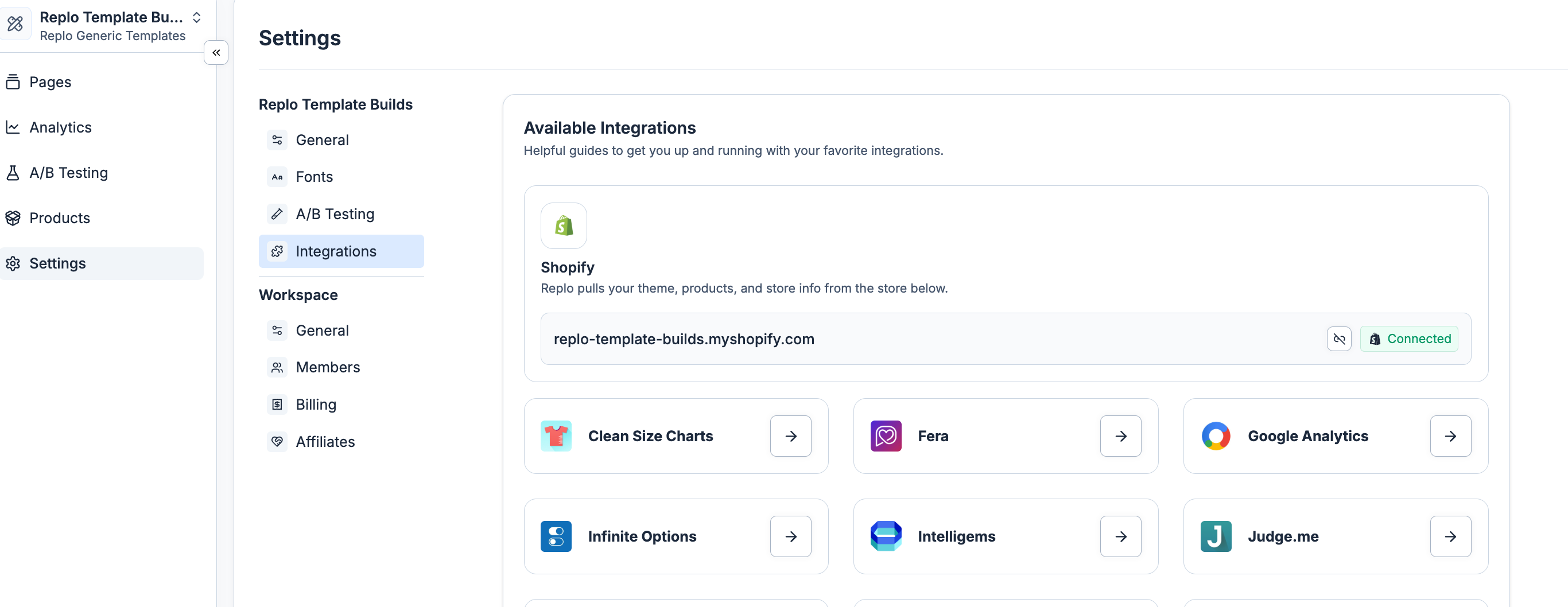
Fonts
Once you upload fonts within the settings, these fonts can be used for your Shop in the editor.
AB Testing
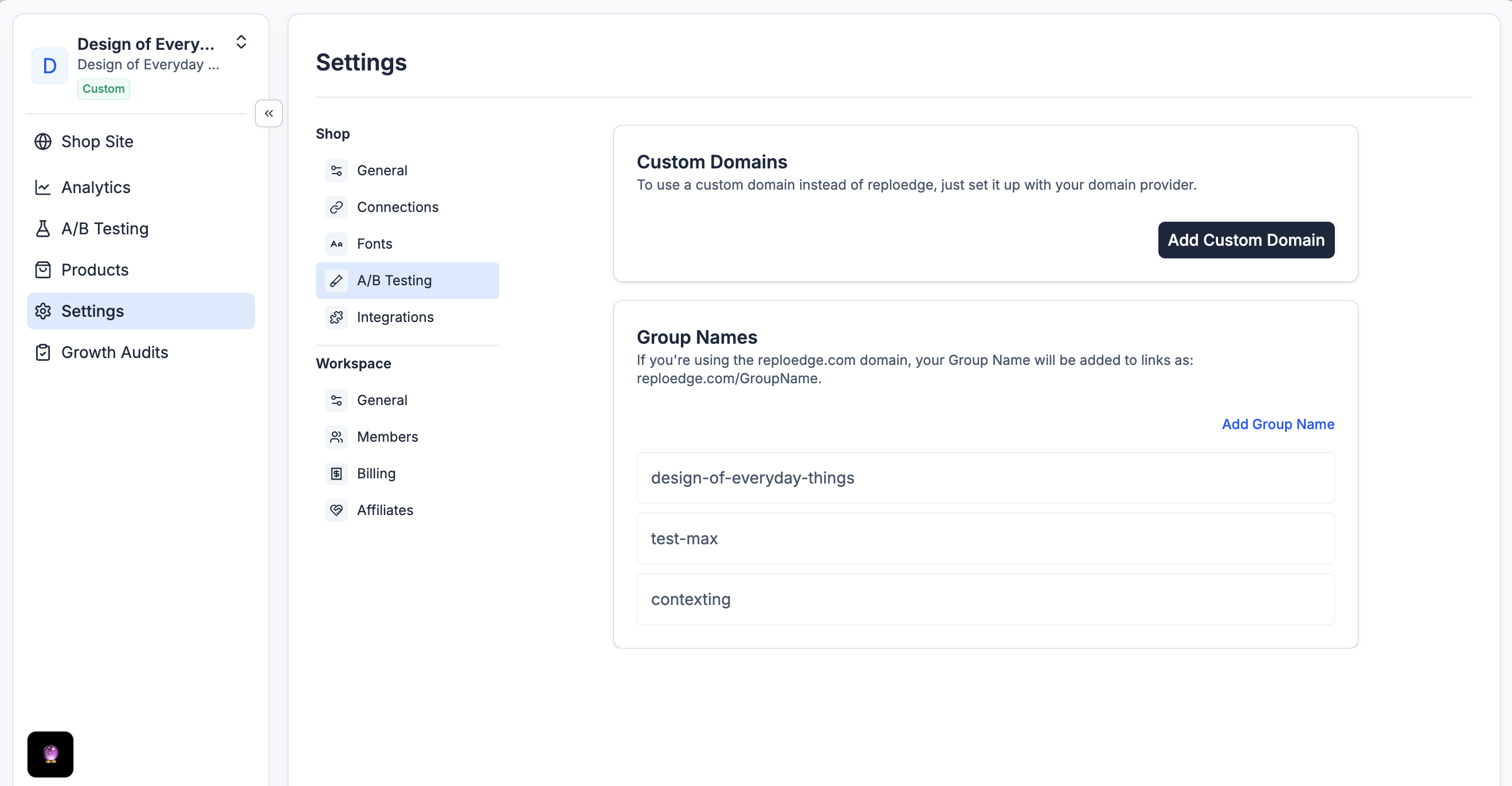
AB testing settings allow customers to customize their testing split links by adding custom domains and group names.
Integrations
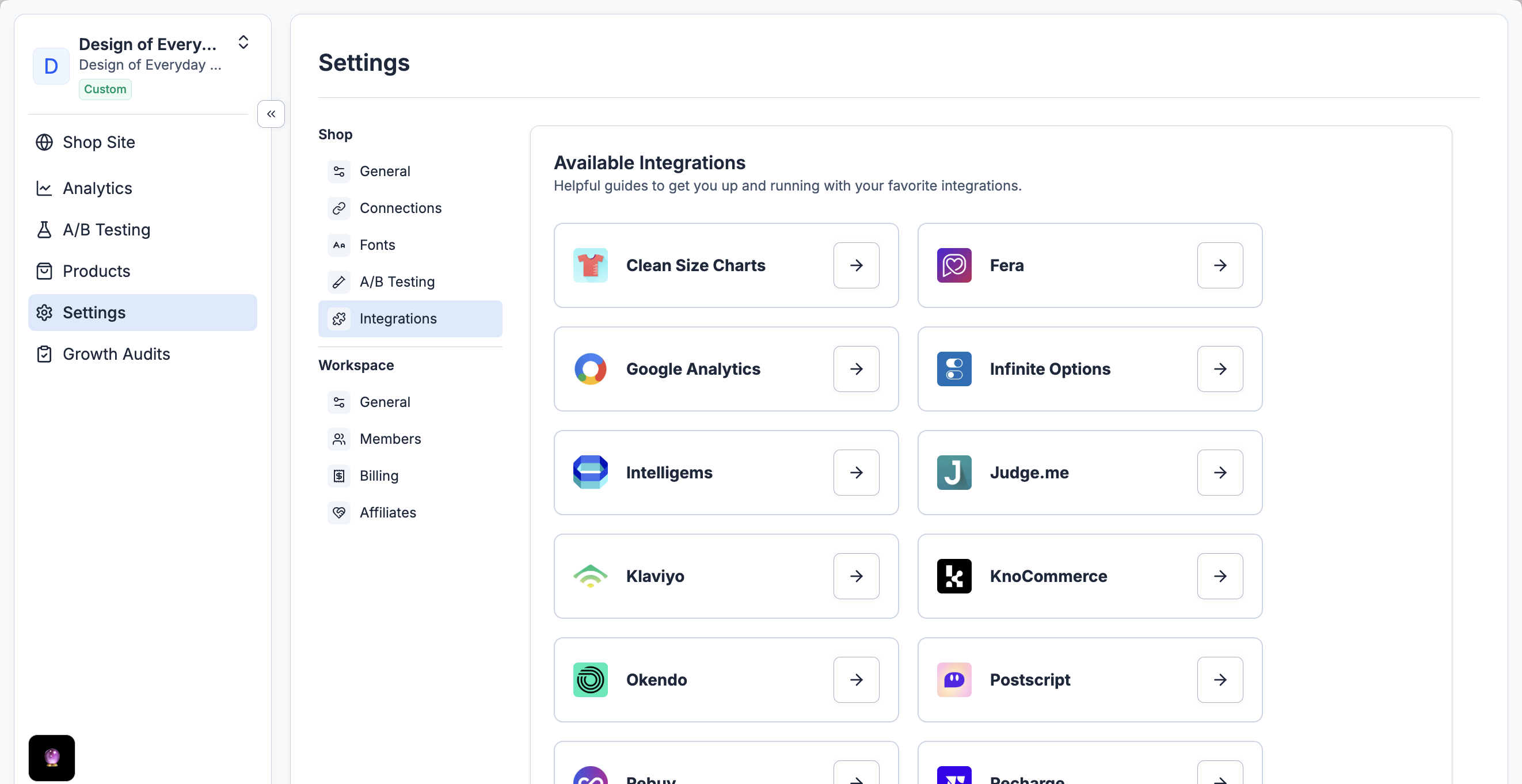
The integrations space within shop settings is to view and read about the available integrations for your shop.
Sharing Individual Shops
To share an individual shop with a user who doesn't belong to your workspace, select the Share button in the upper right-hand corner of the Editor. They will ONLY have access to that shop and the shop's details, not all the shops in your workspace.
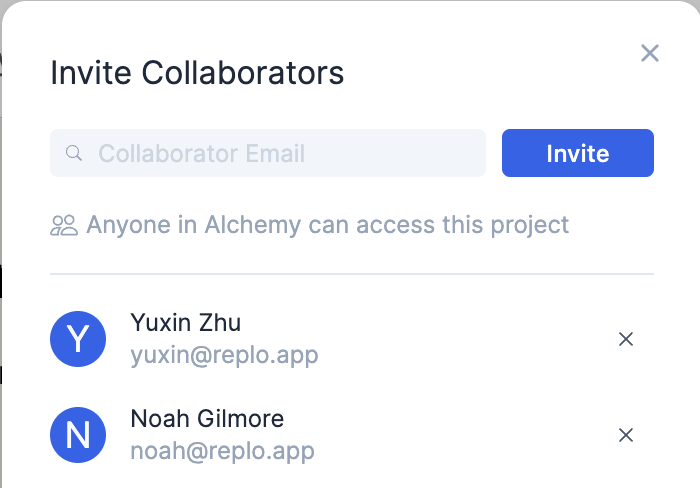
There is no limit to how many collaborators you can have in your shop. There is also no limit to how many shops your user account can be a member of. If you don't have access to the shop, you'll be informed by an error message telling you to reach out to the owner for an invitation.
Moving Replo Content across Shops
Many users will reuse content across multiple shops. Doing so is as easy as copying the components from one shop page and pasting them into another. This can be done for a full page, a whole section, or a single button needing to be reused.
Although content can easily be moved, it's important to know there may be rendering or styling differences caused by variations across the different stores' Shopify themes.
Moving Replo Shops to a Different Workspace
Requirements
Role: The ability to move shops is exclusively available to workspace owners. See 📄 Permissions in Replofor more info on workspace roles.
Step-by-Step Guide to Moving Shops
Check Shop Limit: Before attempting to move a shop, it's important to verify the shop limit of the target workspace. Each workspace has a set number of allowable shops which could affect your ability to move a shop seamlessly. You can see more about the shop limits in our Pricing Documentation.
Initiate Shop Transfer: Head to the shop settings of the workspace you wish to move. Under shops general, there is an option to move the shop.
Keep in mind that a shop only counts towards your usage limit when you have a published item inside it. If you do not have any published items in your Shop it will not count towards your billing.
Also, if you are moving a shop from a Shopify billed workspace, you'll need to cancel the subscription on the workspace first. This is because Shopify billing is integration based, meaning, a Shopify store is directly mapped to a workspace; Compared to Stripe billing which is shop based.
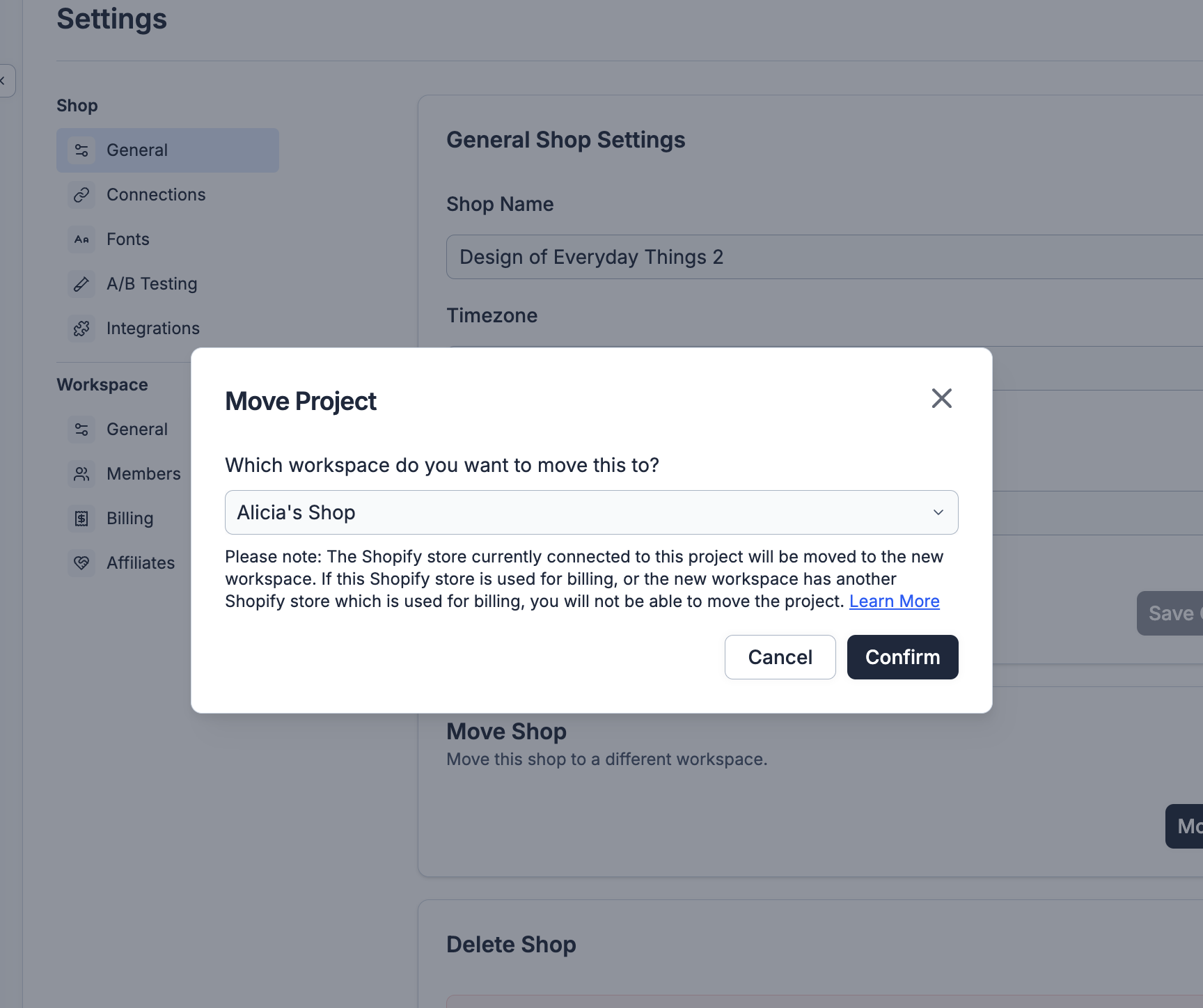
Select the Target Workspace: After initiating the move, you will be prompted to select the new workspace where you want the shop to reside. Make sure this workspace has the capacity to handle additional integrations. You can see integration limits based on plans in the Pricing Tiers documentation.
Confirm the Move: Review all details and confirm the move. It’s a good practice to notify any team members who might be affected by this change to avoid any workflow disruptions.
Handling Errors
Integration Limit Errors: If the target workspace cannot support additional shops, you might encounter an error message. In such cases, consider upgrading the shop capacity of the target workspace.
Shopify Billing Errors: If the target workspace is billed for Replo via a different Shopify store, or the shop you're trying to move is connected to a Shopify store used for billing, you won't be able to move the Shopify integration.
Pricing
Replo is free to use where you can create and publish as many non-published pages/blogs/sections/templates as you'd like. We only start charging once you publish your first page (or blog/section/template). Replo plans are per-workspace (development stores are free). More info can be found at replo.app/pricing.