Publishing Your Pages
Last updated: January 11, 2026
The greatest value Replo brings to your ecommerce operations, is the ability to publish new pages to your Shopify site with a click of a button. You can push an idea you've hand in Replo to all of your site's visitors via the Publish button, or you can generate a preview for internal stakeholder sign-off before launching.
In order to publish pages, you'll need to connect your Shopify store to your Replo project. See 📄 Shopify Integration for more info.
Publishing a page
After navigating to the page you want to publish in the Replo editor, follow these steps to publish the page:
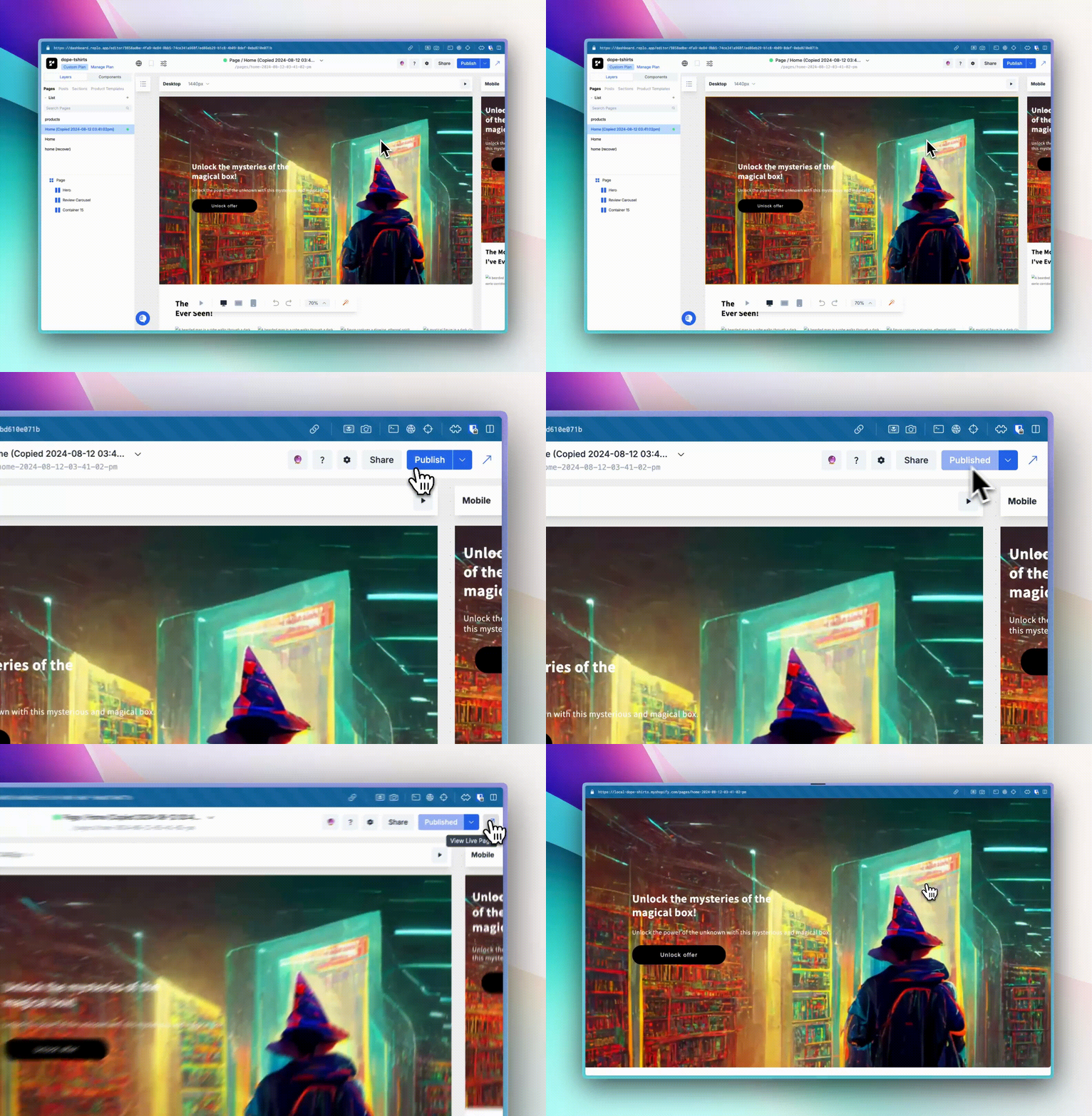
Click the Publish button: In the upper right corner of the editor, click the "Publish" button. This will make your page visible to all visitors on your site.
View published page: In the upper right corner, click the "View Live Page" button. This will open the live version of your page in a new tab.
Unpublishing a page
To unpublish your page:
1. Open Page Settings (gear icon) in the Replo editor
2. Find the "Unpublish" button
3. Click "Unpublish" to remove the page from your live store.
Using page previews
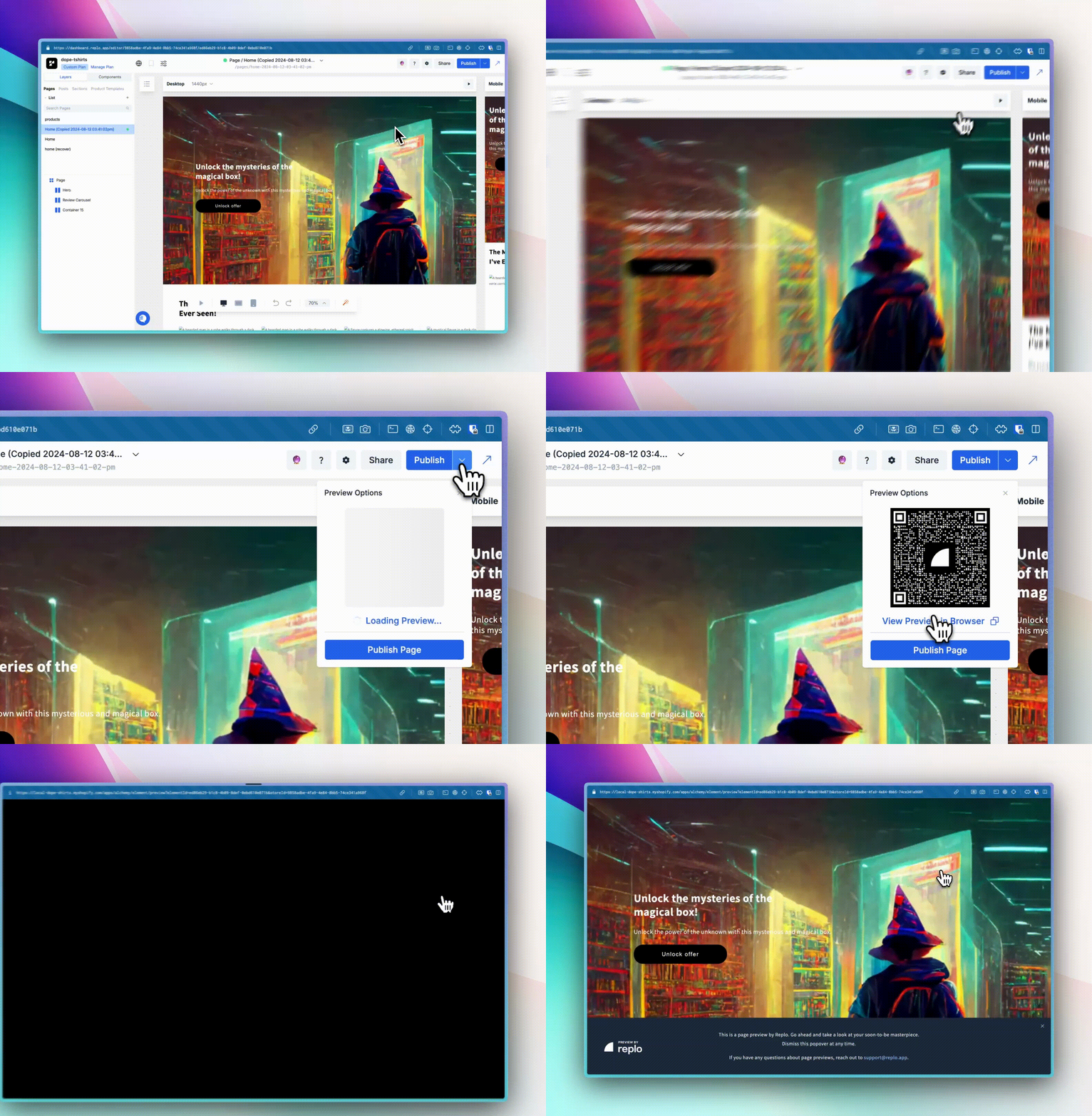
The Page Previews feature in Replo makes it easy to see how your page looks like before publishing. This allows you to make any necessary adjustments before publishing. There are a number of reasons as to why you may want to preview a page such as being able to see what your site looks like without having a paid Replo subscription or you want quick approval from other team members. You can read more about page previews here:
Replo displays a banner at the bottom of the page indicating you are on a page preview site.
Generate page preview: Next to the publish button, click the down-arrow to generate a page preview. This will also generate a QR code which you can scan to view on your mobile device.
Open page preview: Once the page preview is generated, click View Preview in Browser