The Replo Editor
Last updated: November 28, 2025
The Replo Editor is designed to make creating, customizing, and managing your site as easy as possible-all without writing code. This article guides you through each part of the editor interface, divided into four key sections: the Header Navbar (top), the Canvas Navigation (left), the Properties Panel (right), and the Toolbar (bottom). Each section plays a unique role in providing all the tools you need to create beautiful and functional pages. Let's explore each part in detail.
Important: If you created an AI Builder Shop, you'll only see the AI chat interface by default and cannot access the classic Replo Editor from that shop. To access the classic editor described in this article, you must create a new Shop within the same Workspace.
Note: This guide covers the Replo Classic Theme Editor interface.. To switch between builder types, create a new shop and select your preferred builder. Learn more about builder types.
Getting Started: Creating Pages from Scratch
Before diving into the editor interface, it's important to understand that Replo offers two different builders depending on your shop setup:
AI Builder
Classic Landing Page Builder
If you want to build pages from scratch without AI assistance or need to create sections, you'll need to use the Classic Landing Page Builder. You can identify which builder you're using by the icon in the top‑left corner of your shop.
Accessing the Classic Builder
Create a new Shop in your workspace
When prompted with "Does your business use Shopify?", select "Yes"
Choose "Shopify Theme Customizer" > "Start Building First"
Header
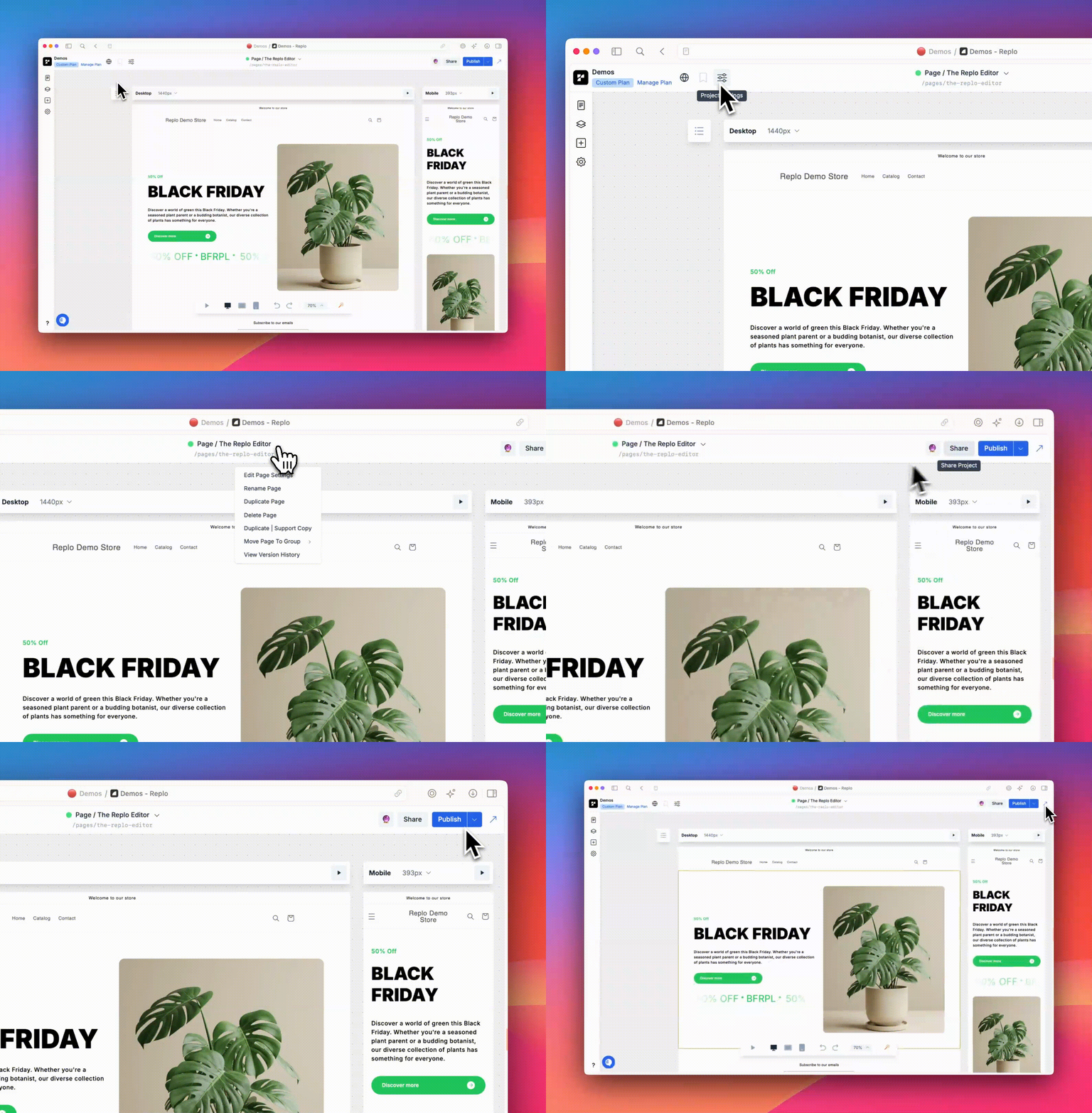
The Header navbar provides global controls for your project. It includes options to access the Replo Marketplace, manage project settings, and much more.
Replo Marketplace - The marketplace is where you can access pre-made templates, sections, and components that you or other users have shared. It’s a great way to start building with pre-built blocks that fit your needs.
Project Settings Page - This page allows you to configure global options for your project, such as domain settings and integrations.
Page Actions - Under Page Actions, you can rename, duplicate, delete pages, and manage version history. Version history lets you restore to a previous version, which is handy if you need to revert changes you made.
Sharing - The Share option allows you to share the project with collaborators. You can invite others to work on the project, giving them edit access.
Publishing - The Publish button allows you to make your page live. The publishing options depend on which Replo builder you're using:
Classic Landing Page Builder: Publishes directly to your Shopify store theme
AI Builder: Publishes to a Replo subdomain or custom domain (does not publish to Shopify theme)
If you're not yet connected to Shopify or don't see the expected publishing options, verify which builder type you're using. You can also create a preview link by clicking on the arrow icon next to the Publish button.
View Live Page - If your page is already published, you can click View Live Page to see how it looks for your users.
Canvas Navigation
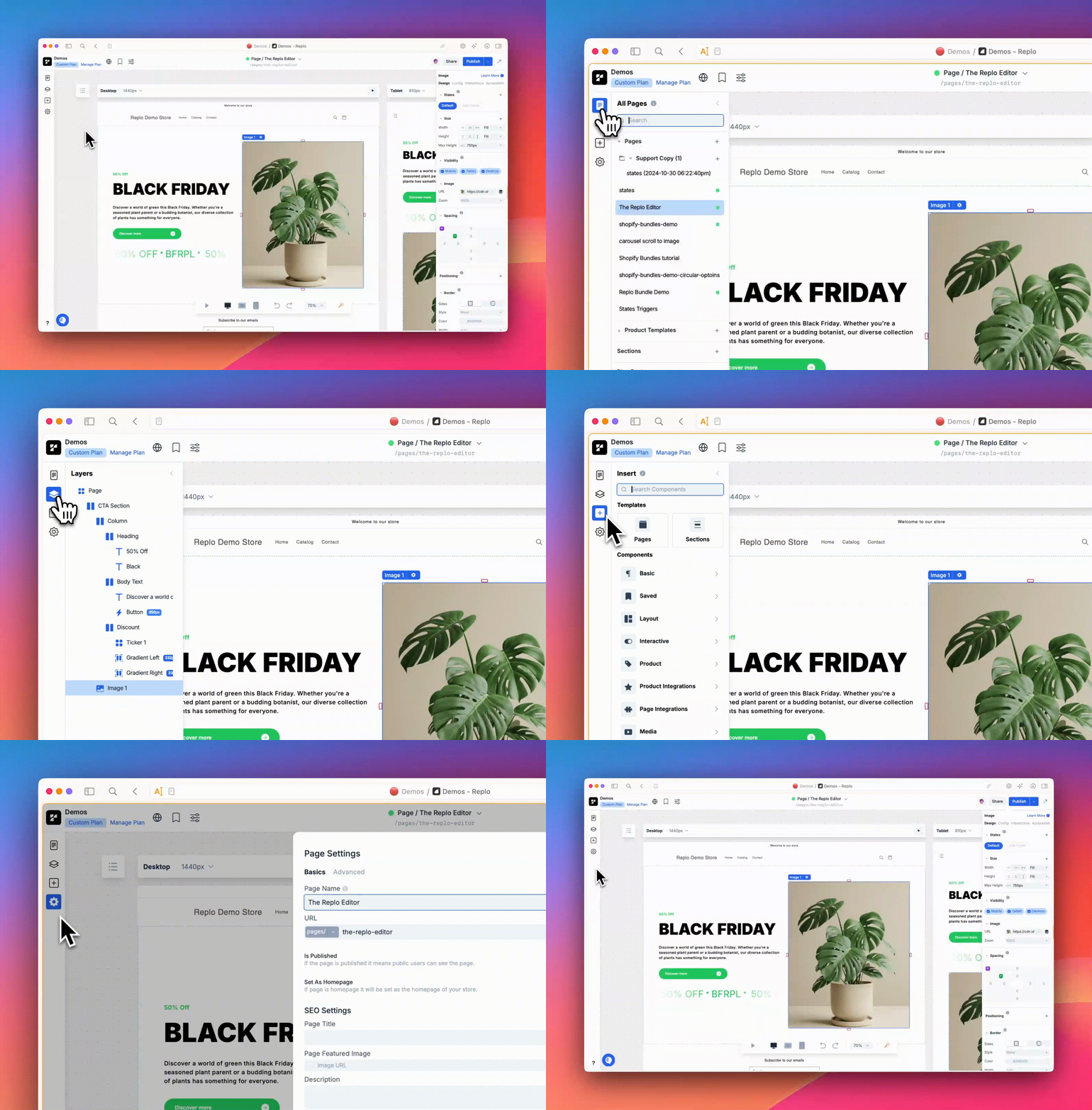
The Canvas Navigation on the left side of the Replo Editor helps you manage the core structure of your replo content across the project. It provides an easy way to organize and navigate through your pages, posts, sections, and product templates.
Pages Panel
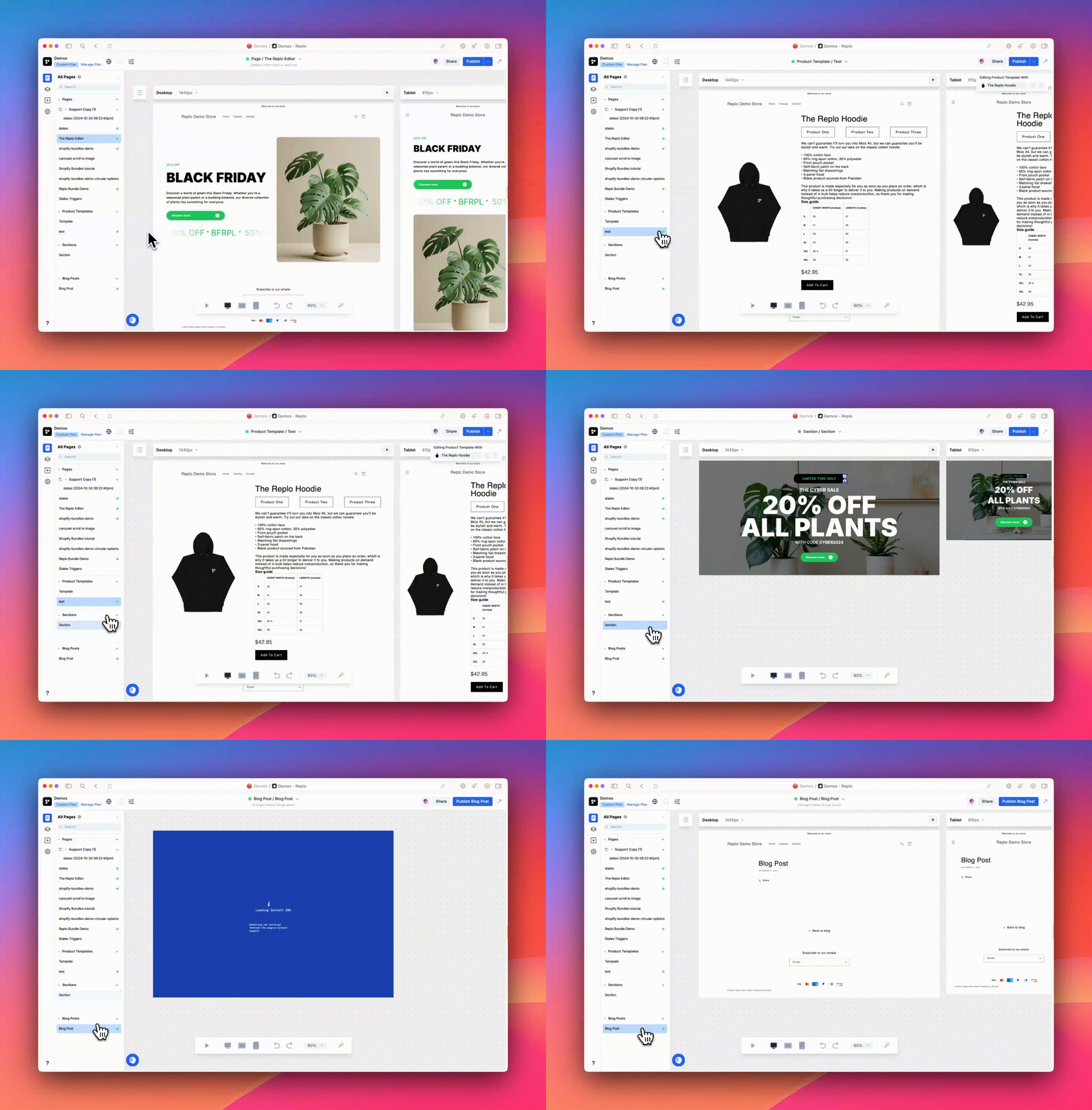
The Pages panel is your starting point for navigating your content. A green indicator marks live pages, sections, and product templates. You also have the ability to perform the following actions on each of those sections: group, rename, duplicate. You can create new sections by clicking the "+" button next to "Sections" in the Pages tab (requires Shopify integration).
Pages - In the Pages section, you can manage all your pages
Posts - The Posts section allows you to create and manage blog posts.
Sections - Here you can manage smaller reusable parts of your site, such as product buy boxes, hero sections, and banners. These sections can be added across different pages, making them reusable for better consistency.
Product Templates - Product Templates are customizable layouts for your product pages. It’s also great for creating different designs for product pages, instead of using one design.
Layers Panel
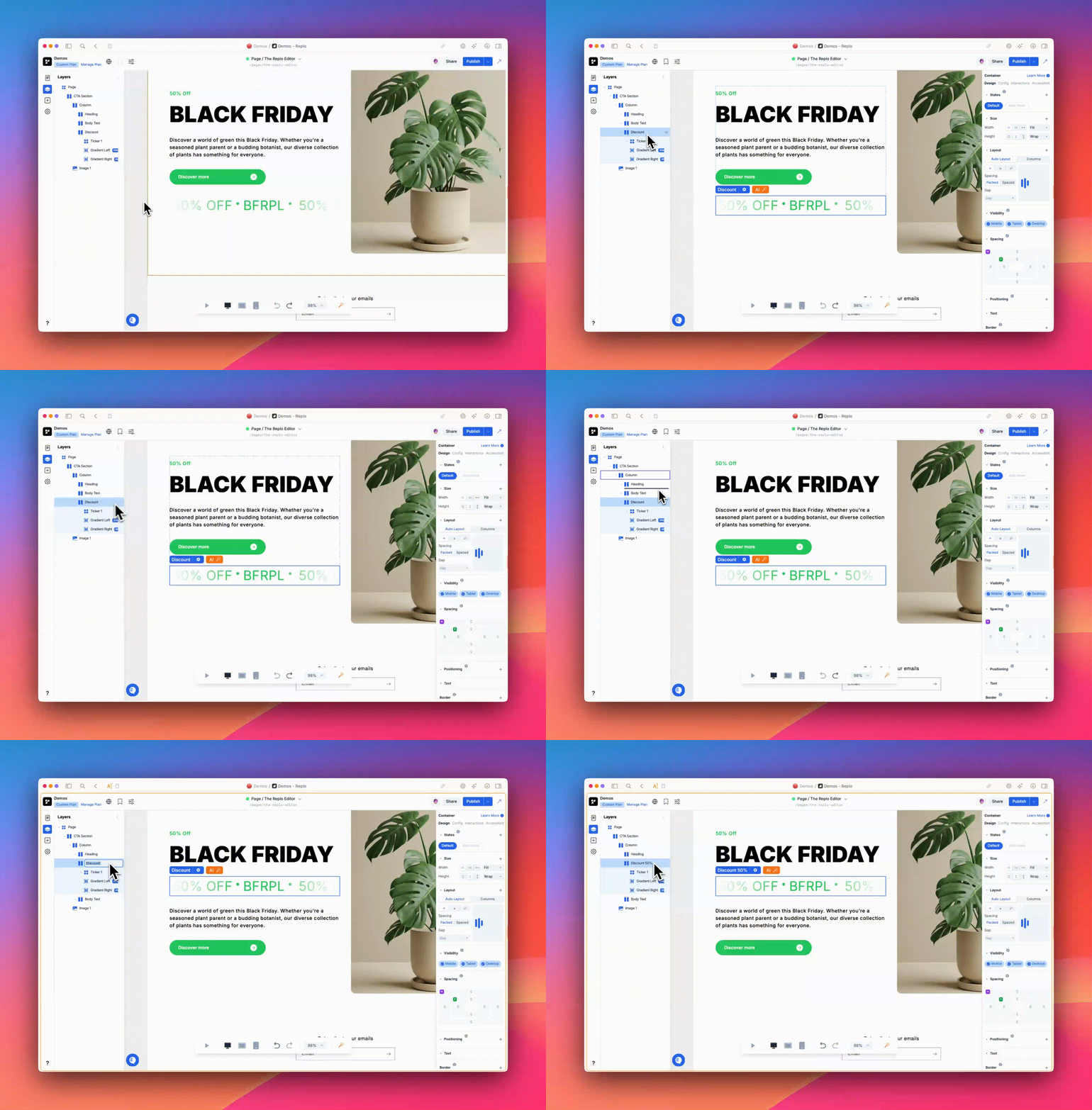
The Layers Panel provides a comprehensive view of all components on the current page. You can create, rename, and manage layers to keep your page organized. The ability to drag and drop components and create containers for organization makes working with complex pages more manageable.
The layers tree can get very large and renaming containers is a best practice when trying to stay organized.
Components Panel
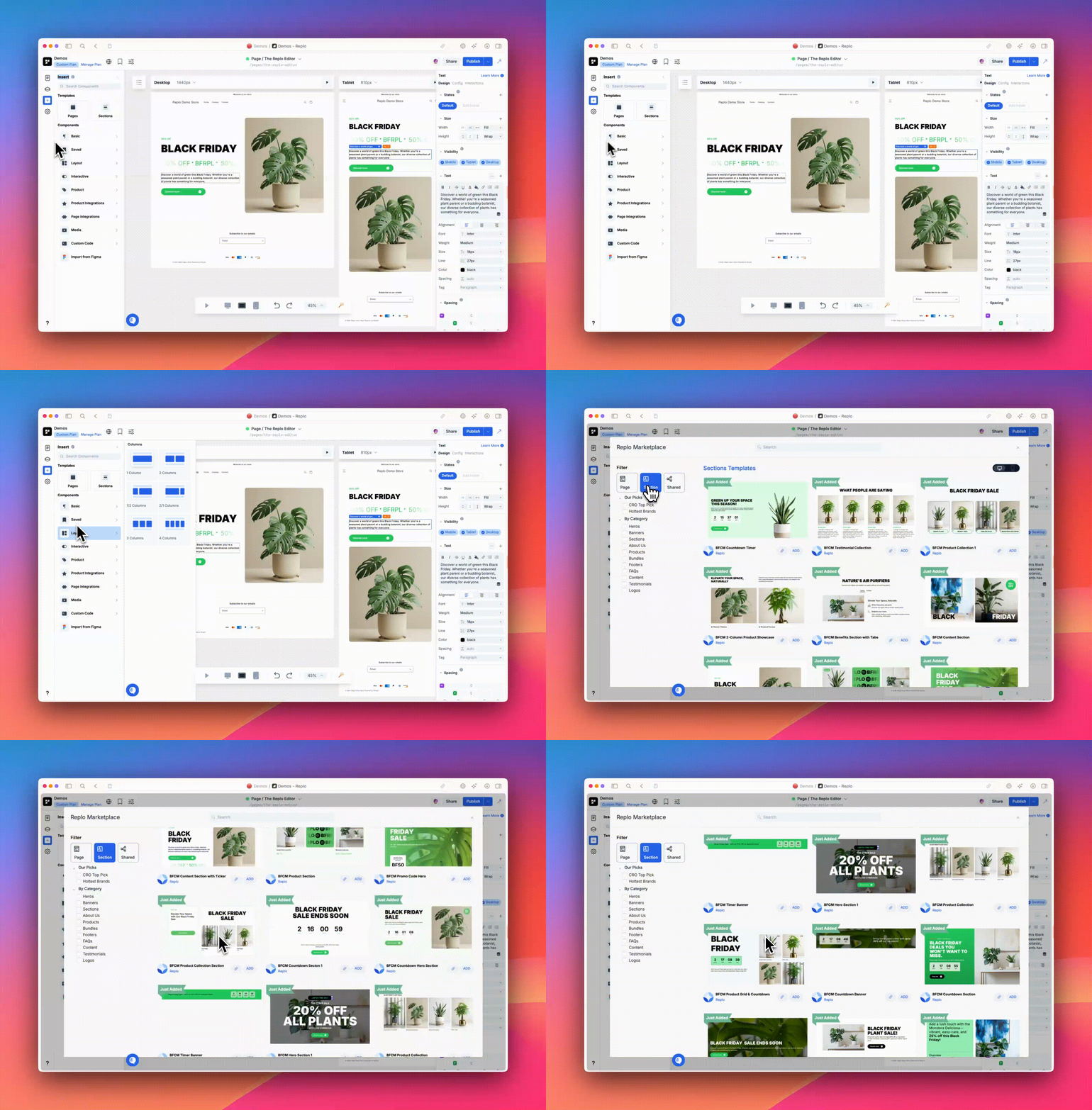
The Components Panel is where you can access both pre-built and custom components for your page.
Components - This section gives you access to all of Replo's standard components like text blocks, buttons, and forms. These are the building blocks of your content and are organized by category.
Templates - Pre-made sections and full-page designs available in the Replo Marketplace. These templates can speed up the design process and help you start with a solid foundation.
Settings Panel
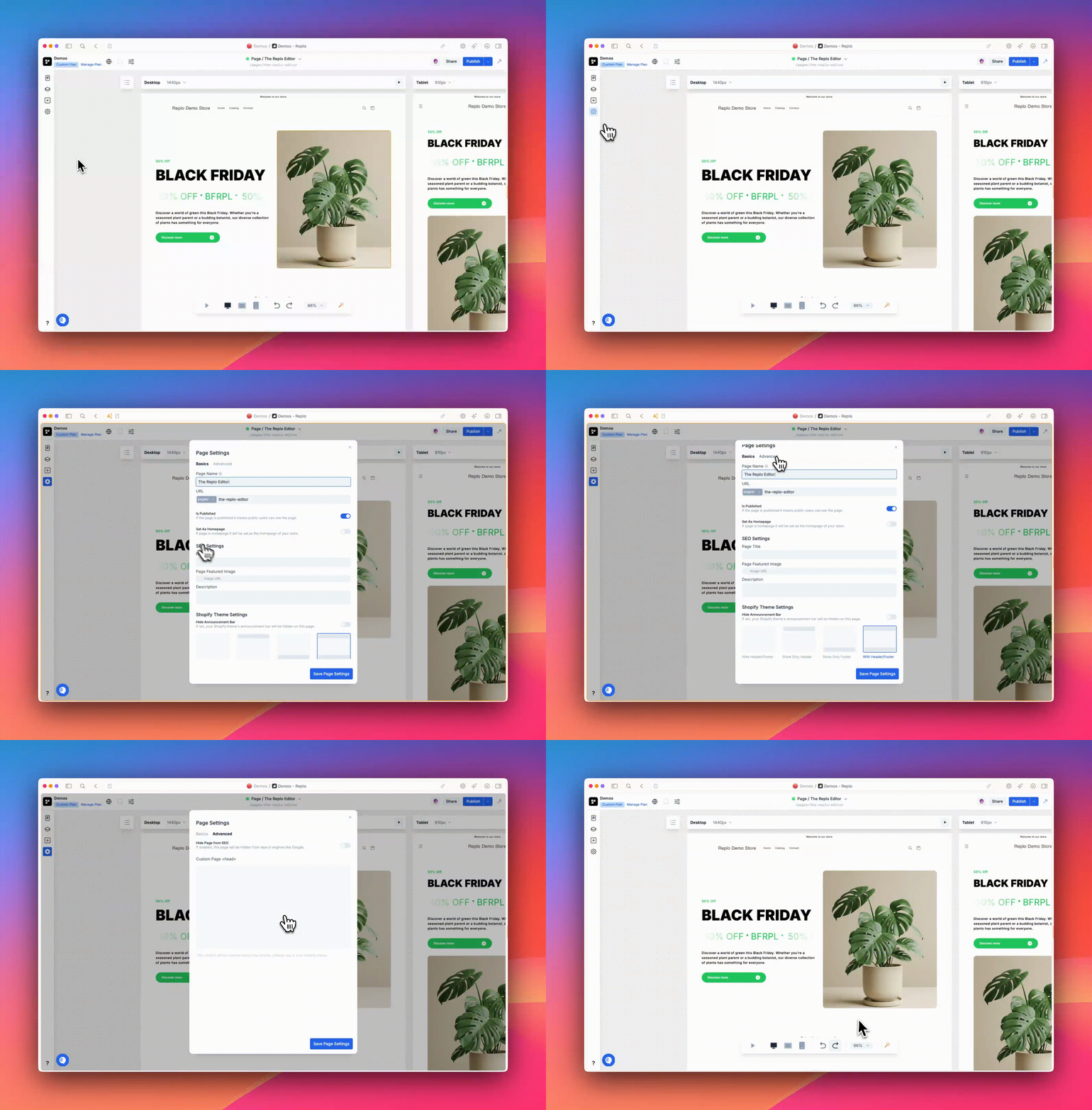
In the Settings Panel, users can adjust settings for the page, such as renaming it, changing the URL, custom <head> tags, and adjusting SEO settings like titles and descriptions.
Properties Panel
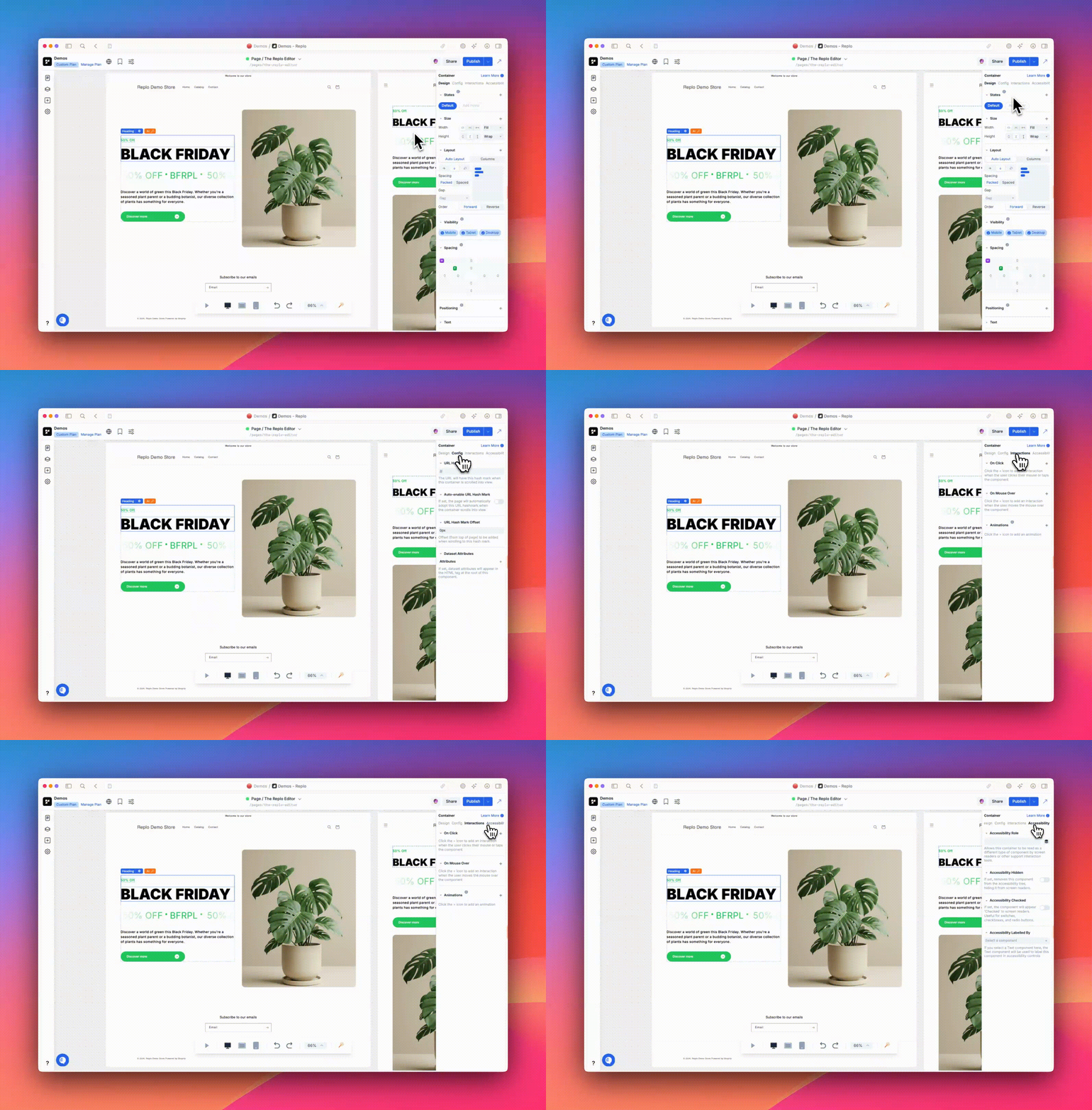
The Properties Panel gives you control over the look and behavior of your components. It is divided into four tabs: Design, Config, Interactions, and Accessibility. These tabs allow you to style your components, configure dynamic data, and add interactions to your page.
Design Tab - Modify properties such as colors, spacing, size, and borders here. You can also add dynamic styles based on component states, like hover effects, to make your pages interactive.
Config Tab - Used to configure the behavior and settings of your components. For instance, you can link dynamic data from Shopify to populate fields like images in a product carousel.
Interactions Tab - Allows you to add animations or actions to your components, such as a on click or on mouse over effect. This helps create engaging and interactive components on your page.
Accessibility Tab - Accessibility settings ensure your page is usable for everyone. Use this tab to add alt text, ARIA labels, and other accessibility-related options to meet web standards.
Canvas Toolbar
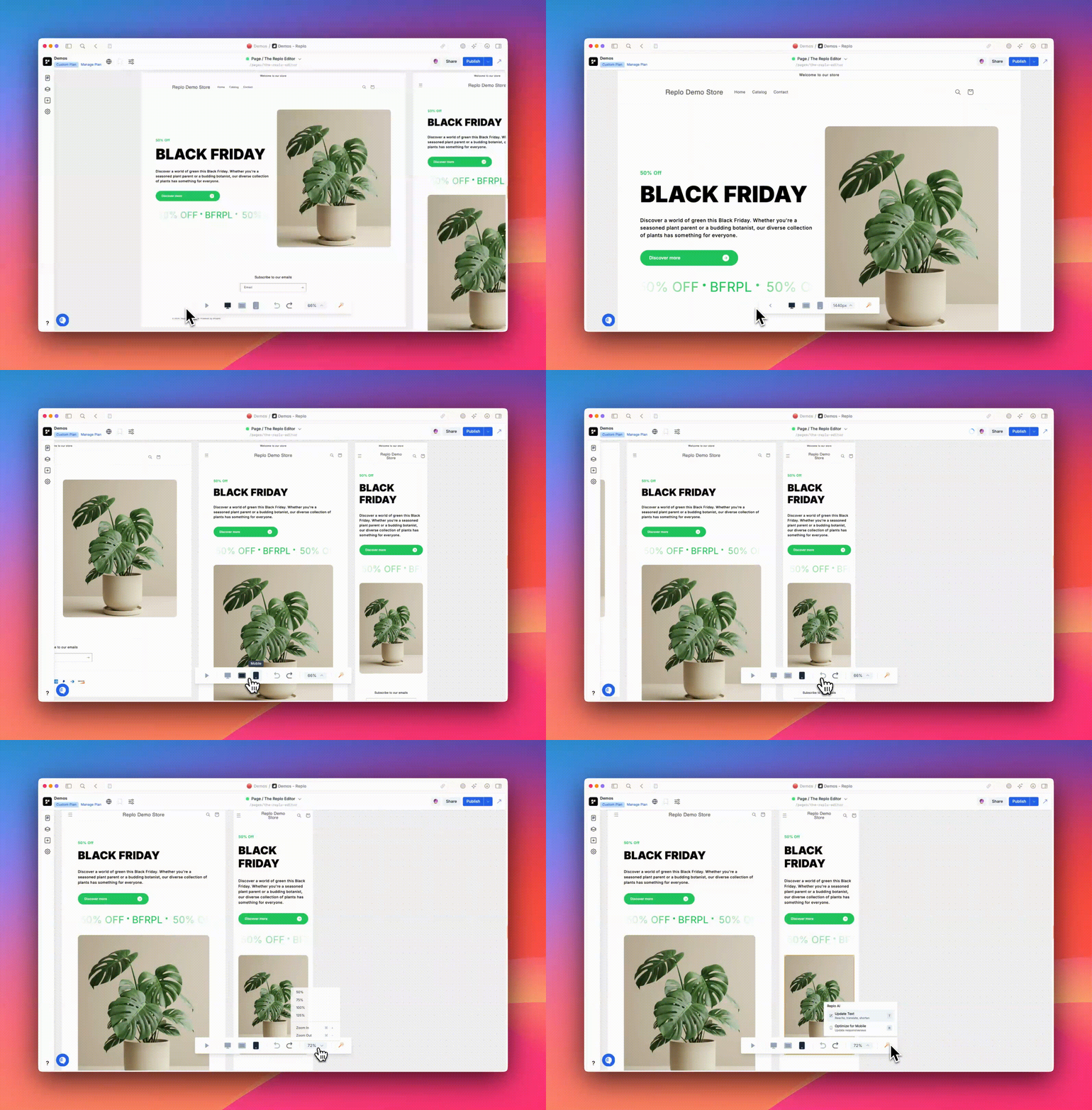
The Toolbar at the bottom of the editor provides convenient controls for previewing, and testing your design. It includes options to toggle preview mode, change device views, undo/redo actions, and zoom in or out of the canvas. Additionally, Replo AI assists in generating and optimizing content.
Toggle Preview Mode - Toggling Preview Mode allows you to see how your page looks without publishing it. It’s a quick way to test design changes.
Device View Icons - Lets you see how your page looks on desktop, tablet, and mobile views. This is helpful for ensuring your page is responsive.
Undo/Redo Buttons - Quickly revert changes or redo actions. They are your best friends when experimenting with different designs.
Zoom Controls - Allows you to zoom in and out of the canvas to get a better view of different parts of your design.
Replo AI - With Replo AI, you can generate content for your site. Select some text, then use Replo AI to update or optimize it, or to create new text altogether. You can also use the AI to optimize your designs for mobile view.
Moving Around
The Replo page preview is dynamic, allowing you to move around, zoom in for finer adjustments, or zoom out for an overall view.
Trackpad: Use two fingers to scroll and move around the page preview. Pinch to zoom in and out for a closer or broader view.
Mouse: Use the scroll wheel to move up and down. Hold the SHIFT key while scrolling to move left and right. Hold the CMD/CTRL key while scrolling to zoom in and out.
Keyboard Shortcuts: Use
⌘/CTRL++to zoom in, and⌘/CTRL+-to zoom out.