Accessibility in Replo
Last updated: June 25, 2026
Accessibility of web pages is always an important consideration in any tool that produces content for a website. Replo is no exception, and the Replo Editor provides several tools to ensure pages meet accessibility standards.
In order to insure accessibility, Replo pages follow all guidelines from the Web Content Accessibility Initiative, which outline the current best practices to enable accessible web pages, and Replo pages have been through professional accessibility audits to ensure compliance.
Below are a few best practices to follow to ensure accessibility on your Replo pages.
Alt-text and presentational roles media
Replo supports setting alternative text for images, icons, and other content to properly support screen readers. To set alt-text, find the alt-text box under "Image Source" or "Icon" in the right bar of the editor:
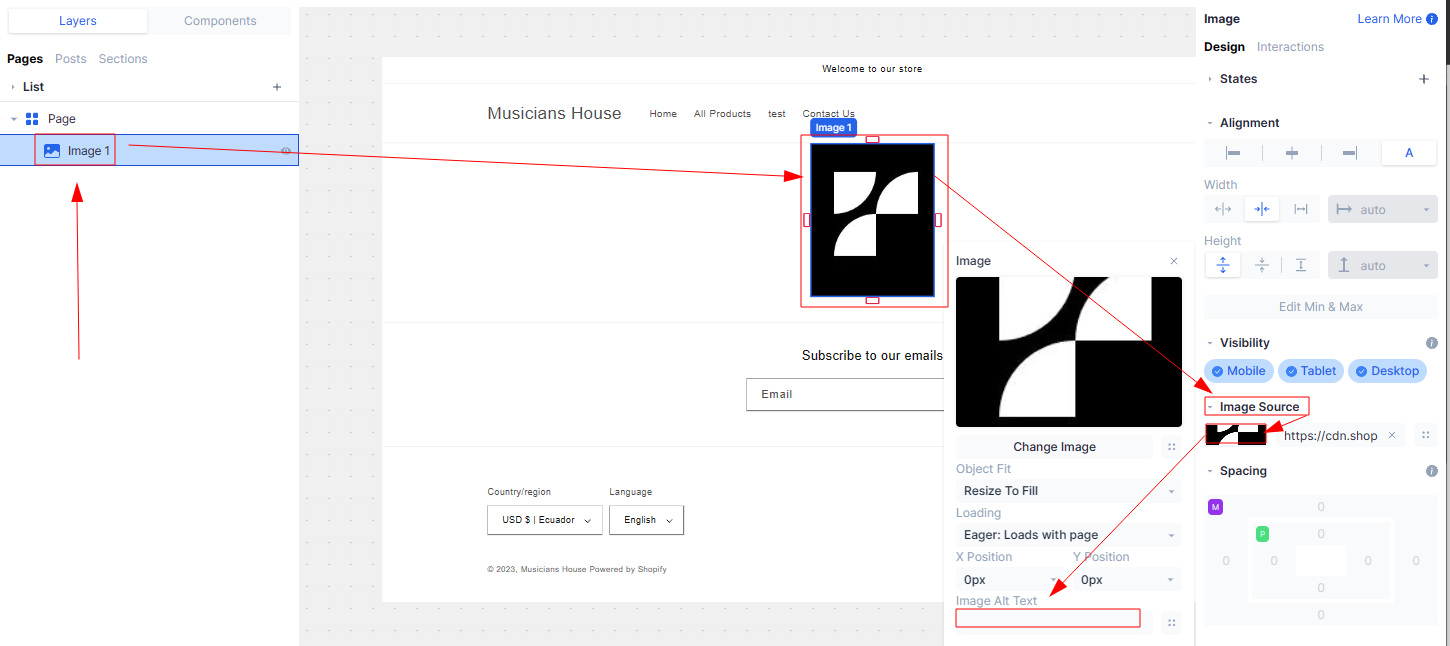
For more information on presentational roles for decorative images and videos, see Images.
Keyboard Navigation
Interactions in Replo pages follow the correct Accessible Rich Internet Applications standards, allowing correct keyboard navigation. This means that Replo pages can be correctly navigated with keyboard devices and screenreaders will correctly select buttons which have interactions set on them, etc.
Several components also add accessibility controls directly - for example, Collapsibles are fully controllable with the keyboard using tab/enter keys (as well as with screenreaders).
Semantic Tag Structure
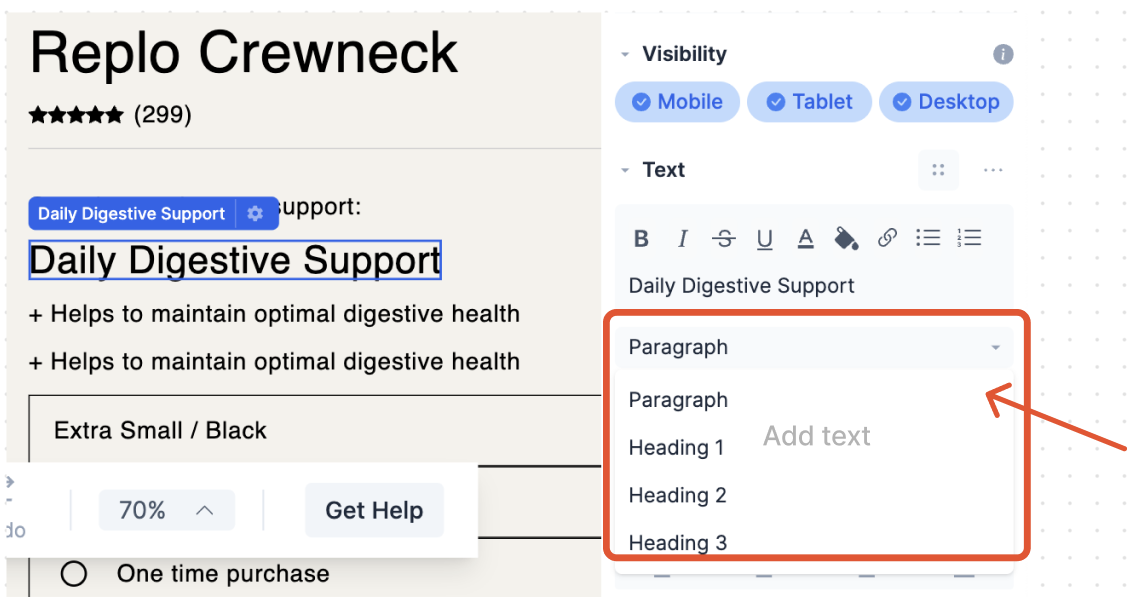
Replo provides controls for structuring content using semantic HTML tags so that screenreaders can appropriately report page content.
To change the tag type of a text component, find the "Text" section in the right bar, then select the tag type from the dropdown:
Replo also supports other types of semantic content, like automatically rendering HTML button elements for components which have Interactions - Replo takes care of this automatically.
ARIA Labels, Roles, and Attributes
Replo supports customizing several settings related to the Accessible Rich Internet Applications (ARIA) standard. To access these settings, find the "Accessibility" menu in the right bar after selecting a component in Replo.
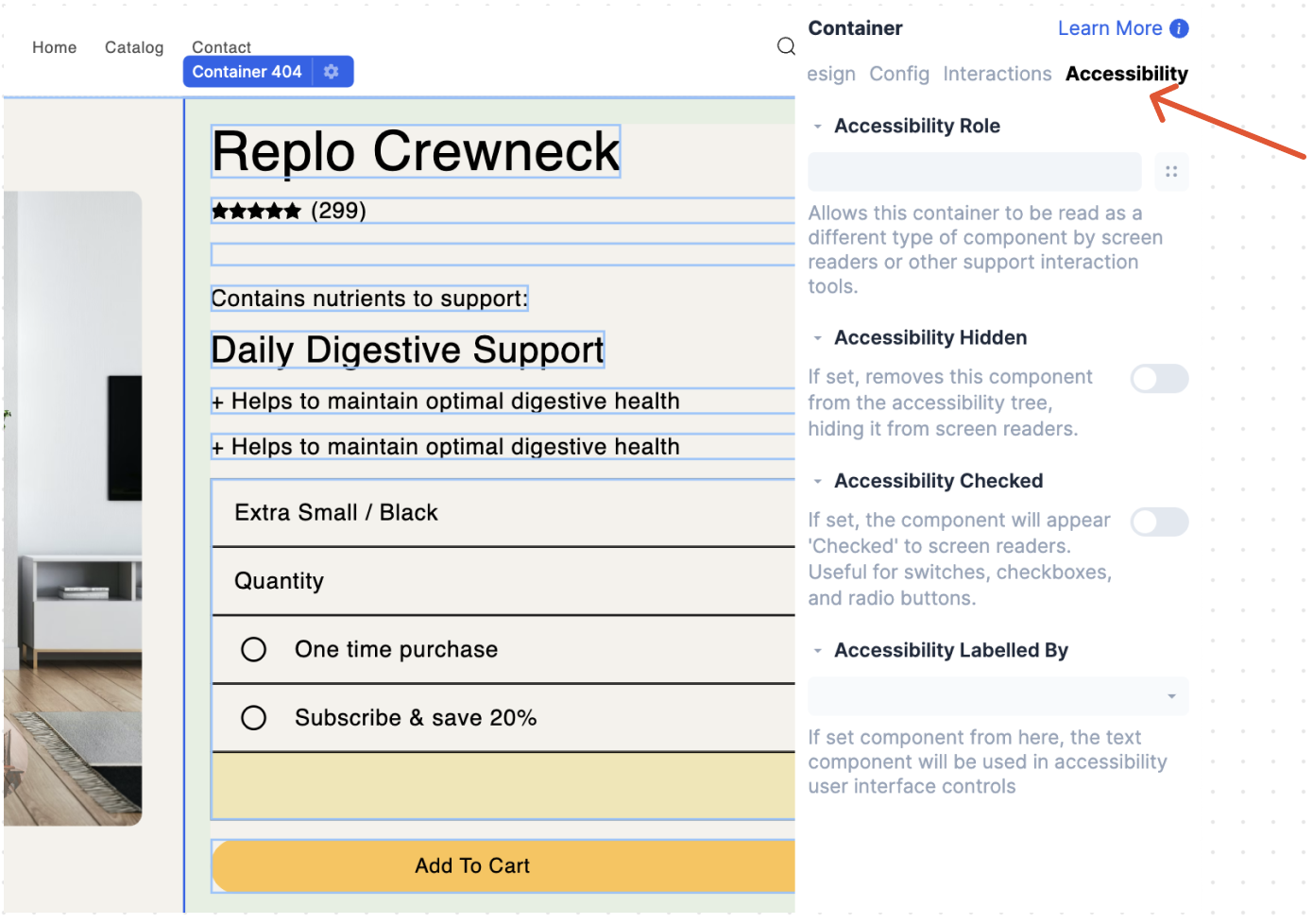
Note that some types of components may have different accessibility options and some times of components may set accessibility options automatically (for example, Collapsibles automatically manage aria-expanded and aria-controls).
Here are a few of the options which are customizable in Replo for most components:
Role (aria-role): identifies what the role of this component is in the accessibility tree. See Accessibility Roles for more information on what correct roles are for specific circumstances.
Hidden (aria-hidden): identifies this content as currently not visible to screenreaders
Checked (aria-checked): identifies this content as in a "checked" state. This is useful mostly for Containers which are used to represent checkboxes and radio buttons.
Labeled By (aria-labelledby): identifies another component to use as a label for this component. For example, you might use this to select a hidden text component so that a button can be labeled differently for devices which are using screenreaders.
HTML Tag Types
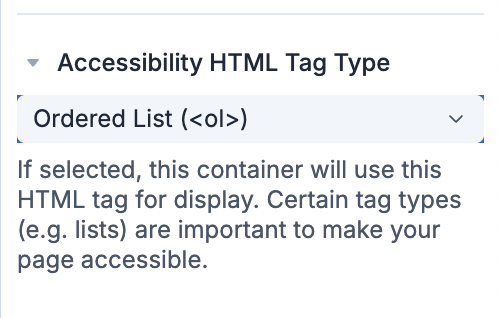
Any 📄 Containers component in Replo has be configured to render as a section, list, etc in the accessibility menu via its "Accessibility HTML Tag Type".
Carousel Accessibility
Carousel components are notoriously difficult to make accessible. All Replo carousels are correctly accessible in line with the Web Content Accessibility Initiative. See 📄 Carousels for more specifics on accessibility for Carousel components in Replo.