Custom Fonts
Last updated: May 21, 2026
Replo allows you to add a font straight from your computer to any Replo content by uploading a font file in the editor. Additionally, Replo auto-magically imports all Google fonts and any fonts from your Shopify theme for use without having to install anything.
Adding a Custom Font
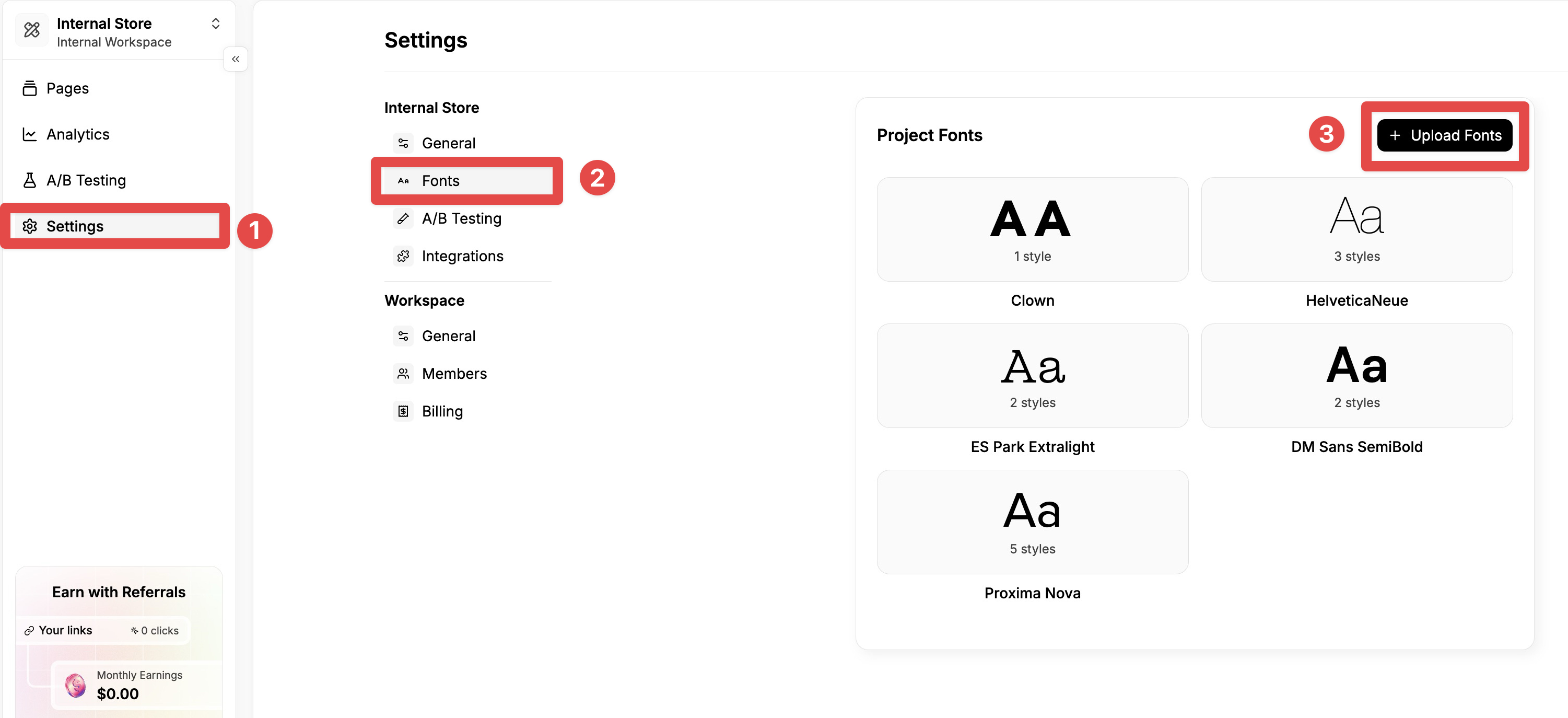
Navigate to Project Settings → Fonts (or click "Upload Custom Fonts" from font picker)
Then click "Upload Custom Font" and select the desired font file.
Replo supports the font formats
.woffor.woff2(we suggest uploading both.woffor.woff2versions to maximize compatability) and.ttfor.otf.If you have a different font file type you can use transfonter or other similar font-conversion tools.
Adding a Custom Font to your Theme
By far the simplest way to get a custom font into Replo is by adding via the Editor, but you can always add your font files directly to your Shopify theme by altering your theme code. This is a good idea if you want the font to be used across your theme and not just Replo content (for example in your header).
Since this is more a Shopify process, we recommend you use the Shopify documentation on this and seek help from their support team if you get stuck. That said, we do offer some guidance here:
It's advised that you use
.woffor.woff2files. You'll need to upload these files to you Shopify store'sContent > Fileslocation.Within the
Content > Fileslocation, copy the font file's link:
Add the following code to the styles within either your theme's
theme.liquidor yourbase.cssfile (or any other file that pulls in CSS across your theme). Here<file_type>is eitherwoffofwoff2depending on your specific file. Make sure to save the theme files after this.
@font-face {
  font-family: "<font_name_of_your_choice>";
  src: url("<full_copied_file_ link>") format("<file_type>");
}
Once you refresh the editor, this font should be available to use in Replo content (and across your entire theme!).
Troubleshooting
I uploaded my custom font into my Shopify theme, but I still don't see it in Replo.
If you don't see your font in your Replo project, try refreshing the editor.
I get "Unknown Error" when uploading custom fonts
This error means that you're on a Trial Plan in Shopify, which doesn't allow to upload custom fonts. In order to fix this you will need to select a plan in Shopify and then upload your custom fonts.
The wrong font is rendering on the live page or preview
If you notice a different font appearing when previewing or viewing a published page, it is typically due to a rendering issue in Shopify. This often happens when fonts are not uploaded in both .woff and .woff2 formats. Since not all fonts are fully supported across all browsers, including the .woff2 file ensures smooth and consistent display of custom fonts. If you are having issues with .ttf or .otf, try both .woff and .woff2 formats instead.
Why is my font missing from the font list?
If the font does not appear in the list, it means Replo does not support it in the editor. This is likely due to how the font was installed. In this case, you’ll need to upload the custom font files directly to Replo for full support.
If these troubleshooting tips don't resolve your issue, please don't hesitate to contact Replo support.