Shopify Sections
Last updated: May 21, 2026
This page is about creating new Shopify Sections using Replo. If you're interested in pulling in an existing section into your Replo page, use the 📄 Shopify Section Component.
Replo supports editing Online Store 2.0 Sections for your Shopify store.
An Online Store 2.0 Section (sometimes just called "Shopify Section") is a configurable building block for your Shopify store, which you can use to build pages in the Shopify Theme Customizer. Learn more about Shopify Sections in the Shopify Documentation.
If you have an Online Store 2.0 compatible theme, you can use Replo sections on any page in your theme that supports Shopify Sections, including pages which were not created in Replo, Product Description Pages, Cart pages, and more.
Creating and Managing Sections
Creating a new Section
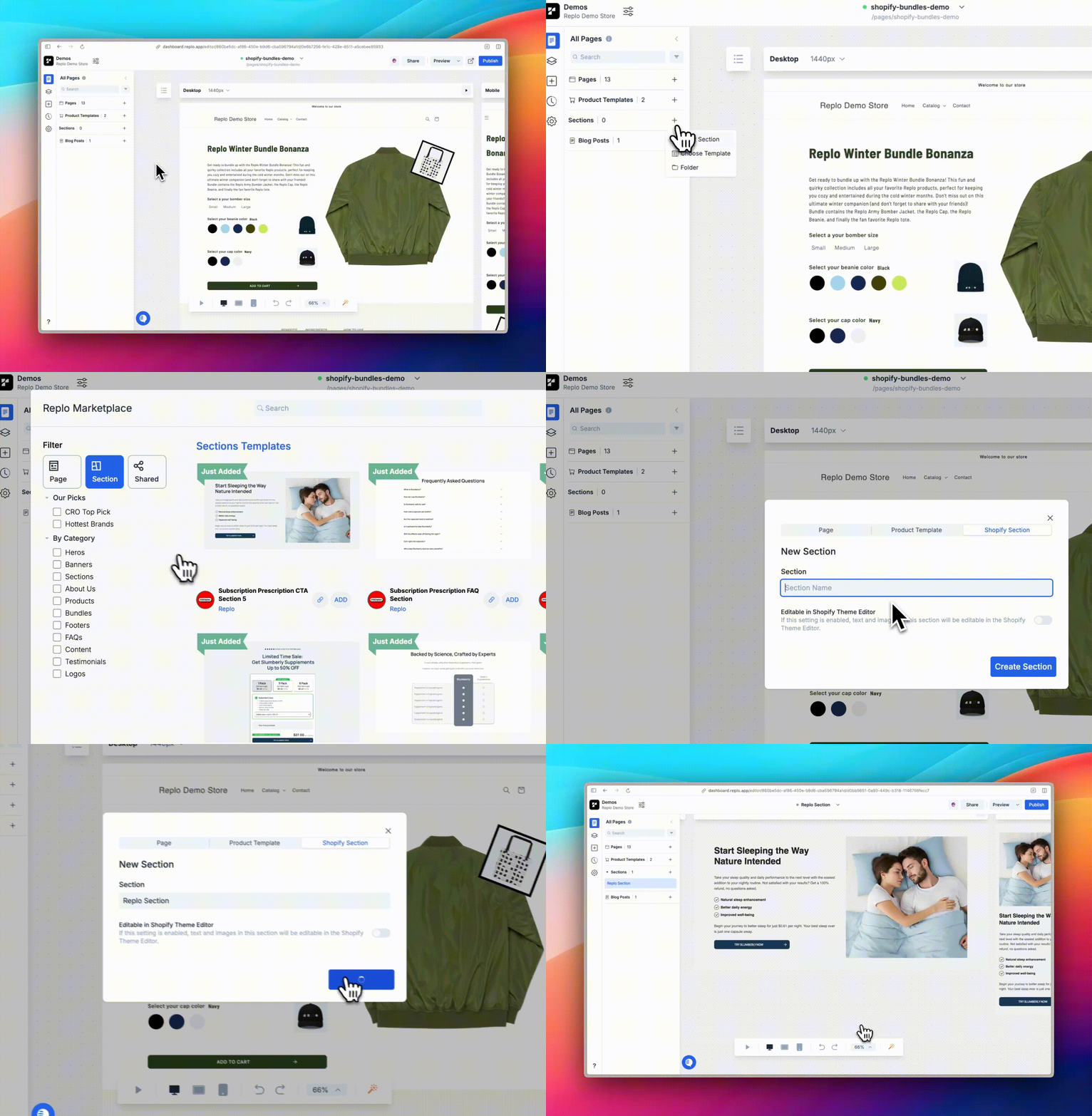
In the Replo editor, find "Sections" in the left-side menu.
Click the "+" button to add a new section.
Configure the name for your section. This is the name you'll search for in the Theme Customizer to find your section.
Click "Choose Template" to choose a template to start your page with.
Click "Create Section" to create your new section.
Publishing a Section
In the Replo editor, find "Sections" in the left-side menu and select the section you want to publish.
Click the "Publish" button to publish the section. You can then click the "View Live" button to view the section live in your theme customizer.
Duplicating a Section
In the Replo editor, find "Sections" in the left-side menu and select the section you want to duplicate.
Right-click on the section and select "Duplicate Section". You can select the name for the duplicated section.
Click "Duplicate" to create the new section. The duplicated section is an exact copy of the old section.
Adding Shopify App Blocks to Sections
You can integrate third-party Shopify apps into your Replo sections using the Shopify App Block component.
Note: Shopify App Blocks are only compatible with sections, not regular Replo pages.
To add app functionality to your section:
In the Replo editor, look for the Shopify App Block component in your component library
Drag the component into your section
Configure the app block settings to connect with your desired Shopify app
For apps that aren't directly supported, you can also use the Custom HTML and Liquid component with the app's embed code.
Learn more about using Shopify App Blocks in our dedicated guide.
Replo sections can be made editable in Shopify's Theme Editor, allowing you to modify section content, settings, and styling directly through Shopify's interface. You can read more about editing Replo sections in Shopify's Theme Editor in our support documentation.
Enabling Theme Editor Access
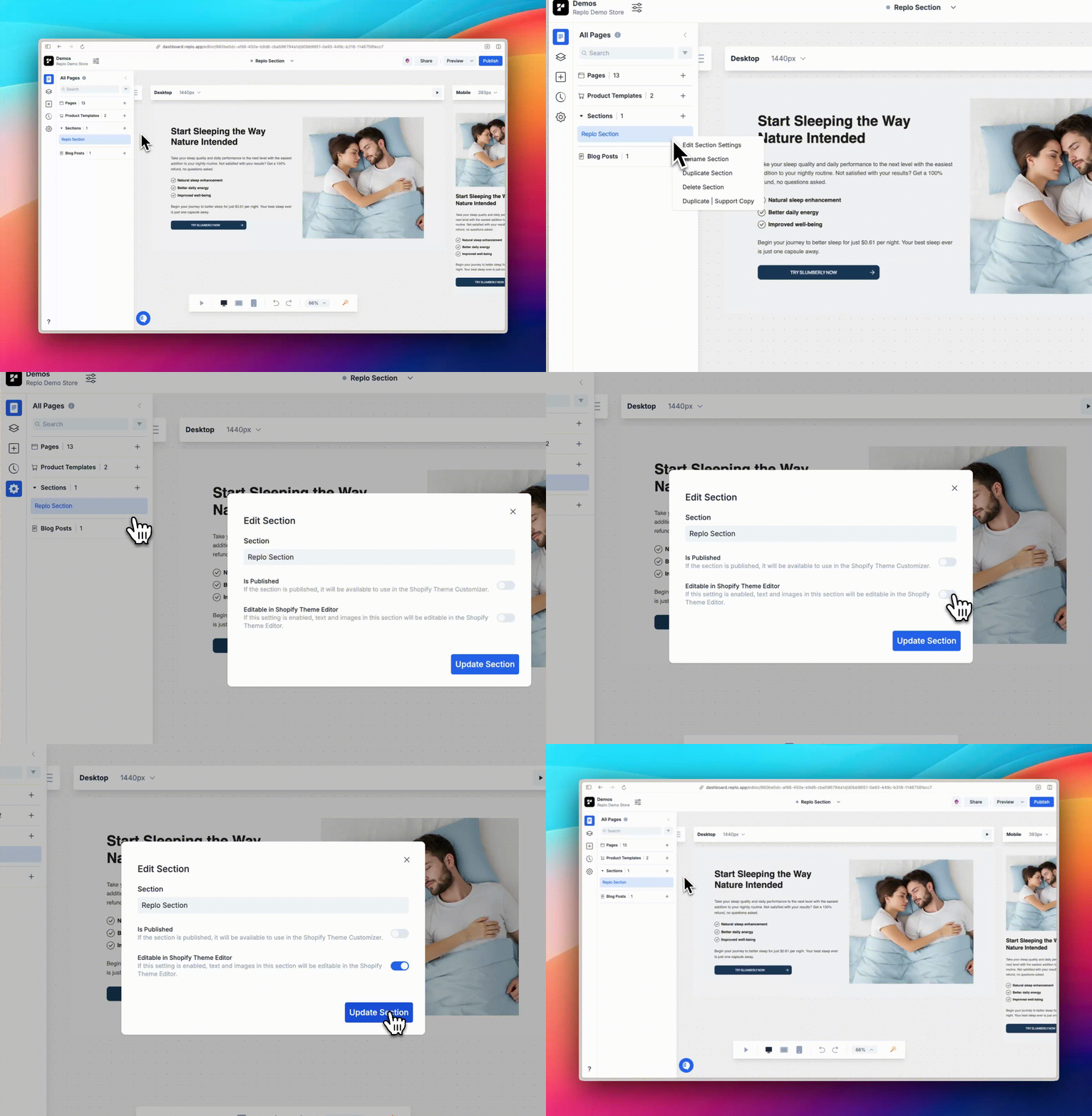
Select your section in Replo
Open the section settings
Toggle on the “Editable in Shopify Theme Editor” setting
When you navigate into the Shopify Theme Editor, you will see a message that this section was created with Replo, as well as a link to the original Replo Section if you want to make any changes.
Editable Components
Text content
Images
Redirect URLs
Important Considerations
When the Theme Editor integration is enabled:
If you make changes to the section in Shopify's Theme Editor and then later make changes in Replo, the Theme Editor changes will override your Replo changes.
To maintain consistent section management, it's recommended to choose one platform (either Replo or Shopify Theme Editor) as your primary editing tool.
Common Errors and Limitations
Text Components
Character limit: If you exceed 5000 characters in a text component or apply multiple styles to a single textbox, a warning modal will prompt you with the option to resolve the issue or "publish anyways."
Only basic text formatting supported (bold, italics, links)
Technical Limitations
File size limit: 256kb per section
Dynamic data-driven components are not editable
Multiple identical sections can be used on the same page
Sections and Themes
When you publish a section in Replo, Replo saves that section to your Shopify store's current theme. If you change your theme and still want access to sections you created in Replo, you can select the section in Replo and publish again to save it to your current theme.
Using Sections on Collection Pages
Collection pages are where you group specific products together in categories. By default, they include a Collection banner section and a Product grid section in the theme editor. At this time Replo does NOT support building Collection Pages but you can use Shopify Sections built in Replo to enhance your collection pages with super customizable content.
How to add a Section onto a Product Page
Create a Shopify Section in Replo
In the Shopify Theme Customizer, select the collection template you want to modify
Select "Add Section" in the left bar
Select the section you created in Replo
Troubleshooting and FAQs
Common Issues
Renaming a Section may cause implemented versions to become out of date in your Shopify Theme Customizer. After renaming, check and update the section in all affected pages and templates.
Frequently Asked Questions
What happens if I republish a section already edited in Shopify?
Changes to text are preserved, while design and style updates are applied to existing components.
Can I reuse Replo sections in my theme's Liquid files?
Yes, you can add Replo sections to your Liquid files using the Shopify section tag. The simplest implementation is:
{% section 'replo-header' %}Make sure to use the exact Liquid filename (prefixed with 'replo-') rather than the display name of the section. For more detailed instructions on implementing Replo sections in Liquid files, check out our guide on reusing Replo sections in liquid files.
Can I have two identical editable sections on one page?
Yes, identical settings can be applied to multiple sections on the same page, allowing for uniform yet customizable designs.
What are the restrictions for text components becoming editable in the Shopify Theme Customizer?
Only text which contains basic HTML tags like bold, italic, and links are supported. Other styles or tags may not function as expected.
If your section is set as "Editable in Shopify Theme Editor" and changes aren't appearing, there are two solutions:
Toggle off the "Editable in Shopify Theme Editor" setting in Replo - this will allow Replo to update all changes directly
When you use a Replo section in the Shopify Theme Customizer, you find it by the name you gave it in Replo. This is because the name of the section in Replo is tied to the Liquid file that Replo creates for the section in your Shopify theme.
If you want to rename a section, you'll can create a new section in Replo using the new name, and copy/paste the content from the old section to the new section. You can then publish the new section and use it in the Shopify Theme Customizer.