Border
Last updated: March 18, 2025
Every component in Replo can have a border, which displays around the component's box (outside of the padding/background, but inside of the margin). You can either edit the entire border, or one side at a time.
Adding a Border
To add a Border, click into any component, then in that component's Design tab of the Properties Panel, find the Border section and click plus (➕). It's that simple

Styling a Border
There are several editable properties that can be configured for any Border.
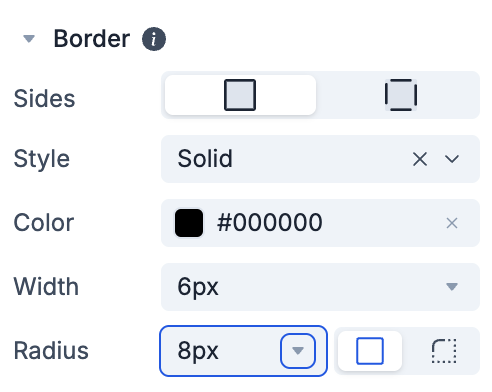
To set the color of the border, click the "Color" input and select a color from the color picker.
To set the width of the border, click the "Width" input and type in the desired width. Larger values mean a thicker border.
To adjust the border style (solid, dashed, dotted, etc.), click the "Style" dropdown and select the desired style.
To adjust whether the border's corners are rounded, use the "Radius" input or adjust the slider. You can even click the individual corners button to edit each corner rounding independently!
You can edit all four sides at once or each side individually through the Sides input.