Videos
Last updated: April 28, 2025
Replo supports embeddable video files using the latest standards in web video. Similar to the way you embed Images, Replo allows you to drag in a video player and configure it with a video from your Shopify store, or from anywhere on the web.
To Add a Video:
Navigate to the page you want to add a Video to in the editor.
On the left side of the editor, click the "Components" toggle, then search for "Video."
Drag the Video into the page.
In the Design Tab, select your video's source.
For page speed, you might consider Lazy Loading videos below the fold. You can also set a unique "Poster Image" in this case if you like.
The Replo editor supports MP4 video uploads from your computer. If your video is in a different format, convert it to MP4 before uploading. Alternatively, you can add videos in other formats via the Shopify videos option, which requires the video to be uploaded to your Shopify admin first.
Outside embeds (Vimeo, Youtube, and More)
If you want to embed video content from outside sources, Replo provides direct integrations to make this easier.
Video Control Buttons
The Replo video player template includes icons which play, pause, mute, and fullscreen the video by default. However, if you want to customize the parts of the player that trigger these video controls, you can do so using Interactions to play, pause, mute, unmute, and fullscreen the video.
Video Configuration
In the Config tag, you can set various configuration options for how the video will behave - for example, to have it autoplay, preload, loop, etc.
Browsers and Video Autoplay
Some browsers (e.g. Chrome) will refuse to auto-play a video unless it's muted (you can see Chrome's Policy on this here). If you need videos to autoplay, ensure that "Default Muted" is turned on in the Config tab for the video component in Replo.
Video Lazy Loading
For page speed purposes (see📄 Optimizing Shopify Page Speeds) you'll likely want to set Video components which are further down the page to lazy load. This means that the video won't load until visitors on your page scroll down to where the video is.
To set a video to lazy load, find the "Video" section in the right bar, then select "Lazy: Loads on scroll" from the dropdown.
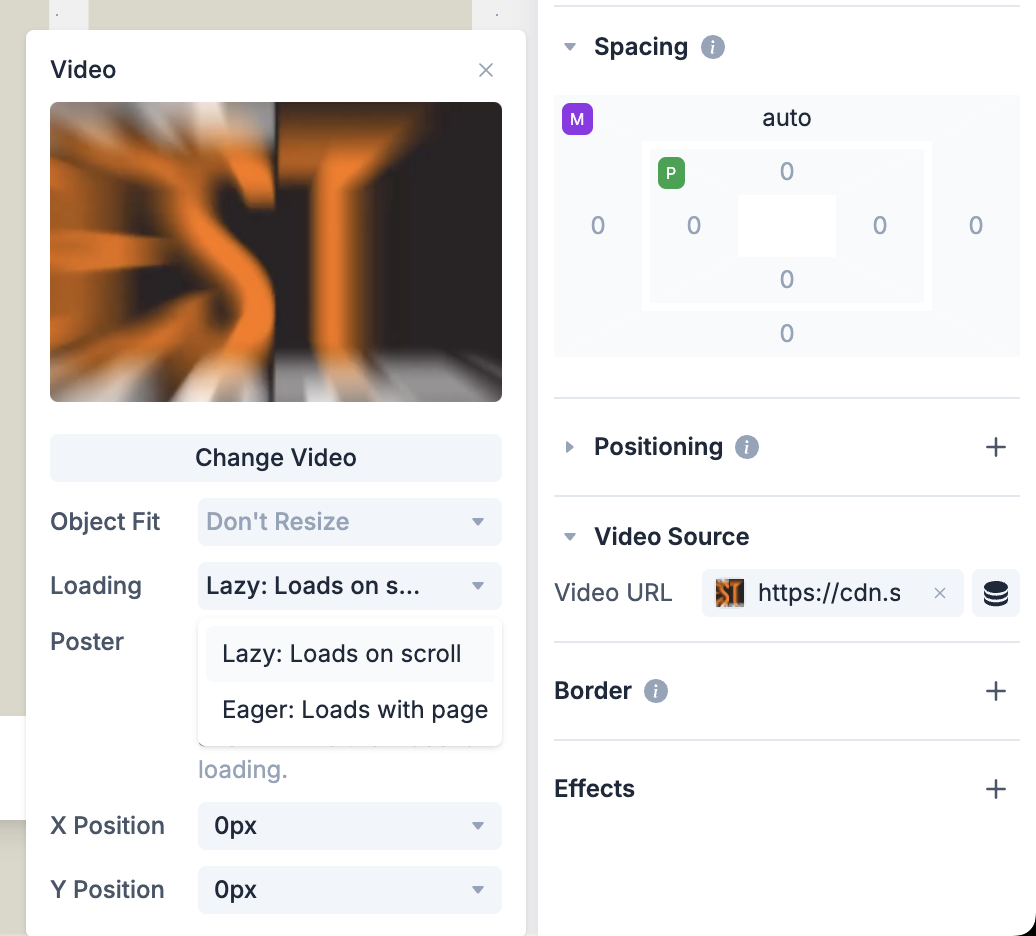
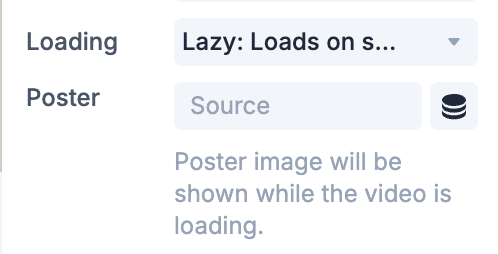
You can also set a poster image for lazy loaded videos - this image will be shown when the video has entered the viewport, but hasn't fully loaded yet. To set the poster image, add the image to "Poster" right under the "Loading" setting.
Troubleshooting
Instagram Browser Autoplay Issues
If you're using the Video File component and have enabled autoplay in the video settings, be aware that videos may not show or play (if you give the video a placeholder image) on the page when opened in Instagram’s in-app browser. This is due to Instagram's browser restrictions and settings. To ensure your content displays reliably, we recommend converting the video into a GIF or Animated WebP.