Custom Development with Replo
Last updated: June 18, 2025
As a developer, Replo allows you to infinitely customize your pages using the Custom HTML and Liquid components and Run Javascript. When creating customizable components using these tools, there are several considerations to keep in mind.
Targeting Replo DOM Nodes
Replo renders DOM nodes for most components.
It's not guaranteed that Replo will render exactly one DOM node per component - Replo may add wrappers or no render DOM nodes at all in certain cases. Don't rely on there always being a DOM node available for a Replo element.
Replo may render different tags in different circumstances - for example, if a button is a link, Replo may render an
<a>tag, but this behavior may change at any time. Don't rely on specific tag names if you need to target DOM elements which were rendered by Replo.Replo may add various attributes to its rendered DOM nodes. These attributes may change at any time, so don't rely on them as a way to target nodes. Supported attributes your theme or app can rely on are listed in this page.
Custom Styles
It generally shouldn't be necessary to target Replo DOM nodes in order to add custom CSS to them - instead, these styles can be added via the Replo editor. In the rare case that you need to target a DOM node individually, you can use a Hashmark, which will set the DOM node's id.
Standardized DOM Attributes
Replo will add standardized attributes to certain DOM nodes. If you're integrating with Replo, you can use these attributes to detect certain types of Replo content.
For text components which show Shopify product prices, Replo will add a
data-product-id,data-variant-id, and eitherdata-replo-priceordata-replo-compare-priceattributes, depending on whether the price is a regular price or a compare-at price. The product and variant attributes will be set to the Shopify integer ids of what product and variant is selected. Note that these ids may change in response to user actions, so integrations that rely on it should set observers to detect changes. Also note that these ids may be empty.All product container components have the dataset attribute
data-replo-product-container="PRODUCTID"where PRODUCTID is the ID of the product on Shopify.For all DOM nodes that have click events associated with the Product Container (ex: updating quantity, selecting an option, selecting a variant, etc.), there are standardized dataset attributes. Selecting the element and calling
.click()will update the corresponding value. See below for the full list:data-replo-increase-product-quantity="NUM"where NUM is the number for which the quantity will increase.data-replo-decrease-product-quantity="NUM"where NUM is the number for which the quantity will decrease.data-replo-set-product-quantity="NUM"where NUM is the number for which the quantity will be set.data-replo-set-active-variant="VARIANTID"where VARIANTID is the id of the variant that will be selected.data-replo-set-active-option="OPTIONVALUE"where OPTIONVALUE is the option value that will be selected.
data-replo-option-select-dropdownanddata-replo-variant-select-dropdownare added to the corresponding <select> tag for the Option Select Dropdown and Variant Select Dropdown components, respectively. These can be selected manually, with all possible options parsed and selected with plain Javascript.Add-to-cart buttons have the dataset attribute
data-replo-add-product-variant-to-cart, which can be activated by selecting the element and calling.click(). If you have multiple product components on the page, be sure to scope the selection to the parent product component, which hasdata-replo-product-container="PRODUCTID"on it.
Product Form Data
Each 📄 Shopify Product Components component contains an HTML form which custom javascript can access to see the currently selected values, like the variant and quantity.
To access the form, you can query for id="product-form-{{product.id}}" from a 📄 Custom HTML and Liquid component. The form has inputs as follows:
Currently selected variant id: an input element with name
id, whose value is the stringified variant id which is selectedQuantity: an input element with name
quantity, whose value is the stringified quantity (an integer)Selected Selling Plan: an input element with name
selling_plan, whose value is the stringified id of the selected selling plan. If there is no value, then there is no selling plan selected.
Responding to Product Form Data Changes
Since Replo creates standardized attributes for its product forms, you can run Javascript to respond to changes in the selected form fields using MutationObserver. For example, a 📄 Custom HTML and Liquid component to run Javascript when the selected variant id changes might look like this:
<script>
  const productId = "{{ product.id }}";
  document.addEventListener("DOMContentLoaded", function () {
    const form = document.getElementById(`product-form-${productId}`);
    if (!form) return;

    const observer = new MutationObserver((mutationsList) => {
      for (const mutation of mutationsList) {
        if (mutation.type === "attributes" && mutation.target.name === "id") {
          const newVariantId = mutation.target.value;
          console.log("New variant ID selected:", newVariantId);
        }
      }
    });

    // "id" for selected variant id, "selling_plan" for selected selling plan
    // id, "quantity" for selected quantity
    const variantInput = form.querySelector('input[name="id"]');
    if (variantInput) {
      observer.observe(variantInput, {
        attributes: true,
        attributeFilter: ["value"]
      });
    }
  });
</script>
Hidden Elements
When a component is hidden on all device sizes in all 📄 States, Replo will not render a DOM node corresponding to that component. If you want to control visibility of Replo DOM nodes dynamically using Javascript, you have a few options, then instead of making the component hidden on all device sizes, use a 📄 Custom HTML and Liquid component to target the element using a data-attribute (see Adding Data Attributes to Replo DOM Nodes) and set its CSS display directly.
Replo element classes
Replo adds certain class names to DOM elements using the "class" HTML attribute. These classes exist so that Replo can apply styles, but the format of the class attribute that Replo renders may change at any time, including when updates are made to the page and when changes are made to the Replo platform. Don't reply on these classes for styles or targeting.
In July 2023, we rolled out a performance improvement which changed the format of how class names were rendered. If you wrote custom code which relies on classes being prefixed with rmq-, you'll need to update your custom code to target elements differently. If you need help or you find that there's no other way to target nodes for your custom code, please reach out to [email protected] and we'll help evaluate how to structure Replo for your use case.
How Replo Adds To Cart
When an Add to Cart Interaction is triggered, Replo adds product variants (sometimes including selling plans) to the cart using Shopify's standard endpoints. Usually, this happens using the AJAX /cart/add endpoint. However, Replo may choose to use a form submission or some other mechanism to update the cart in certain cases, so don't rely on the /cart/add endpoint for subscribing to Replo's events. If you need to run custom code after an add to cart interaction, add another interaction after the Add to Cart Interaction and select Run Javascript.
Adding Custom Line Item Properties to Cart Items
Inside of a Product container component, you can add a specific liquid snippet to ensure that when a user adds that given product variant to their cart that a line item property is attached to that new cart item. Add a Liquid component to your product container, then configure the liquid snippet using the following code:
<input type="hidden" name="properties[My Property]" value="my property value" form="product-form-{{ product.id }}">Let's break down this code snippet. The form attribute must be equal to product-from-{{ product.id }}, this is what matches up the given form input with the add to cart form inside of the product container. This is also the reason this component must be a liquid component and not an html component. The name attribute must be properties[My Property], where 'My Property' is the name of the line item property you would like to apply. Lastly, the value attribute is set equal to whatever value you would like your property to be set to. Given this example, when a user adds the variant to their cart they will have 'My Property': 'my property value' included in their line item properties.
Line item injection might get confused if there are multiple product components on the page referencing the same product/product ID. Instances like this will need to be handled with custom JS to inject these line items into the correct form. You can use data attributes to identify the correct product form on the page.
Adding Data Attributes to Replo DOM Nodes
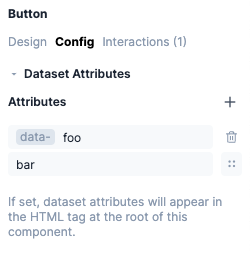
It is possible to add custom data attributes to certain Replo DOM Nodes. This is currently compatible with Buttons, Containers, Product Containers, and Text components. In the "Config" tab, click on the "+" icon to add a new key-value pair to be added to the root DOM Node of your component. The key will become the dataset label, and will automatically include the data- prefix and when rendered will be reformatted to kebab-case. The value you input will become the corresponding value in the dataset. You can click on the dynamic data button to the right of the value's text field to assign a dynamic data value to the dataset attribute. If you want to remove a single key-value pair, click on the trash can icon.
Custom Shopify Theme Deployment
If you have a custom deployment workflow set up for deploying a theme to your store (e.g. you use a github repo with CI which automatically copies files through the Shopify API or ThemeKit), please see Custom Theme Deployment for information on how to merge Replo's content into your deployment pipeline.
Preloading/Caching Apps and Libraries
Replo pages include a Javascript tag on them - you may see this script served from a CDN, something like replocdn.com or cdn.replo.app. This Javascript is required so that Replo can add interactivity to the page (e.g. so buttons are clickable, carousels scroll correctly, etc).
If your theme uses a pre-fetching or transitioning library (e.g. Swup) you'll need to configure the library to load scripts from the page which was pre-fetched so that the Replo content can be interactive.