Shopify Bundles App
Last updated: October 9, 2024
The Shopify Bundles app is a Shopify app that allows merchants to easily combine multiple products into a single bundled offering. This app simplifies the process of creating and managing product bundles without the need for custom code or third-party integrations. With the Shopify Bundles App, you can effortlessly:
Create product offerings that boost your average order value.
Combine complementary products - such as a camera, memory card, and tripod.
Automatically manage stock levels for all bundled items.
Example: Imagine selling a summer bundle that includes sunglasses, a hat, and sunscreen. Customers get all they need in one convenient package.
How it works?
When you create a bundled product using the Shopify Bundles app, the app generates a new product that includes the individual items as sub-products. When a customer checks out with this bundle, the app processes the order by adding each product from the bundle to the order.
Limitations
Before creating bundles, it's important to be aware of certain limitations with the Shopify Bundles app.
Limit of 30 Bundles Products - You can include up to 30 individual products in a single bundle.
Limit of 3 Options: There's a maximum of 100 total variants for each bundled product.
Limit of 100 Variants: There's a maximum of 100 total variants for each bundled product.
Step-by-step Guide
Creating the bundled product
After installing Shopify Bundles, open the app and click on Create bundle.
Enter the name of the bundled product and select which products you want to include in the bundle.
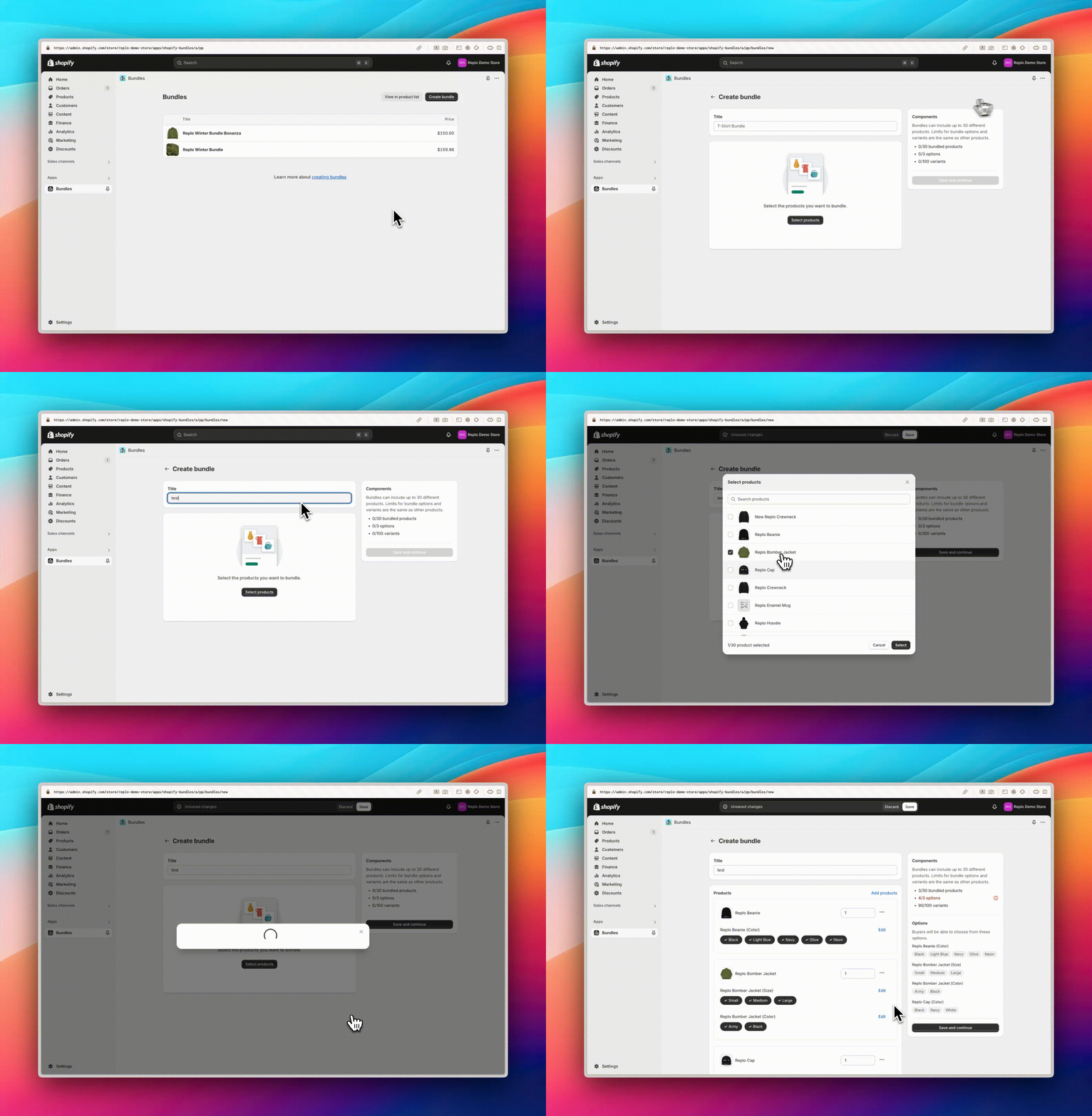
Configure which options you want to make available to your customers here. For example, if you only want one color option available, you can deselect which option is available by clicking on its value.
You may need to limit which options are available across the chosen products to avoid reaching the app's 3 option limit.
Displaying the product in Replo
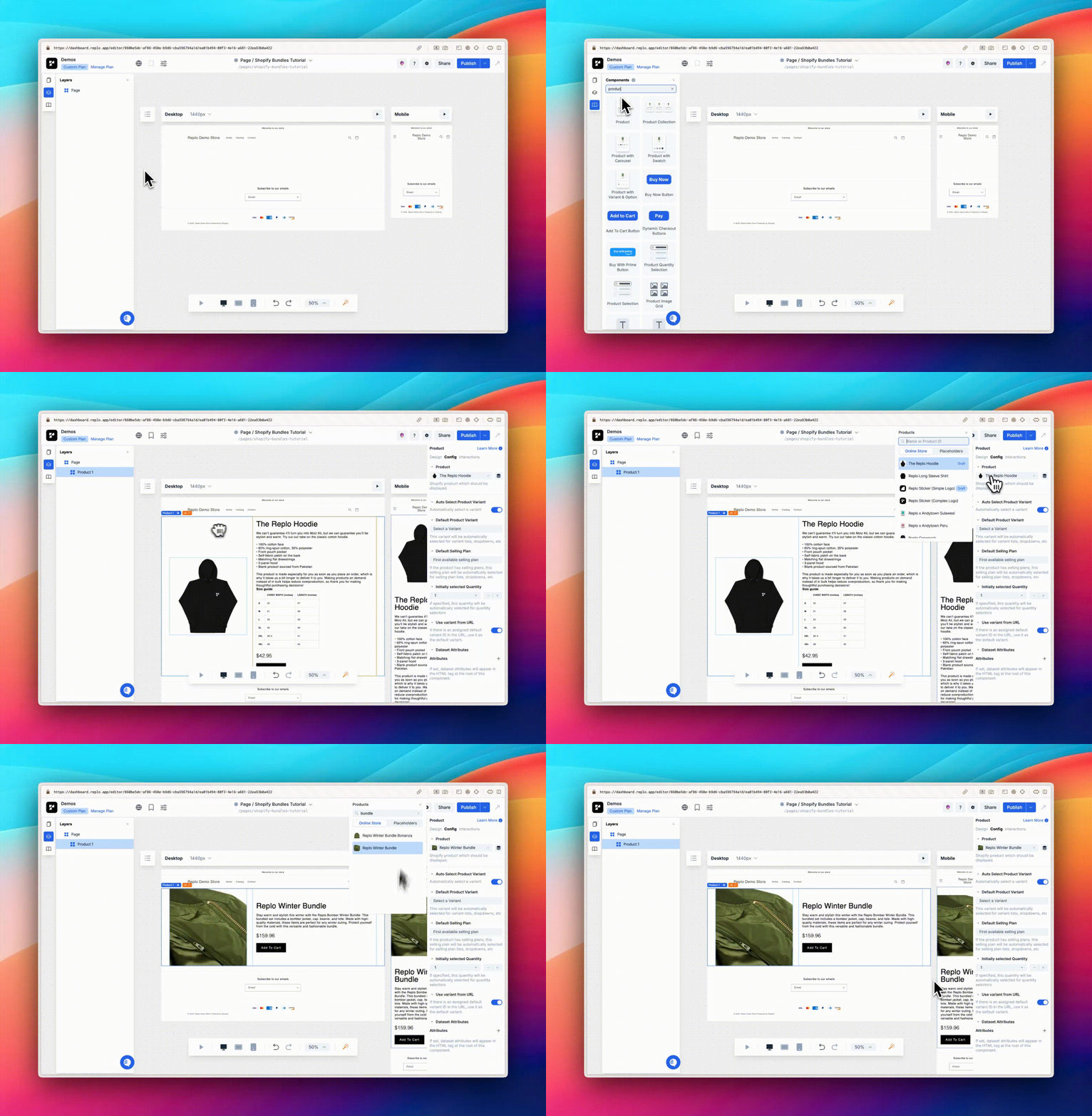
Drag and drop the product component onto your canvas and open the config settings for the component.
Under the Product section, select the dynamic data icon and choose the recently created bundle product from the list. The product component should now show your bundled product. Feel free to make any design changes to the product component to fit your brand styles.
Handling product options
Bundled products often include items with various options like size, color, or style. It's important to allow customers to select their preferences for each product within the bundle. Replo offers several components that make this process easy.
If you're using the Circular Option List component to display visual options like colors or images, you'll need to set up Swatches. Swatches allow you to associate colors, images, and more with your product's option values. This provides a visual representation of each available option, making it easier for customers to make their selections.