Version History
Last updated: March 19, 2025
Note: While the user interface shown in the video has been updated, the core functionality remains the same.
Sometimes, you may want to restore an older version of a published page — for example, if you've made a mistake in the current version. Replo tracks changes to your pages and saves a version history, so that you can revert to any previously published version of the page at any time.
When versions get created
Replo automatically creates new versions in several scenarios:
When you publish or unpublish a page, section, or blog
When you restore to a past version
When you publish changes after restoring a version
While editing, during the autosave process*
Version history records from the autosave process are automatically purged after 90 days. All other record types (for example, from publish) are kept indefinitely.
Each version records what the page looked like at that time and who made the changes.
Accessing and managing version history
You can access version history in two ways:
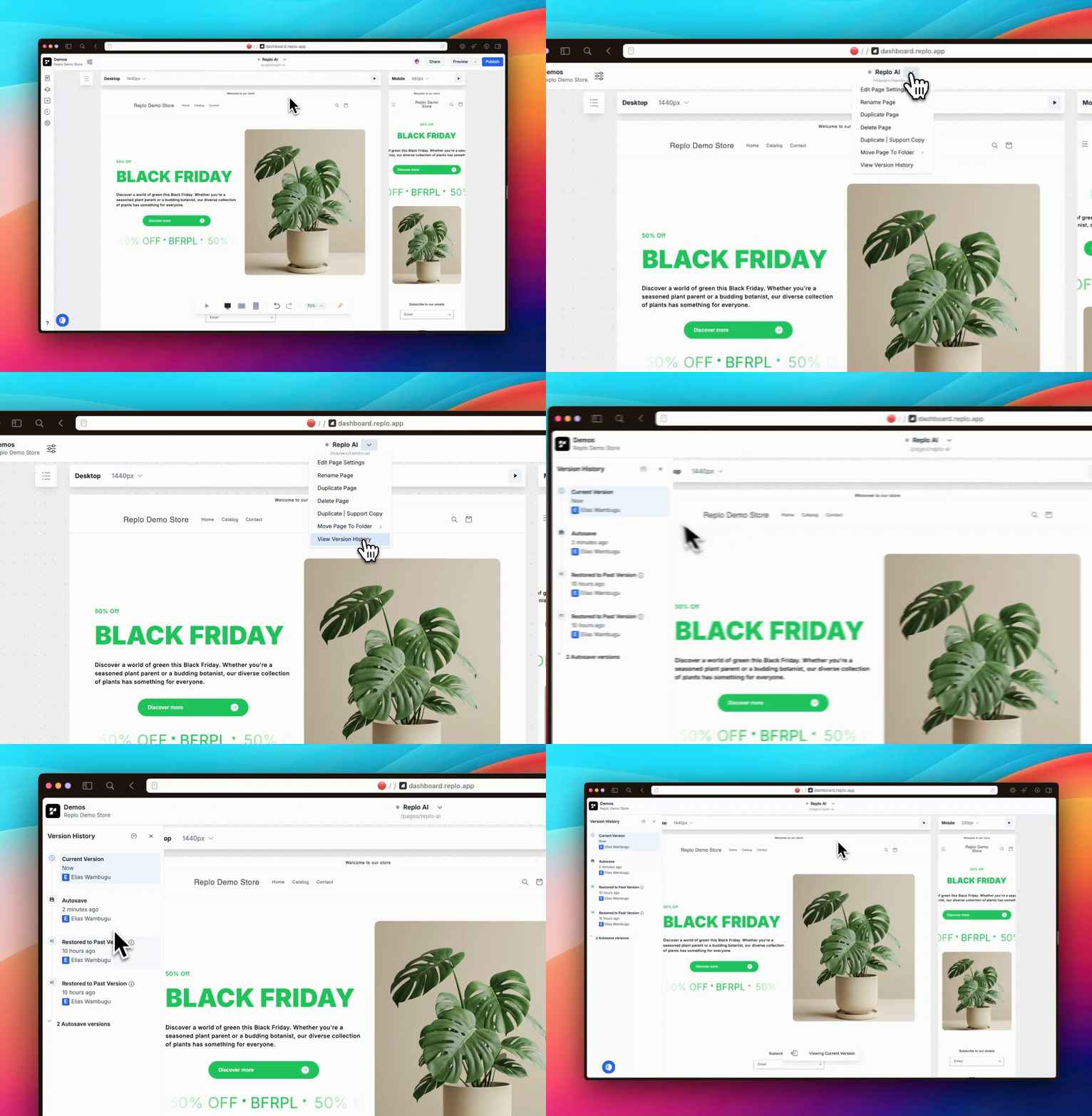
Navbar: Click the dropdown menu at the top center of the screen, next to your page name.
Left Sidebar: Use the dedicated version history button in the left sidebar:
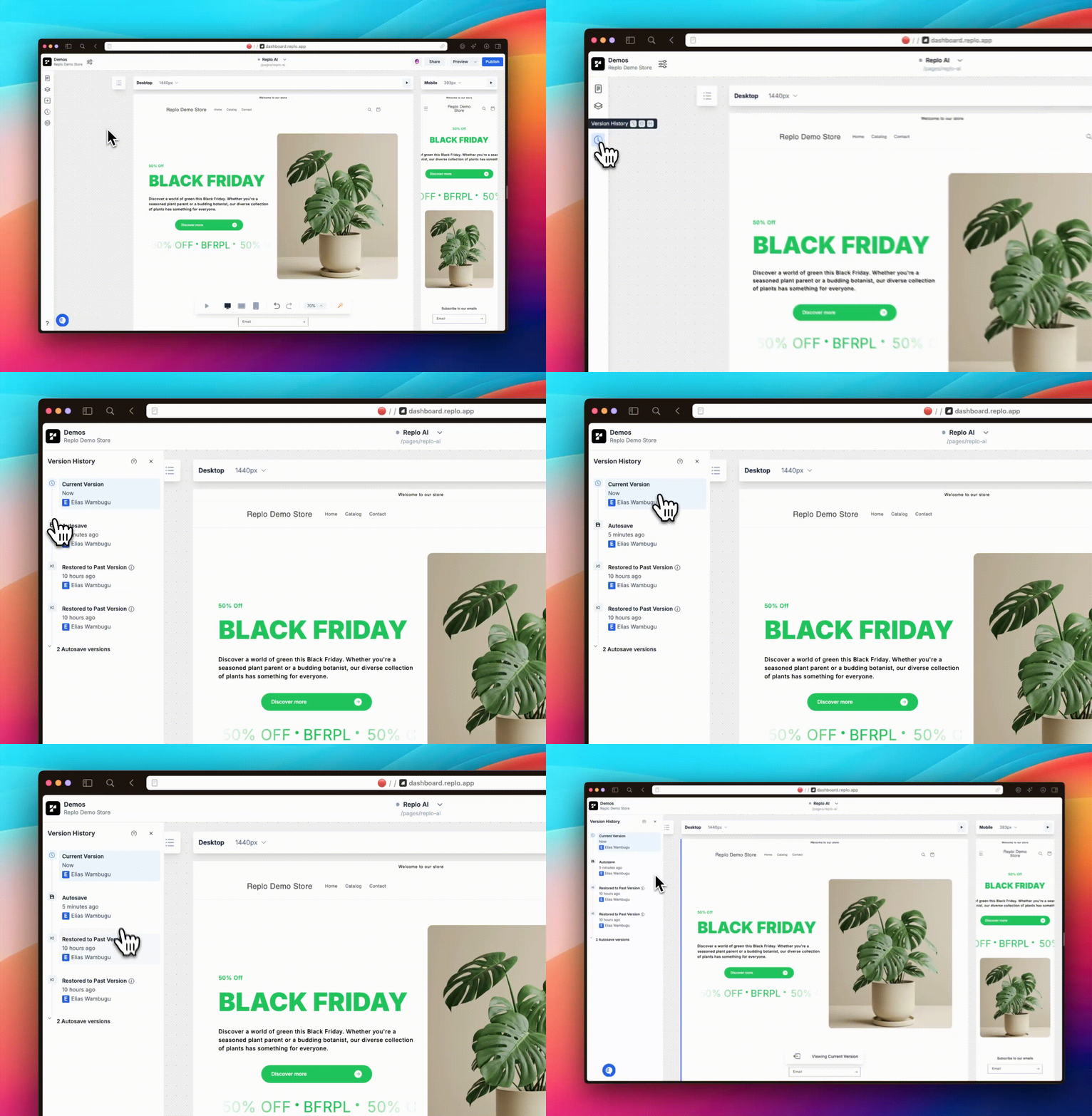
Once you’re in Version History, clicking on any historical version will allow you to preview it in the canvas. You'll also have the ability to filter shown versions by the following:
All version
Versions created by you
Published versions
Restored version
Restoring older versions of a page
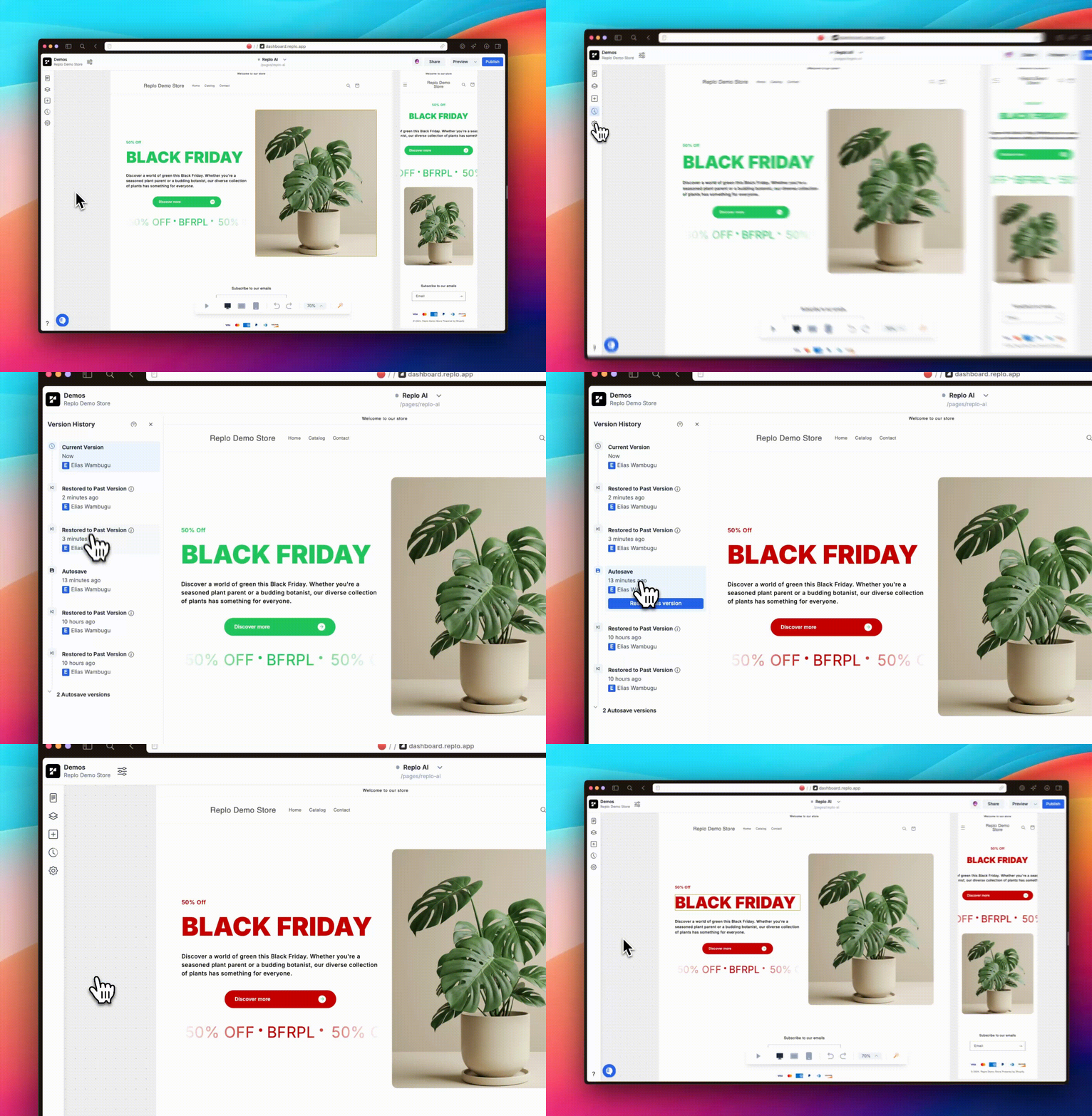
Open version history
Preview a specific version: To view a specific version of a page, click on the version. The preview of the page will update to the relevant version.
Restore the page: Click Restore Page to restore the page to that version. After restoring a version, you will need to publish again in order to see those changes live on your site.