Text
Last updated: February 13, 2025
Text is one of the most common components on every page - almost all pages created in Replo have Text in them. Replo supports a full rich-text editor, which means that you can create and apply styles and formatting to your text components.
To Add a Text Component:
Navigate to the page you want to add Text to in the editor.
On the left side of the editor, click the "Components" toggle, then search for "Text."
Drag the Text component into the page.
Rich Text Editing
Replo supports all of the following rich text editing features in the text editor in the right-side editor panel under "Text."
Bold, italic, underline, and strikethrough
Background and foreground text color
Text alignment and centering
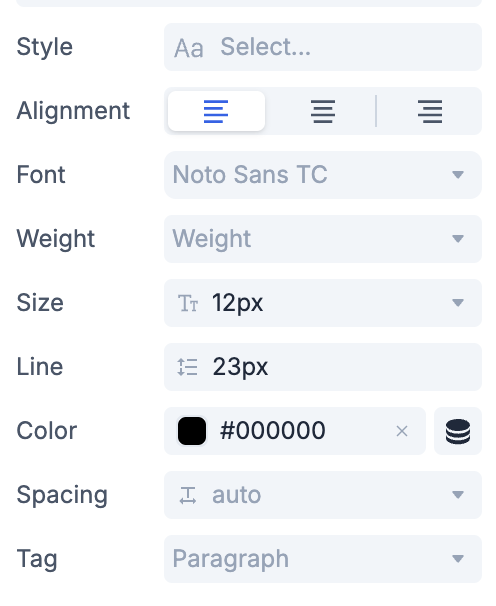
Some types of formatting are accessible via keyboard shortcuts:
Superscript and subscript (accessiblecmd-. and cmd-shift-.)
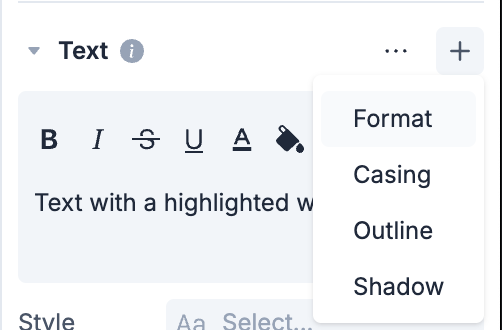
Some of the less common types of formatting are selectable via the "+" button:
Casing (uppercase, lowercase)
Text outline
Text shadow
Inline Rich Text Editing
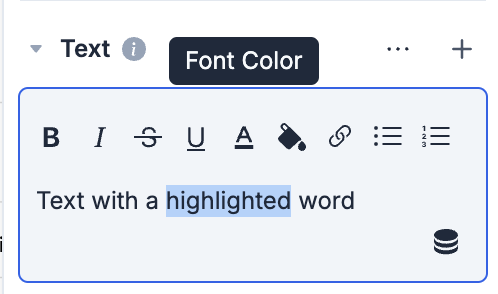
In Replo, most rich text formatting can be applied either to the entire text, or to a inline selection of the text. To apply formatting to an inline selection, select the text you want, then use the buttons above the text to apply the formatting:
Bold, italic, underline, and strikethrough
Lists and bullet-points
Links
Text color
Text background color
Additional Inline Formatting Types
Some types of formatting in Replo aren't able to be applied to inline selections of a text component:
Font
Font size
Line height
Letter spacing
If you need inline formatting for these properties, you can duplicate the Text component and align the two differnetly-styled text component using 📄 Containers.
Tag Types
Replo also supports modifying the HTML tag type for a text component, which can be important for accessibility. To modify the tag type, use the "Tag Type" dropdown under the text editor.
Adjusting Text Height
In Replo, you can use the Line Height field to adjust the height of text in a component while keeping the text aligned to a vertical baseline.
To update line height:
Find the text component you want to update
In the right bar, under "Text", find "Line Height"
Drag or type in a new value to update the height of the text