Best Practices for Building Pages in Replo
Last updated: July 12, 2024
Tldr; Simplicity is key when building webpages that are easy to understand, edit, and manage with Replo. The most common issues that we see on Replo projects are the tedious and manual workarounds for complex workflows, and overusing containers to structure a page. By learning the core functionalities of our design tools, you can be more strategic and efficient about the way you build your designs, leveraging features designed to help you work smarter, not harder.
Introduction
One of Replo’s biggest value propositions is that we help customers build fully customizable, pixel-perfect Shopify pages with our editor. This means that you can say goodbye to the limiting Shopify’s theme customizer and the headache that comes with complex coded solutions. However, with great power comes great responsibility. Failing to adhere to best practices can lead to frustrating experiences for your teams and customers, including an unmanageable editor, slow loading speeds, and pages that don’t perform well across different devices types.
Unlike design tools such as Figma where the process ends once the visuals are polished, pages in Replo require structural rigor. This is because the end result (web content) operates within the confines of HTML, CSS, and JavaScript. These rules ensure published pages are not only visually appealing but also responsive and quick to load across all device types. Unlike PDFs and images whose content simply shrink or grow, elements on a webpage wrap and adjust to the device’s screen width and size. This ensures that text remains easy to read and elements are still user-friendly on smaller devices, providing a seamless experience on phones, laptops, and tablets alike.
Simply put, a design that looks good in the editor should also follow structural best practices to ensure optimal performance and user experience once it’s live. This document outlines fundamental guidelines and best practices that help you easily and intuitively build scalable, on-brand, and high-performing pages with Replo.
Work smarter, not harder
Replo offers many features that are designed to automate and streamline your processes. Leveraging these features leaves less room for human error and ensures consistency across your Shopify store and website — with less work.
Use dynamic data for everything product-related
You should use dynamic data to configure the majority of the content within your product components instead of manually loading images and typing text for each element. Dynamic data allows your components to be seamlessly linked to data sources defined in Shopify (and sometimes within Replo as is the case with Swatches) which simplifies content management.
For instance, if the price of an item updates, you won’t need to manually edit the price for every product component it appears in. Simply update the data in your Shopify store, and all dynamically configured components will automatically reflect the change.
When it comes to building product pages (where the URL structure is /products/<product_slug> ), use Replo Product Templates.
Product Templates heavily leverage Dynamic Data. Assigning multiple products to a single product page layout allows you to make changes to one template and affect this change across all assigned products.
Set default font styling on top-level containers
Instead of manually configuring the font for every text block, set default font styling on top-level containers. Children elements automatically inherit the font applied to their parent containers. For instance, setting a container’s font to Arial means any text block added within this container will automatically use Arial.
To maintain a consistent font across an entire page, simply set the font style on the top level Page container.
Use gap, padding, and margin correctly
Gap, padding, and margin each play a unique role in webpage layout and should be used intentionally. Understanding and using these correctly helps ensure your page is responsive, properly organized and structured, and easy to maintain and update.
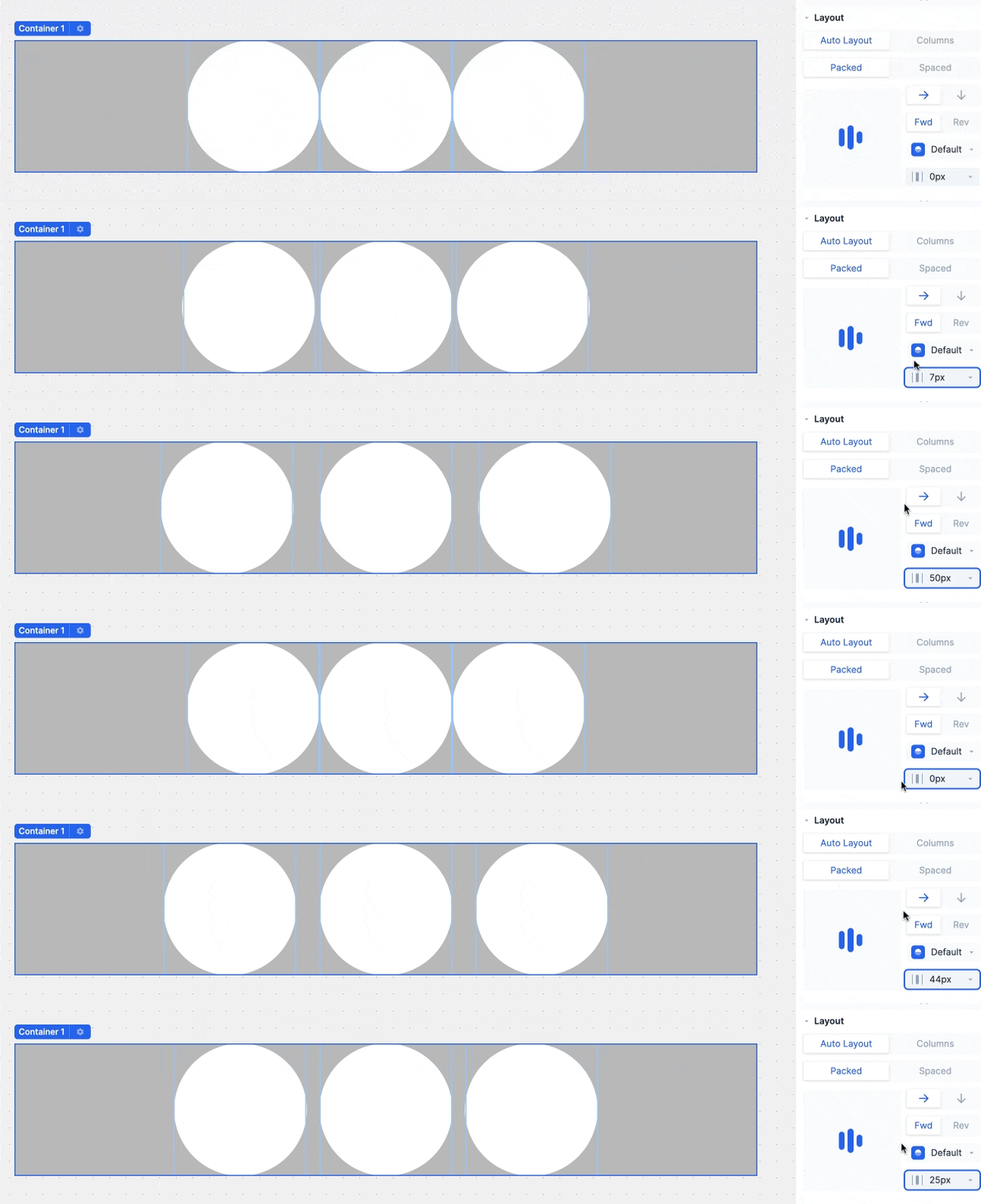
Gap: if you want to add space between items in a container
Padding: if you want to add space between the border of a container and the content inside it.

Margin: if you want to create space around an element. Margin clears the area around an element and is transparent. Margins can take negative values too, which results in an overlapping effect.

Less (containers) is more
People often use extra containers for convenience, seeing them as a quick solution to achieve desired spacing and layout effects. This approach can seem simpler in the moment, bypassing the need to delve into more precise styling techniques. However, using as few containers as possible is important for optimizing page speed and performance, but most importantly, it results in designs that are easy to understand, edit, and manage. Trust us! You’ll thank us later!
Don’t use empty containers to create space
Instead of using empty containers to create space, use gap, padding, and margin to achieve the desired spacing. For instance, if you want to create space between two sections, rather than inserting an empty container between them, consider using padding, gap, or margin. This approach minimizes the number of containers and creates a cleaner, more efficient layout.
Don’t duplicate and hide containers for different devices
Instead of creating separate sections for mobile and desktop and using visibility settings to manage how/when they appear on the page, start by building a single component in desktop view. Then, resize the canvas and make adjustments in the design panel to ensure the page looks and behaves as expected across all screen sizes.
Duplicating sections adds unnecessary weight to the page, which can negatively impact your page speed. This is especially true if these duplicated sections have images or videos as you’re delivering the same content to the browser multiple times (and only showing one instances of it). Optimizing your design for multiple devices within a single set of components streamlines the code and enhances performance.
Make sure to understand how responsive design works.
Key takeaway: Styles are inherited from larger devices to smaller devices. Style overrides specifically set for smaller devices override this inheritance. For example, if a container has 80px padding on desktop, setting the mobile padding to 16px won’t affect the tablet and desktop styles.
Minimize stand-alone nested containers
Styles applied to nested or children containers can often be consolidated onto the parent container, achieving the same visual effect with fewer levels of nesting and complexity. This reduces page weight and enhances page speed and performance. More importantly, managing designs becomes simpler, as all styles are applied in one place, eliminating the need to edit multiple containers to make simple design changes.
While there are exceptions to this rule, following this guideline is something we highly recommend.