Inviting collaborators to a shop or workspace
Last updated: August 20, 2025
Replo makes it easy for teams to work and collaborate together. With Replo, you can easily invite team members, clients, or contractors to work on your shops with different types of permission levels. There is no limit to how many collaborators you can have in a shop OR workspace. There is also no limit to how many shops or workspaces your user account can have be invited to. See the workspaces in Replo guide for more info.
Inviting members to your workspace
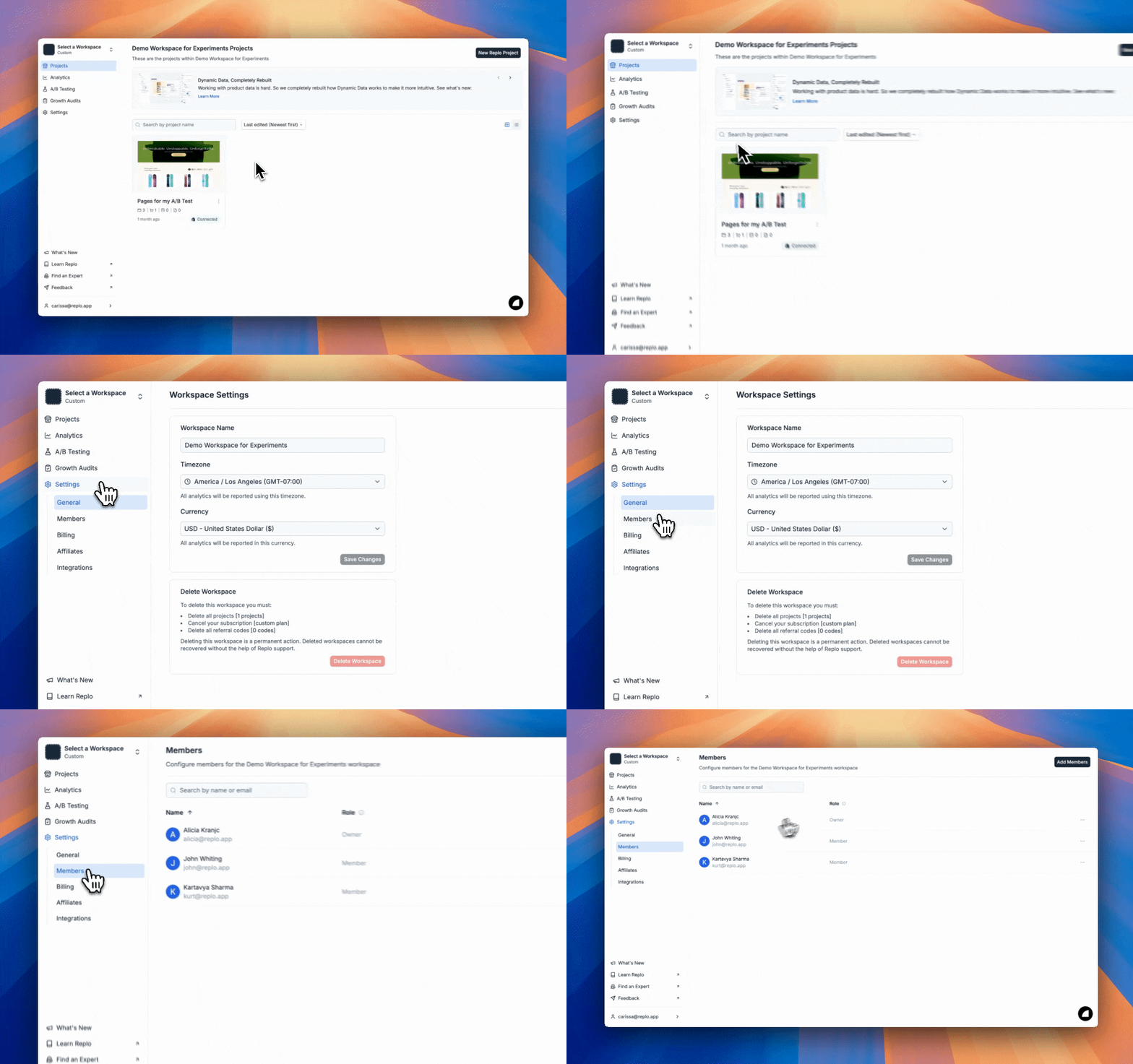
For teams who need full access across to all shops on your workspace, you can easily invite them in the members page on any workspace. To get started, start by opening the workspace you want to invite members to:
Open members page: On the left hand side, select Members. Here you can easily manage members for your workspace. To invite members, click on Add workspace members at the top
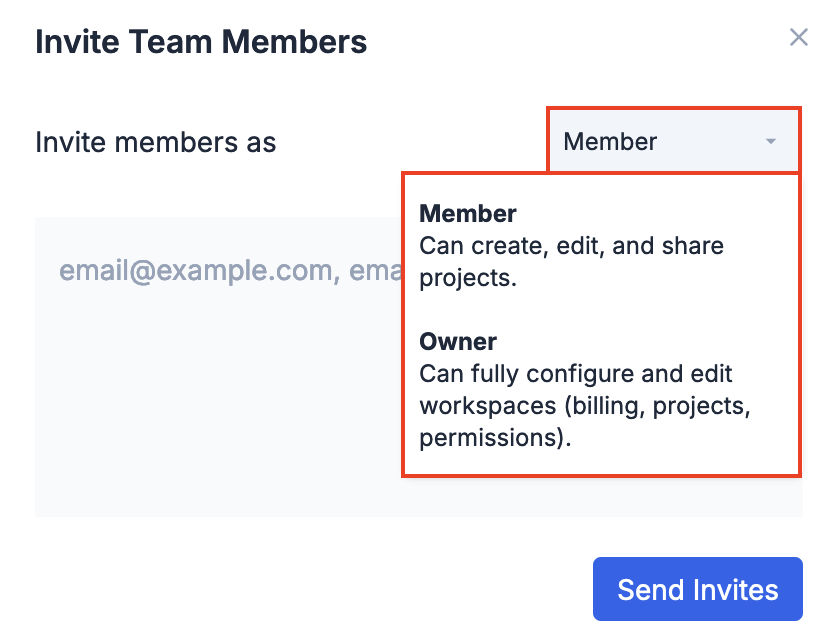
Change member permissions: You can change what type of access members have before sending an inviting. The default option is Member. Please refer to this guide on different types of user permissions to learn more.
Invite members: In the text-area, feel free to add as many emails separated by commas. When you're ready, click Send invites
Inviting members to a single shop
If you don't want to give members access to your entire workspace, you can invite them to a specific shop. From the main dashboard, open the shop you would like to invite members to:
Open share screen: At the top, locate the share button to open the share modal.
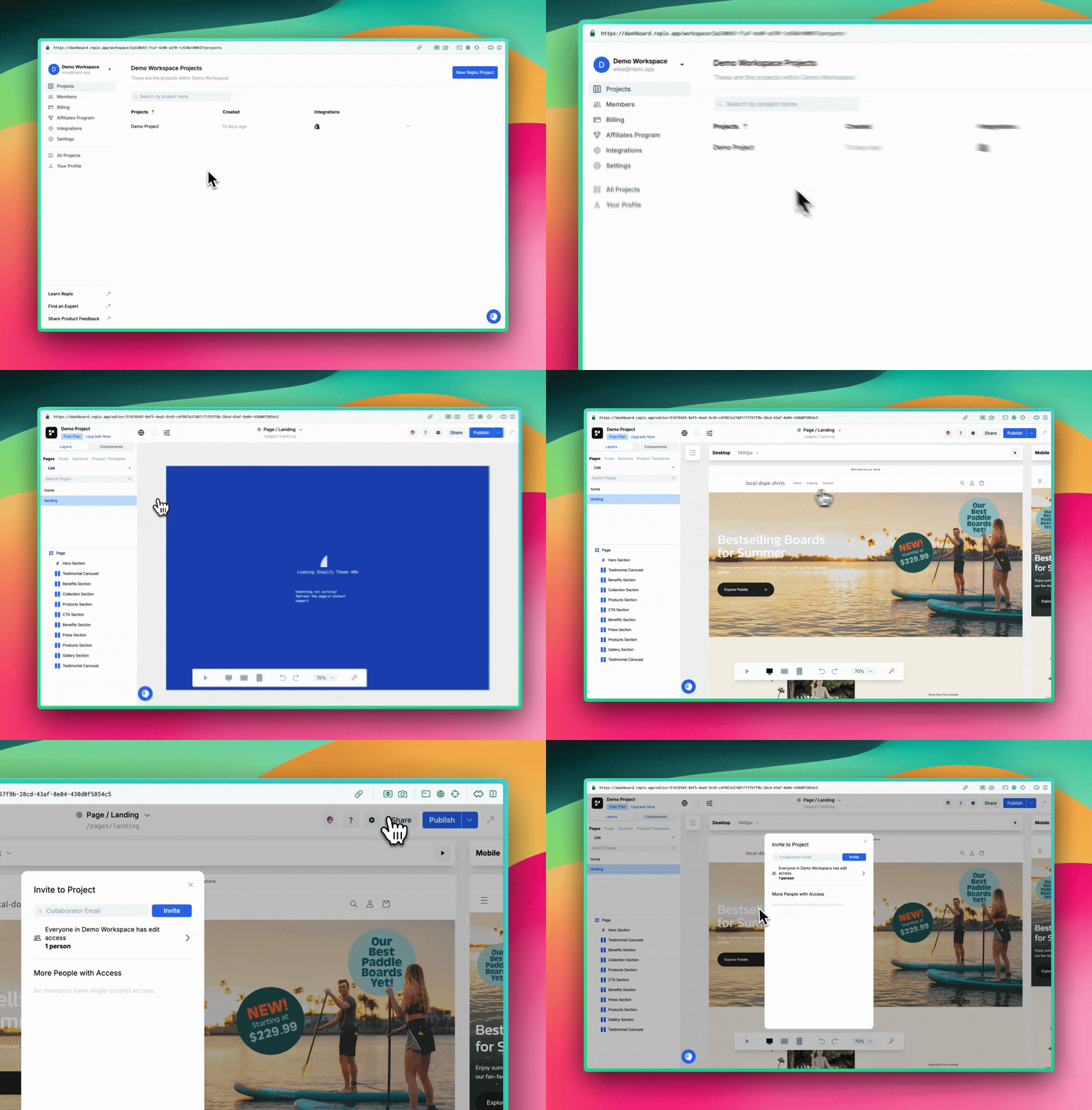
Invite members: Here you can add and remove members from the shop. After adding an email, click Invite, and they should receive an email shortly.

Accessing a shop or workspace from an invite
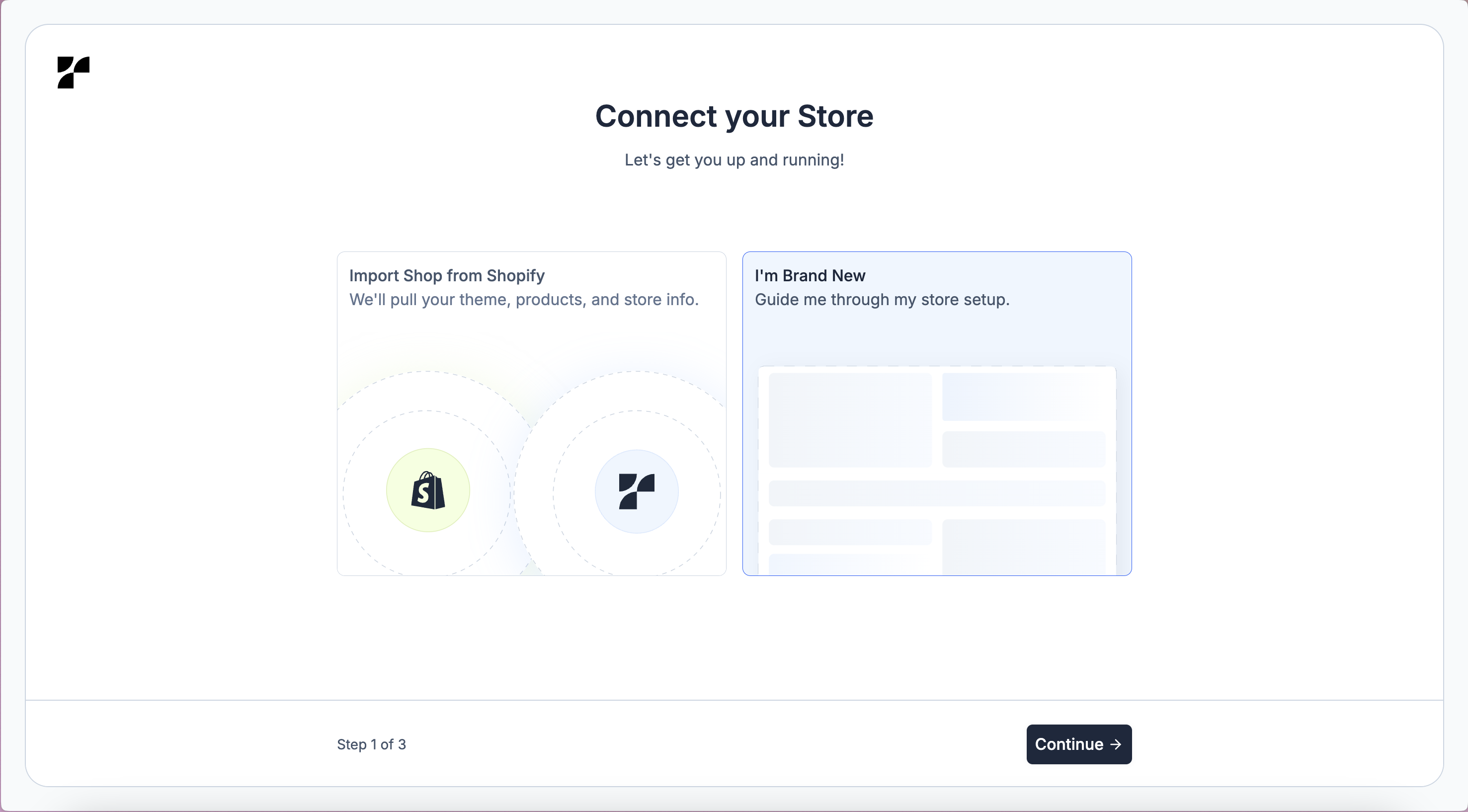
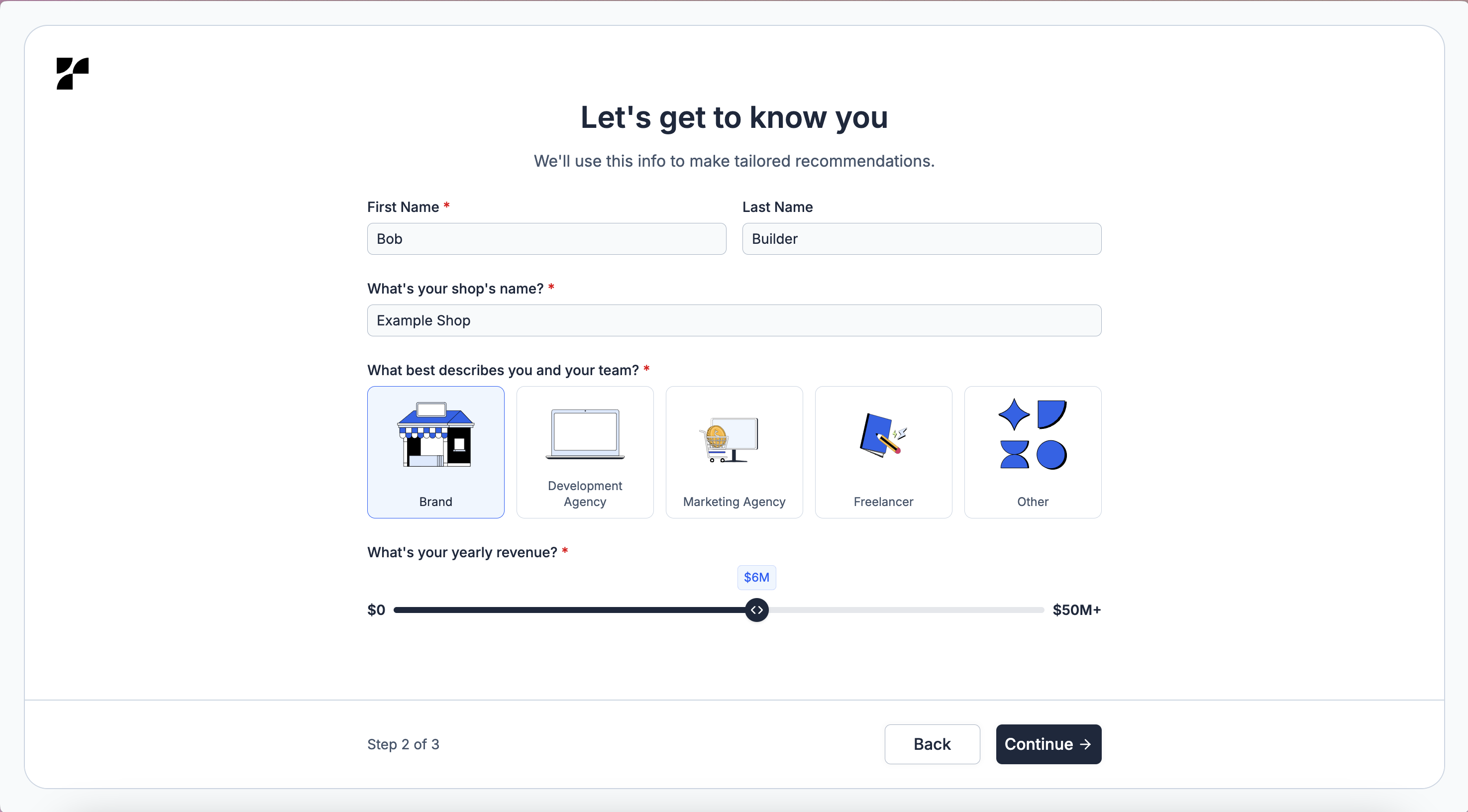
To join a shop or workspace from an invite link, you’ll first need to create a Replo account. Clicking the invite link will take you to set up your account. Simply follow the on-screen steps to access your dashboard and get started.
1. Select 'I'm Brand New" in the Store Setup Step
2. Fill in your user and shop info
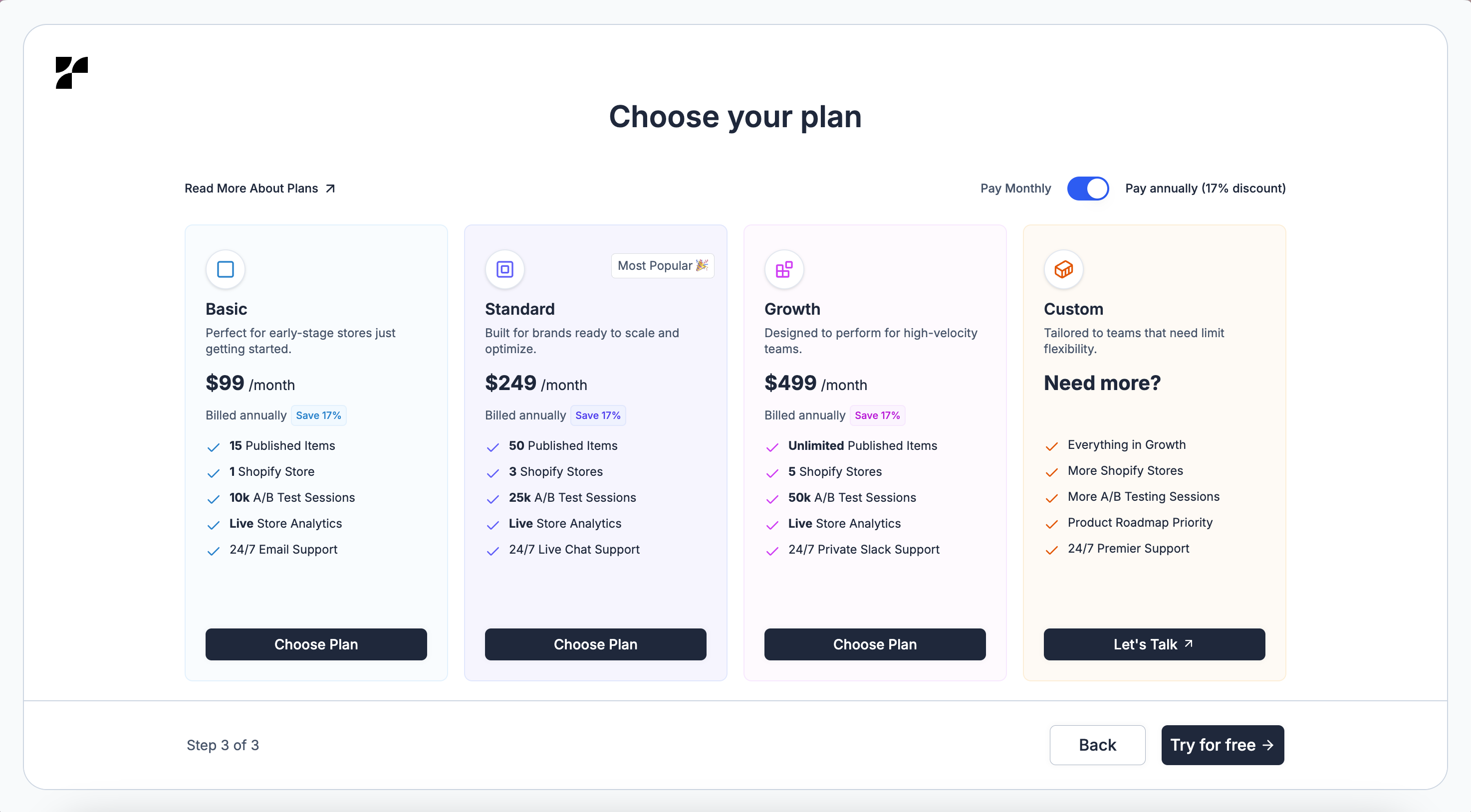
3. Select a workspace plan or try for free
You don’t need a paid plan to join another person’s workspace. Simply click “Try for free” to access the dashboard you’ve been invited to.