How Auto Save Works in Replo
Last updated: March 19, 2025
How Auto Save Works
Replo automatically saves your work as you edit to prevent data loss. The system also creates versioned backups that you can access through Version History if you need to restore earlier versions of your pages.
When are backups created in Version History?
Replo saves your work automatically in these situations:
Every 10 edits to an element
When you publish a page
When you restore a previous version
When/how often is work automatically saved?
Your work in Replo is automatically saved on every edit you make.
Is there a limit to how long a version history is kept?
We automatically purge autosave versions history records after 90 days. For all other types (for example, publish and restore), we will keep these records indefinitely.
Pending Unsaved Updates Warning
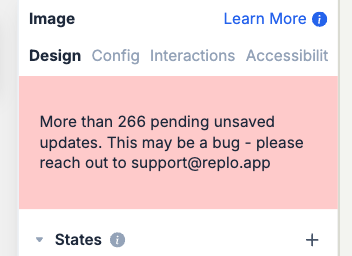
You may occasionally see a warning about pending unsaved updates. This typically occurs when:
There are network connectivity issues
Changes haven't been synced to the server yet
The auto-save process is interrupted
What to Do When You Have Unsaved Changes
If you see a warning about unsaved changes, here are the steps you can take:
Wait a few moments to allow the auto-save to complete if there are temporary network issues
Check your internet connection
If your internet connection is stable and you still have pending unsaved changes, there may be an issue with the auto save system. You can backup your unsaved changes by copying and pasting the contents into a new page in a separate browser window.
DO NOT refresh the page or you will lose any unsaved updates you made.
Versioned backups will not be created while you have pending unsaved changes.
If you continue to experience issues with auto-save, please contact support for assistance as this could indicate a technical problem that needs investigation.