Multi-Device Editing
Last updated: February 26, 2026
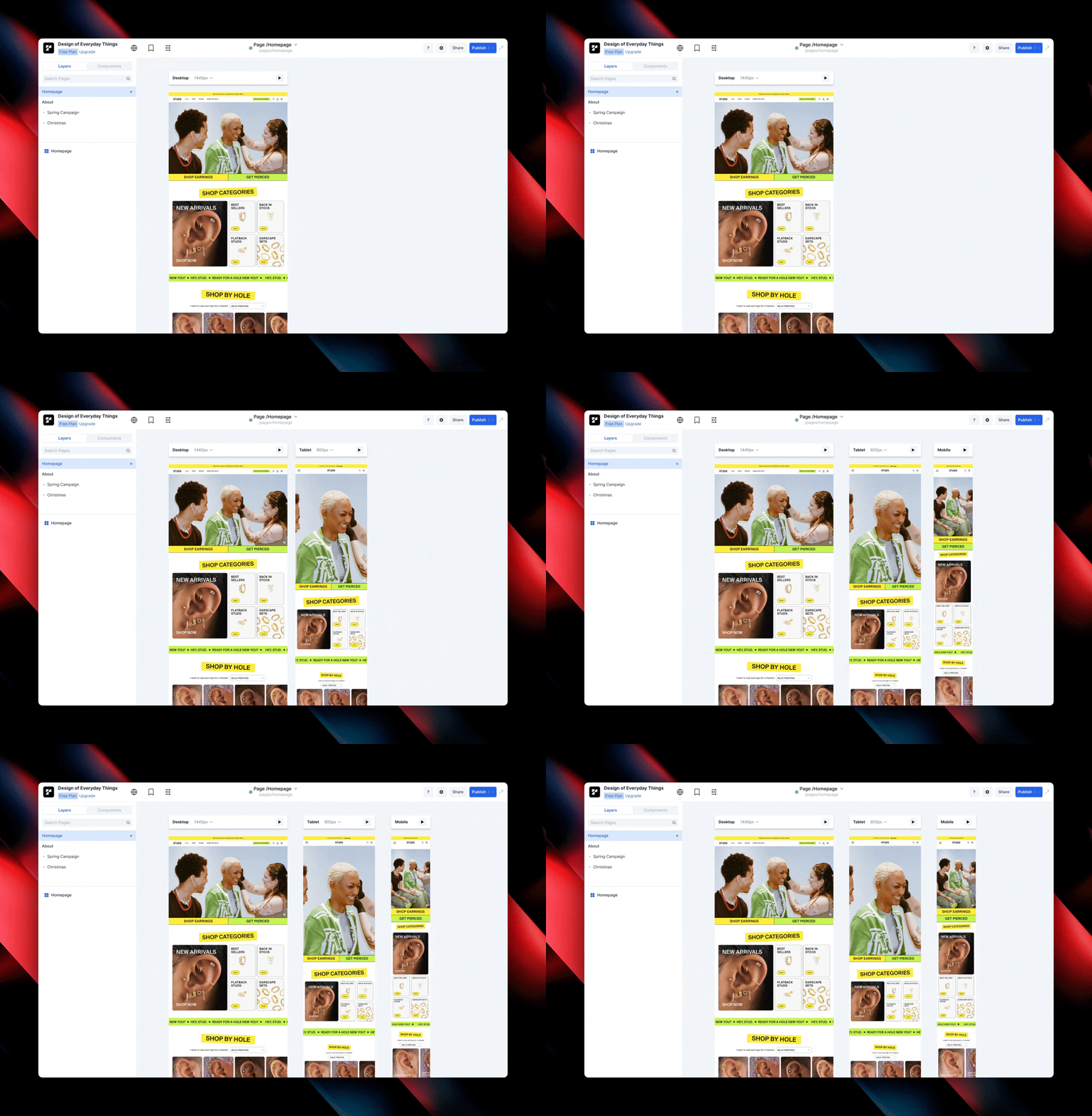
Replo allows you to display and edit all three device frames (desktop, tablet, and mobile) simultaneously in your editor. Any changes made to one device frame are automatically reflected on the other device frames.
This functionality provides real-time visibility into how your pages appear across device sizes, making it easy to see how a change on one device will affect others without having to toggle between different preview modes.
Show/Hide Device Frames
You can display up to three device frames on your editor at a time to represent Desktop, Tablet, and/or Mobile devices. When you load your editor, the Desktop and Mobile device frames will automatically load in (Tablet being hidden by default).
To select which device frames to display:
Click the device list dropdown on the top right corner of the device frame header.
Select the devices you want displayed. Deselect any devices you don’t want displayed.
Preview Device Frames
Method one: Device Frame Header
Click the Play icon in the device frame header to preview that page with that specific device type.
Method two: Toolbar Menu
Click the Play icon in the updated toolbar menu on the bottom of the page. The selected device button is the preview that will be displayed.
Resizing Previews
While in preview mode, you can select a device in the preview toolbar to change the size. Alternatively, you can resize the preview frame by dragging the edge of the preview frame or in the custom dimensions button in the preview toolbar.
To exit preview mode, simply click the back button in the preview toolbar.
Resize Device Frames
Device frame sizes are independent of each other, meaning resizing one device frame will not affect the others. One thing to note is that you can only resize device frames within the breakpoints of it’s relative device.
Device Frame Breakpoints
Desktop: 1024-2400px (Default: 1440px)
Tablet: 480px-1024px (Default: 810px)
Mobile: 320px-480px (Default: 393px)
Method 1: Drag to resize
You can resize a device frame by dragging the edge of the frame.
Method 2: Custom Dimensions Button
At the top of the device frame you’d like to resize, find the custom dimensions button in the device frame header.
To resize the page to a specific pixel width: Input the pixel value into the “Set Preview Width” input field.
To resize the page to a specific device size: Select the device you’d like to resize your device frame to from the By Device dropdown.
It’s easy to miss small details when you’re toggling back and forth between device sizes just to double check that your designs are responsive. Multi-device editing is a powerful tool that supports your natural workflows by allowing you to see changes being reflected on all screen sizes side-by-side, at the same time.
However, the rules that govern responsive design still make building responsive webpages tricky. It is still important to learn the fundamental concepts of responsive design to understand why and how changes to one canvas affect the other canvases. Following best practices will go a long way in structuring your pages as efficiently and strategically as possible.
Responsive Design Tip
Styles on smaller devices are inherited from larger devices. Style overrides specifically set on smaller devices override this inheritance. For example, if a container has 80px padding on desktop, setting the mobile padding to 16px won’t affect the tablet and desktop styles.
Reset Style Overrides
When editing on Tablet or Mobile, you may override styles that were originally inherited from Desktop. If you later want to restore inheritance from a larger breakpoint, you can use Reset Style Overrides.
How to Reset Style Overrides
Switch to Tablet or Mobile view (This option is always disabled on Desktop since Desktop is the source of truth).
Right-click on the element you want to reset.
In the context menu, select:
Styles → Reset Style Overrides
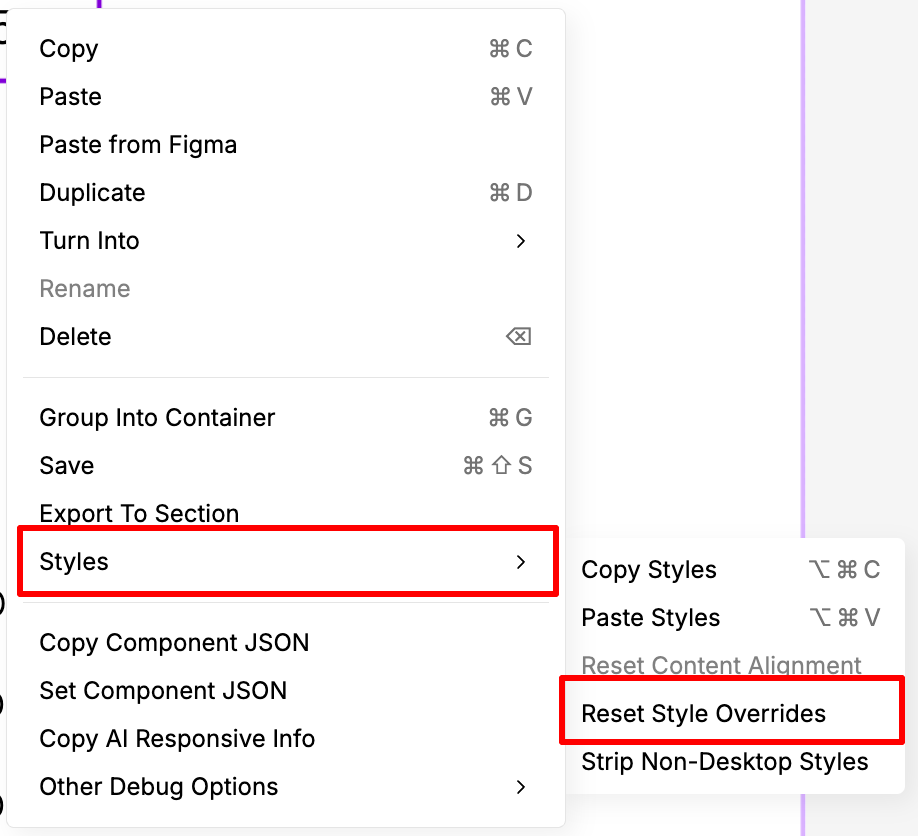
This removes all breakpoint-specific style overrides for the selected element and restores inheritance from the previous device breakpoint.
For example:
Resetting on Tablet restores styles inherited from Desktop.
Resetting on Mobile restores styles inherited from Tablet (or Desktop if no Tablet overrides exist).
This action applies only to the selected element. It does not affect child elements.
Reset Style Overrides is only available when viewing Tablet or Mobile.
There is an additional option called Strip Non-Desktop Styles, which removes all Tablet and Mobile overrides from the selected element and its children.
Resetting style overrides is helpful when experimenting with responsive styling and you need to quickly restore inheritance without manually rebuilding styles.