Subscribe & Save Component
Last updated: February 12, 2026
The Subscribe & Save component in Replo streamlines the process of offering subscription plans for products with selling plans set up on your Shopify store. It allows customers to select from multiple selling plans or choose a one-time purchase directly from a Product container.
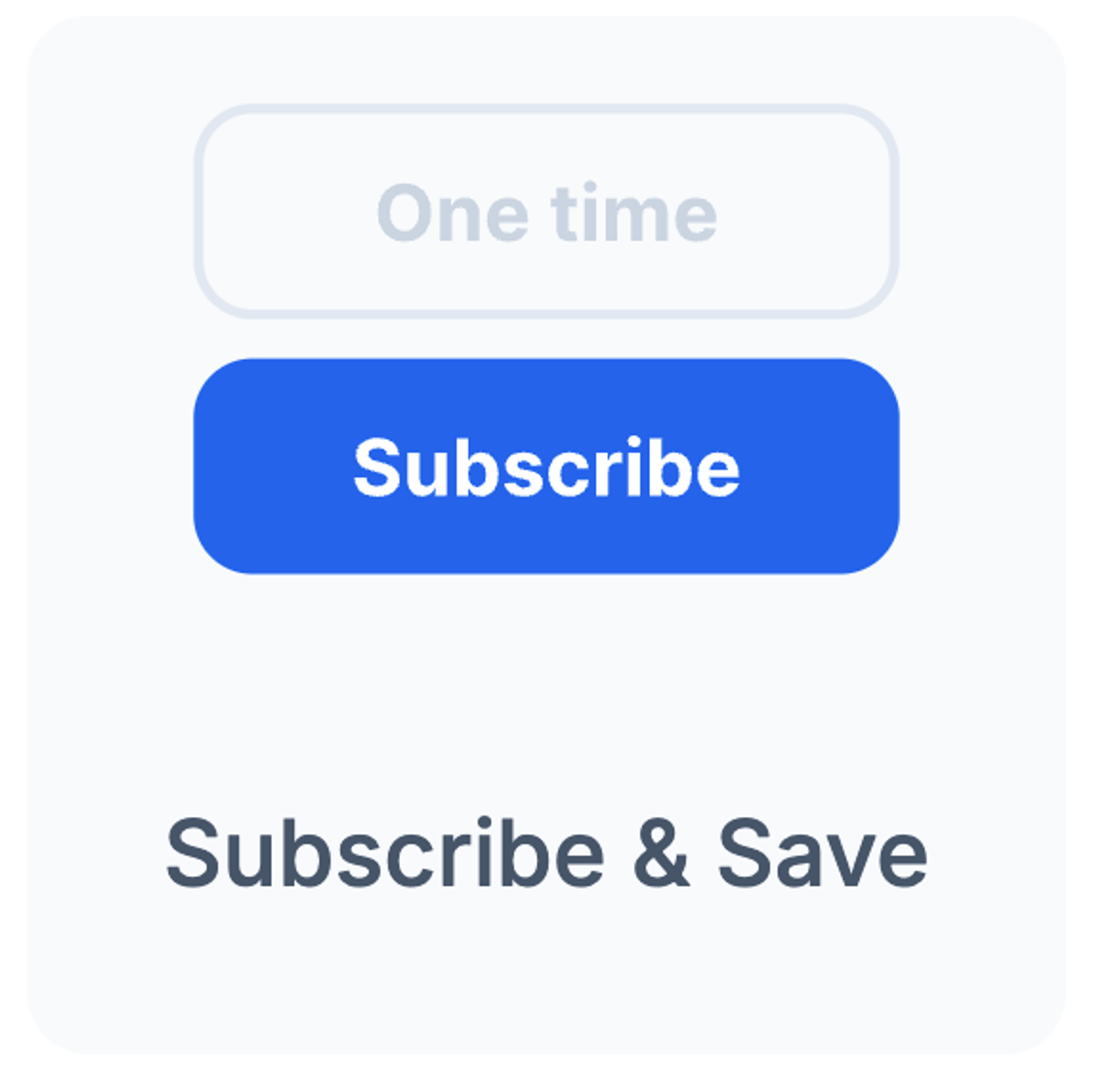
Adding the Subscribe & Save Component
To add the Subscribe & Save component, go to the components panel in Replo and search for "Subscribe & Save." The components panel can be found by clicking on “Components” in the top-left corner of the project dashboard, next to the “Layers” selection.
Drag the component into your Product container. This ensures that the component automatically pulls in the relevant product data.
Position the Subscribe & Save component on the product page where you want it to appear. For instance, you might place it above the one-time purchase button for better visibility.
Configuring Selling Plans
Setting the Default Selling Plan:
The parent Subscribe & Save component allows you to set a default selling plan in Config. This plan will be pre-selected when the page loads. You can also set “First available selling plan” as an option.
Using the Dropdown Menu:
The Subscribe & Save component includes a dropdown menu where customers can choose different selling plans. This menu is automatically set to be hidden and its dropdown state can be previewed within Replo by changing its Selected List Item state or previewing in browser through the drop-down on the Publish button on the top-right of the dashboard.
Active and Inactive States
The Subscribe & Save component is designed so that only one option can be active at a time. Each of the selling plan options comes with a preset active (Selected List Item) and inactive (Default) state, and these states are interlocked with one another. This means that when a user selects the subscribe & save option, the one time purchase option is deselected (and vis versa). This feature helps avoid confusion and ensures that the selected selling plan is always clear to the user.
When there is no selected selling plan, the assumed selection is a one-time purchase.
Automatic Pricing Updates
The pricing for each selling plan is managed within Shopify. If you update the price of any plan in Shopify, the changes are automatically reflected in the Subscribe & Save component on your Replo page. This ensures that your pricing is always up-to-date without requiring manual updates.
Troubleshooting
When I select the one time purchase option, the subscribe and save price is the same as the one-time purchase price
Generally, in a subscribe and save layout where there are two selectable tabs (one for one-time purchase, one for subscribe and save), you want the one-time purchase price to always reflect the price without any 📄 Subscriptions and Selling Plansdiscounts applied, and you want the subscribe and save tab to reflect either the price of the first subscription selling plan when one-time purchase is eelcted, or the price of the selected selling plan when subscribe and save is selected.
To do this in Replo, you can use 📄 Statesin combination with 📄 Dynamic Dataformatting options to ensure that the selected subscription selling plan discount is shown only when any selling plan is selected.
See the video below for an in-depth guide: