Text Modifier
Last updated: February 14, 2025
The Text style modifier gives you comprehensive control over typography and text formatting in your components. These controls allow you to customize how text appears and is structured on your page.
Rich Text Editor
The text editor toolbar provides quick access to common formatting options that you'll use frequently while editing text. These tools mirror familiar word processing interfaces, making text formatting intuitive and easy:
Bold (B): Makes text bold for emphasis.
Italic (I): Applies italic styling.
Strikethrough (S): Adds a line through the text.
Underline (U): Adds an underline to the text.
Font Color: Changes the color of the text.
Background Color: Changes the background color of the text.
Link: Adds hyperlinks to text.
List Controls: Creates bulleted or numbered lists.
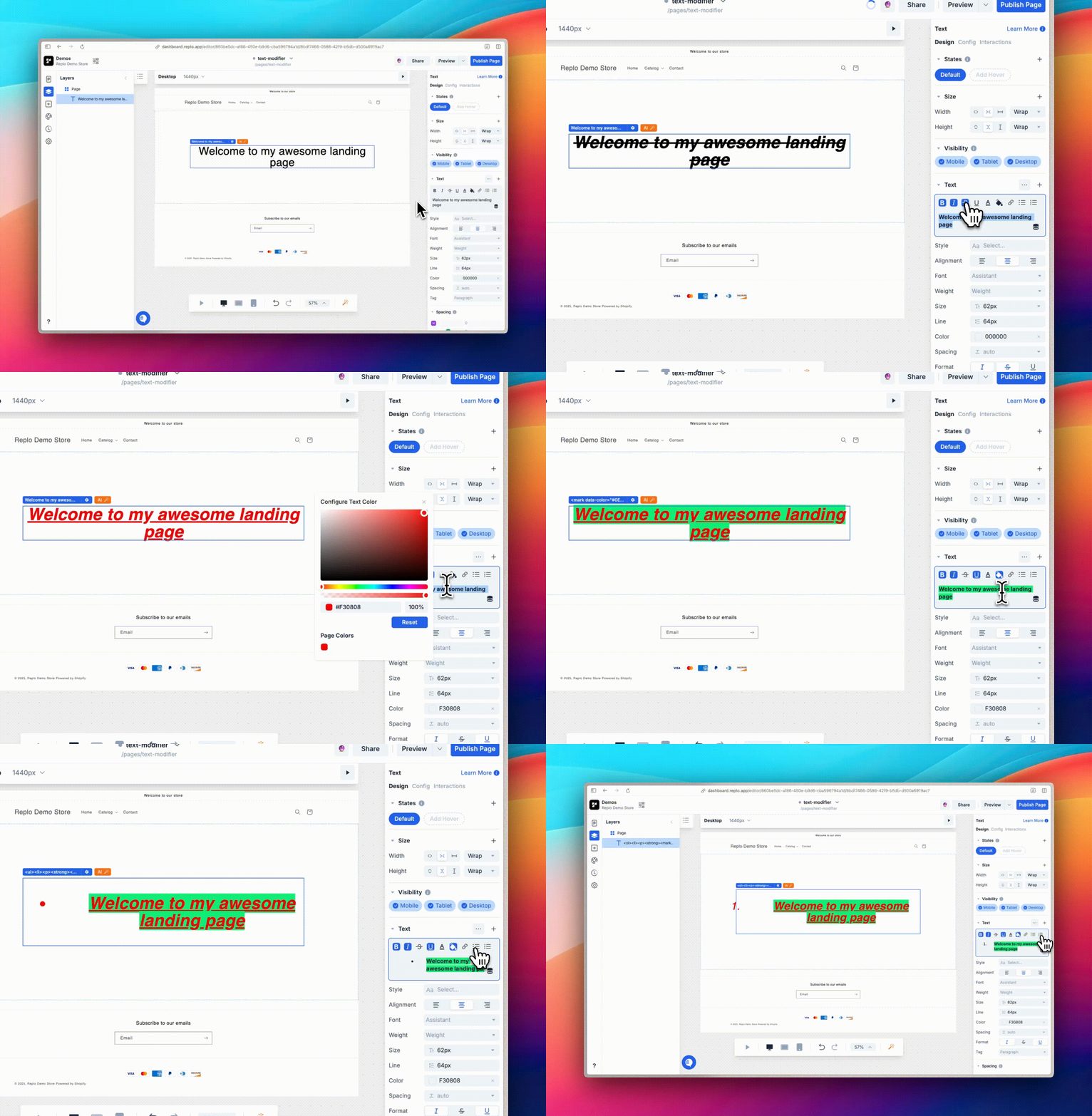
The rich text editor's styling can be applied to all or any part of the text. So if you want to emphasize or link a specific word or set of words, you can also do that via these controls 💪
Typography Settings
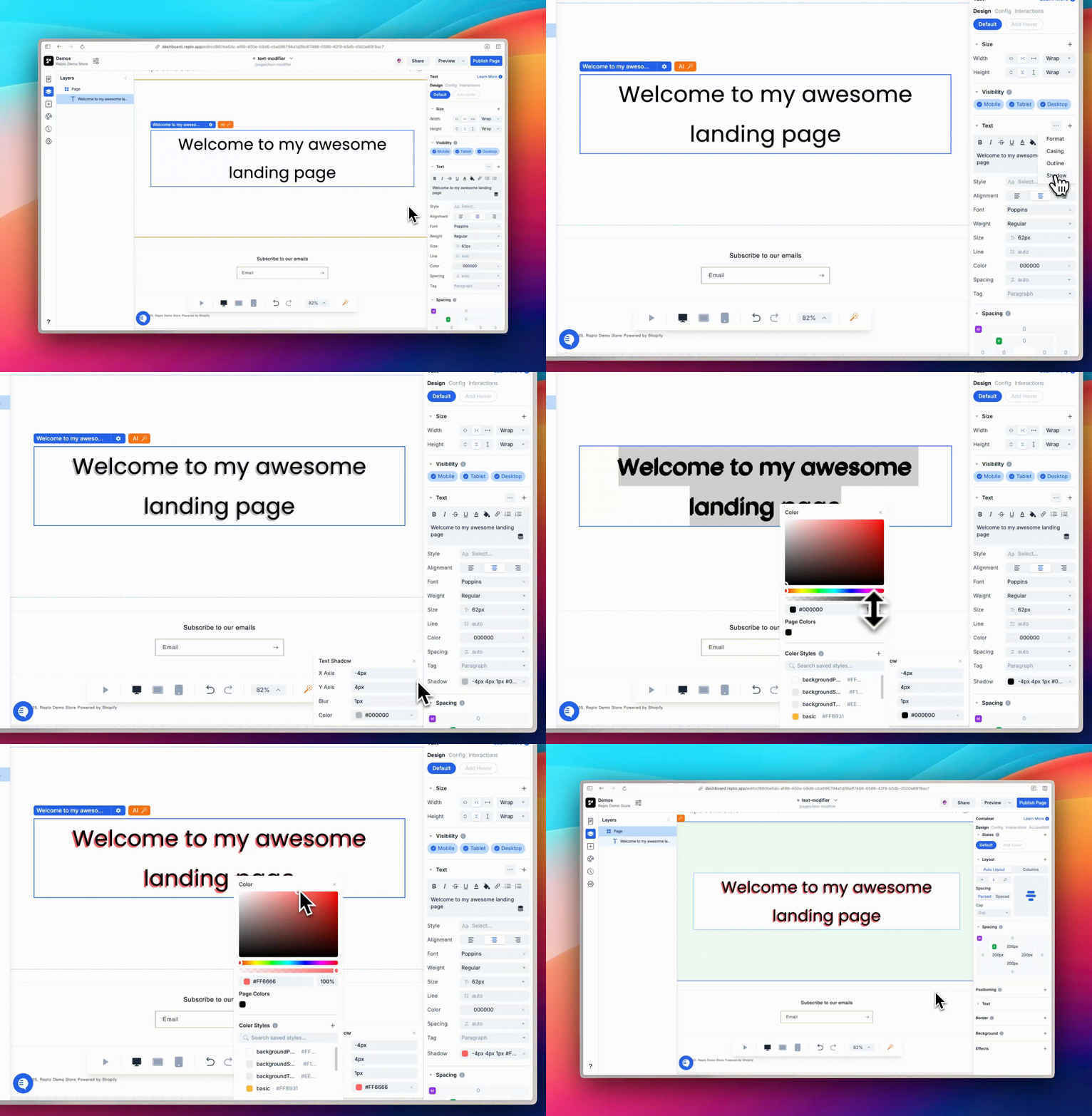
The following typography settings control how your text appears. They can help you create a visual hierarchy and ensure readability across your design. The Format, Casing, Outline, and Shadow settings will need to be added through the plus icon (+) at the top of the style modifier if you don't see them by default.
Style
Apply text styles from your style library to maintain consistent typography throughout your project. Check out our guide on Saved Styles to learn more.
Alignment
Control text alignment with three options: Left, Center, & Right align
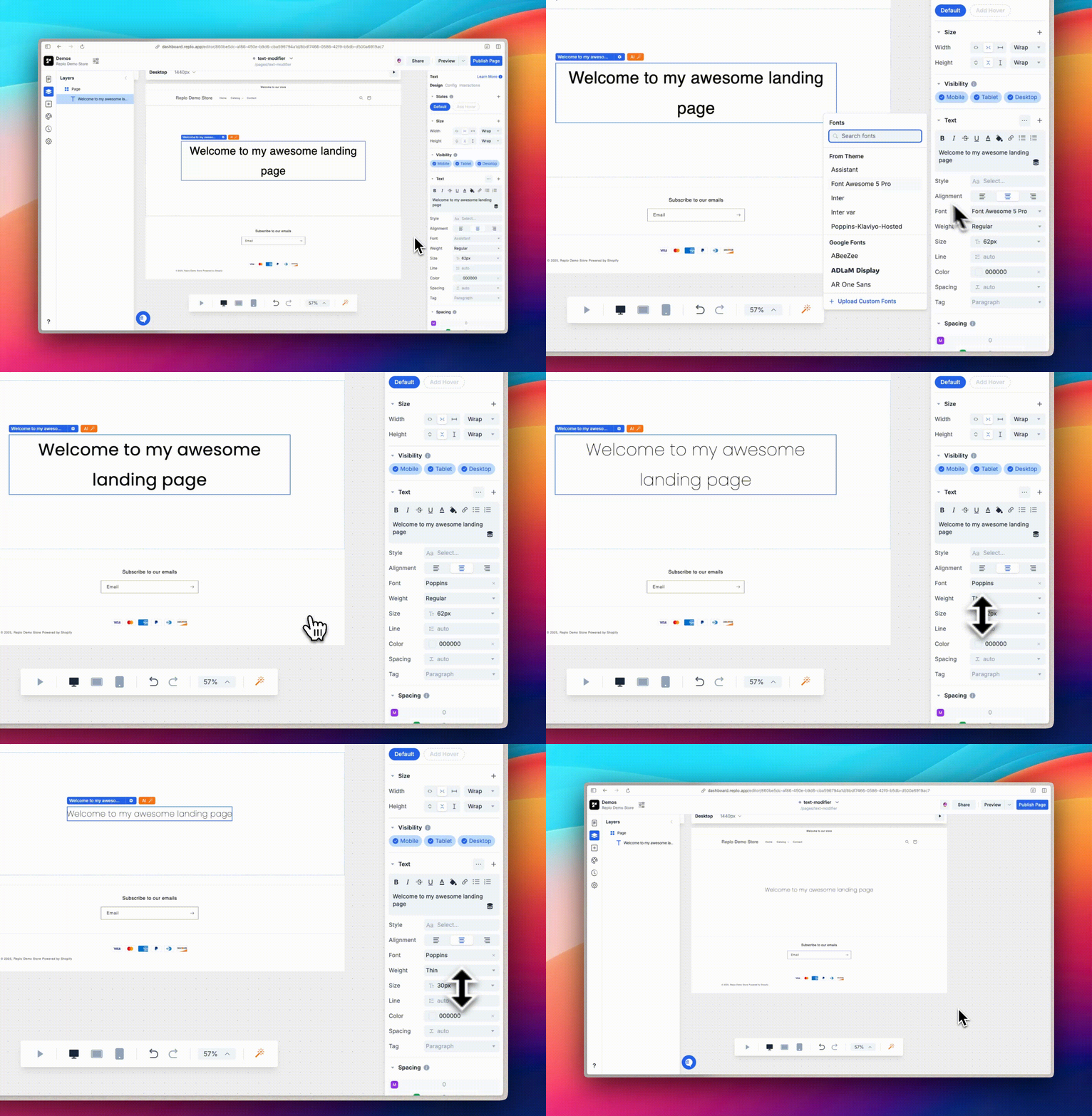
Font
Choose from a variety of fonts:
Theme Fonts: Access fonts defined in your project's theme.
Google Fonts: Select from the extensive Google Fonts library.
Upload Fonts: Import custom fonts. Learn more about using custom fonts here.
Weight
Select the thickness of your text. Regular is the default weight, and additional weights vary based on the font you've chosen.
Size
Adjust the text size in pixels, rem, or em units (e.g., 20px, 1.5rem, 1.2em) or use the dropdown menu.
Line Height
You can control the spacing between lines by setting specific values in pixels, rem, em, or percentage (e.g., 20px, 1.5rem, 1.2em, 150%). This setting controls the overall density and readability of your text.
Color
Customize the text color using hex values (e.g., #FFFFFF), the color picker interface, or any valid CSS color value. For a complete list of supported color values, check out this article.
Letter Spacing
Control the space between characters using pixels, rem, or em (e.g., 2px, 0.1rem, 0.05em).
Format
Apply text decorations such as italic, strikethrough, and underline.
Tag
Tags help search engines and screen readers understand your content better. You can read more about how tags can improve your SEO here. Choose from these tag options:
Paragraph: Default text element tag.
Headings: Use heading tags h1 through h6 to define your content's hierarchy.
Text Case
Control capitalization with three options:
Sentence case (Ag)
ALL CAPS (AG)
lowercase (ag)
Outline
Add outline effects to text by setting the outline width and choosing an outline color. If you're not seeing the desired styling, try setting a smaller width like 0.5px.
Shadow
Add multiple text shadow effects with the following properties:
Offset: Control X and Y positions of the shadow.
Blur: Adjust the shadow's blur radius.
Color: Set shadow color.