Template User Guide
Last updated: March 30, 2025
Replo templates are the fastest and easiest way to build high-performing landing pages. To get the most out of these templates, it's important to understand how to configure commonly used features and components.
This comprehensive guide walks you through identifying complex configurations, modifying components, and adapting templates to your own content.
Our templates are built to be responsive and ready to be viewed on all device sizes. However, making edits without understanding responsive design could compromise your page’s responsiveness. Learn how to build responsive pages with our Responsive Design article.
Font
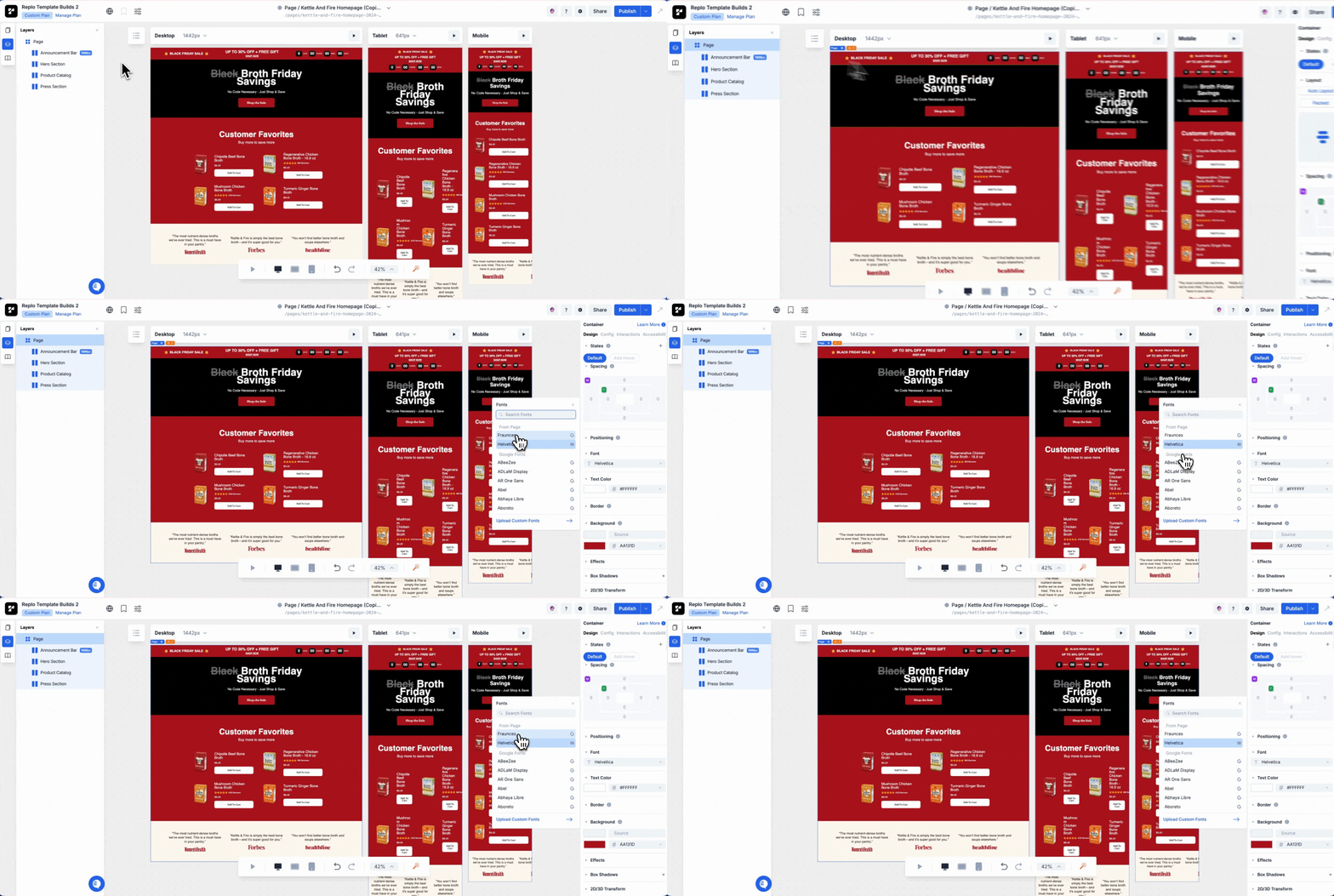
Our templates use Google Fonts. When we recreate websites that use custom fonts, we carefully select the closest matching Google Font.
The primary font style, typically used for paragraph text, is applied to the page container. This setup allows you to quickly update the font across the entire page by simply changing the font on the template's page container.
Carousels
Carousels display a list of content that users can navigate through using buttons (e.g., arrows, indicators). Carousels have nuanced functionalities that accommodate many different use cases, but templates primarily feature two types: content carousels and product image carousels.
Content Carousels
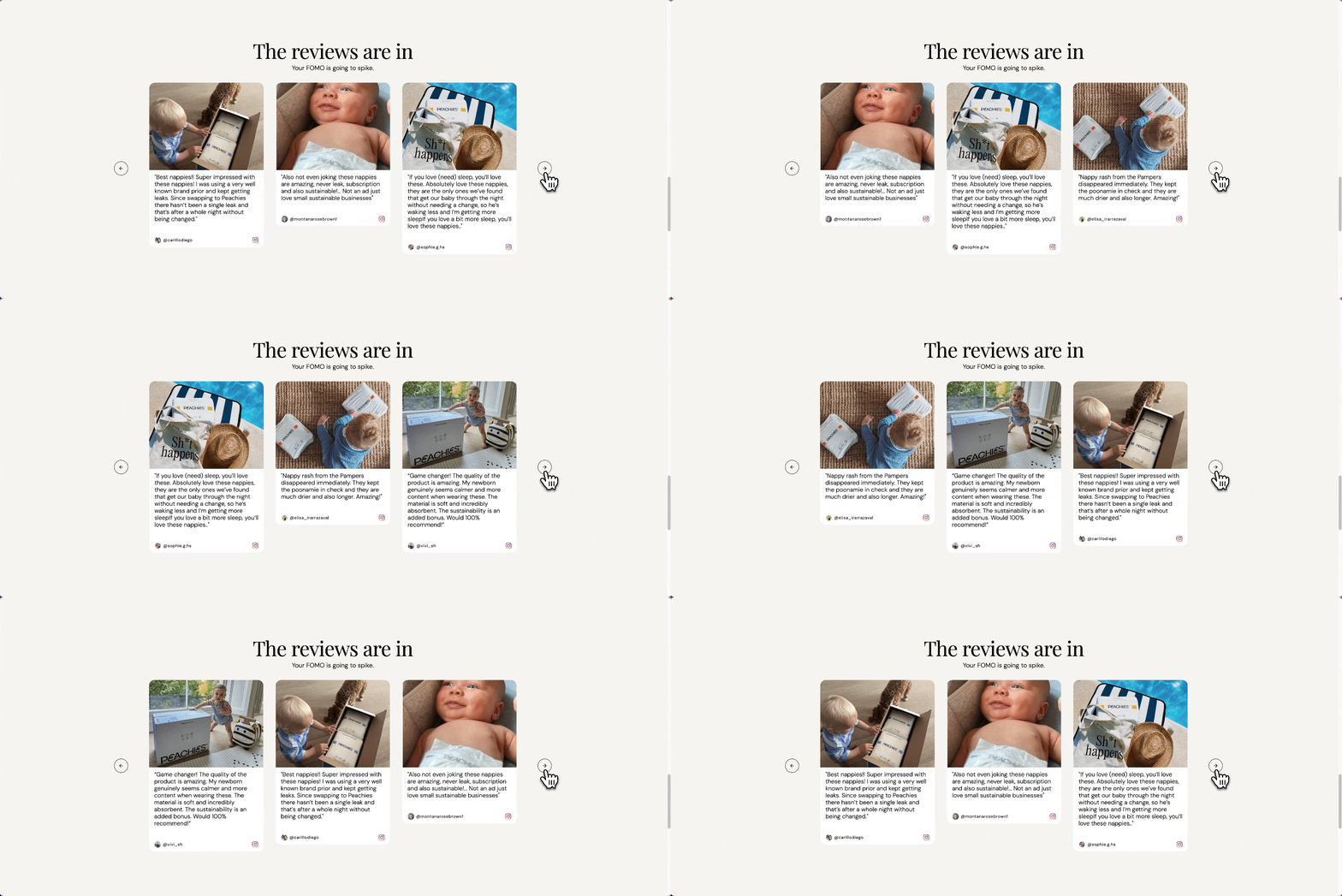
Content carousels showcase images, text, and videos or a combination of these elements in a slideshow form factor. When it comes to customizing carousels, it's important to understand how they are structured first. This will help you navigate the component in the editor and quickly locate the elements you’re looking to edit. Learn more about how carousels are set up here.
Product Image Carousel
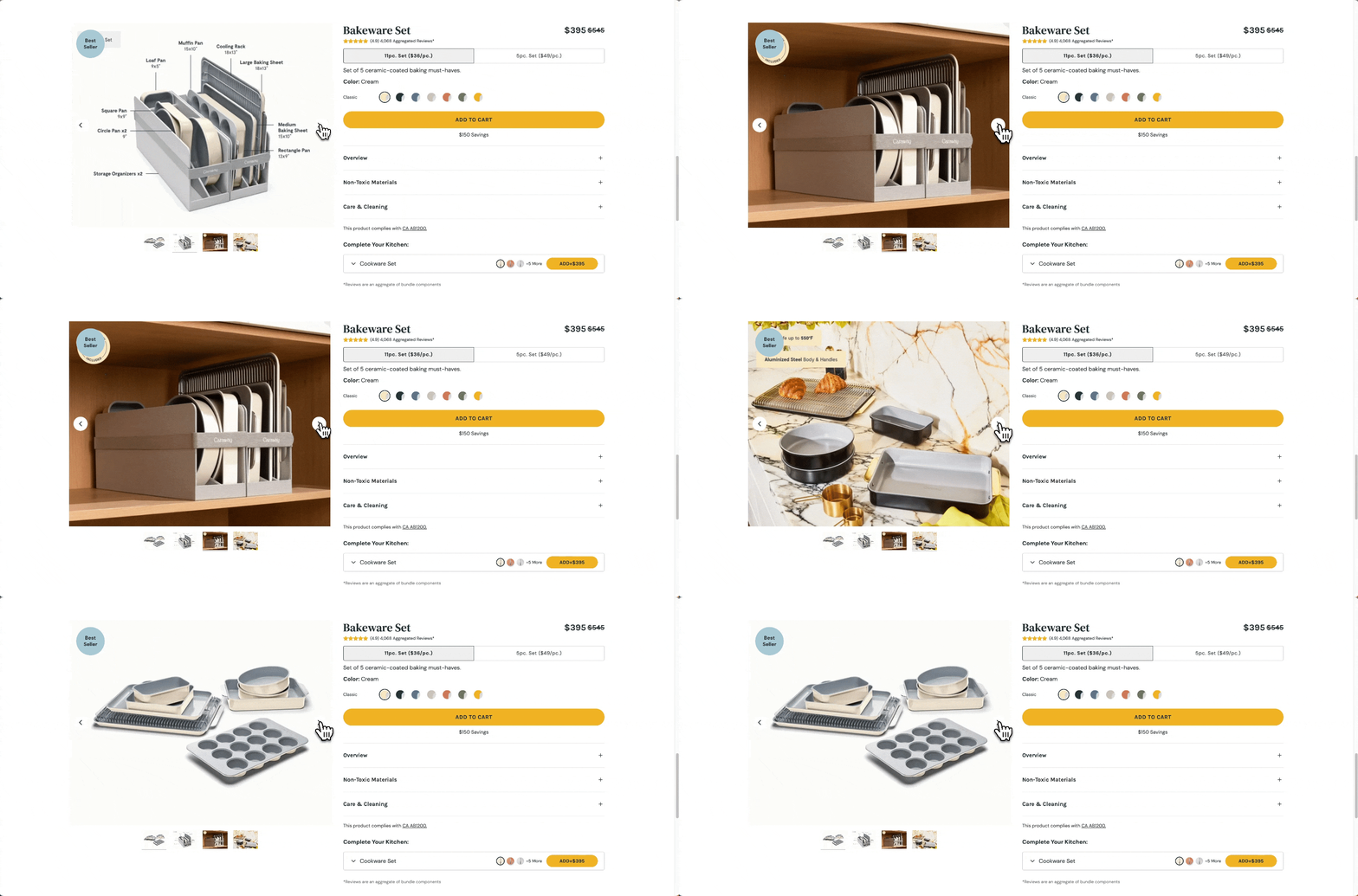
Product Image Carousels are carousels placed inside product boxes and use dynamic data to showcase product images set up in Shopify. In most templates, product image carousels are already set up so that they display the selected product’s image list. However, if you want to assign multiple images in a carousel to a specific option or variant, you can set up Swatches.
Swatches in Carousels
Swatches allow you to assign multiple images and colors to option and variant values. Product carousels in templates will not be configured with swatches, meaning if you want your product to feature multiple images per option or variant, you must configure swatches manually. Learn how to use Swatches in your carousels here.
Dynamic Data
Dynamic data is a powerful tool that binds the content of your page elements to outside data sources — in the context of Replo, this is primarily your Shopify product data. In templates, product buy boxes’ text, image, and option/variant selection components are already preconfigured to product data.
Due to the unique data structure of each product, dynamically configured components may initially display incorrect option values when a template is added to your page. For instance, while the template may be configured to display Color Option values, adding the template to your page might incorrectly load your product’s Size Option values instead.
See our article about Dynamic Data to learn how to update these from the default template settings.
Swatches in Option Selection Components:
If a template’s option selection components are expressed as colors or images in a template, this is a sign that relatively complex dynamic data configurations are needed and we advise you become familiar with our Swatches article.
When you add a template with swatches to your page, the option list will be empty. To configure swatches to your option selection component:
Make sure you create Swatches for the featured product.
Find the circular option list in the Layers panel on the left side of the editor and select the “Inner Circle” container.
In the design panel, scroll down to the Background settings and click on the image or color source (it will likely already have dynamic data configured).
Select Repeated Option → Swatches → <Your Swatch Name> → Color or Images
Selling Plans
Some of our templates feature selling plans, or products that ship periodically and are purchased at a discount. Selling plan components will automatically update to whichever selling plan you have set up with the featured product.
If the featured product doesn’t already have a selling plan configured to it, please do so in your Shopify Admin account. Learn more about Selling Plans here.
Other Commonly Used Components
Tickers
Tickers allow content to scroll smoothly across the screen in an infinite loop, and are typically used as a scrolling banner to showcase new products, discounts, etc. Learn more here.
Accordion/Collapsibles
Collapsibles are used to show and hide content by expanding and collapsing stacked rows. Accordions are a specialized type of Collapsible where only one row can be open at a time. They are most commonly used for FAQ’s or Product Details Sections. Learn more here.
Tabs
Tabs consist of buttons that toggle between content areas, organizing and displaying information efficiently within a limited space. Tabs are versatile and flexible components that can adapt to a wide range of use cases. Learn more here.