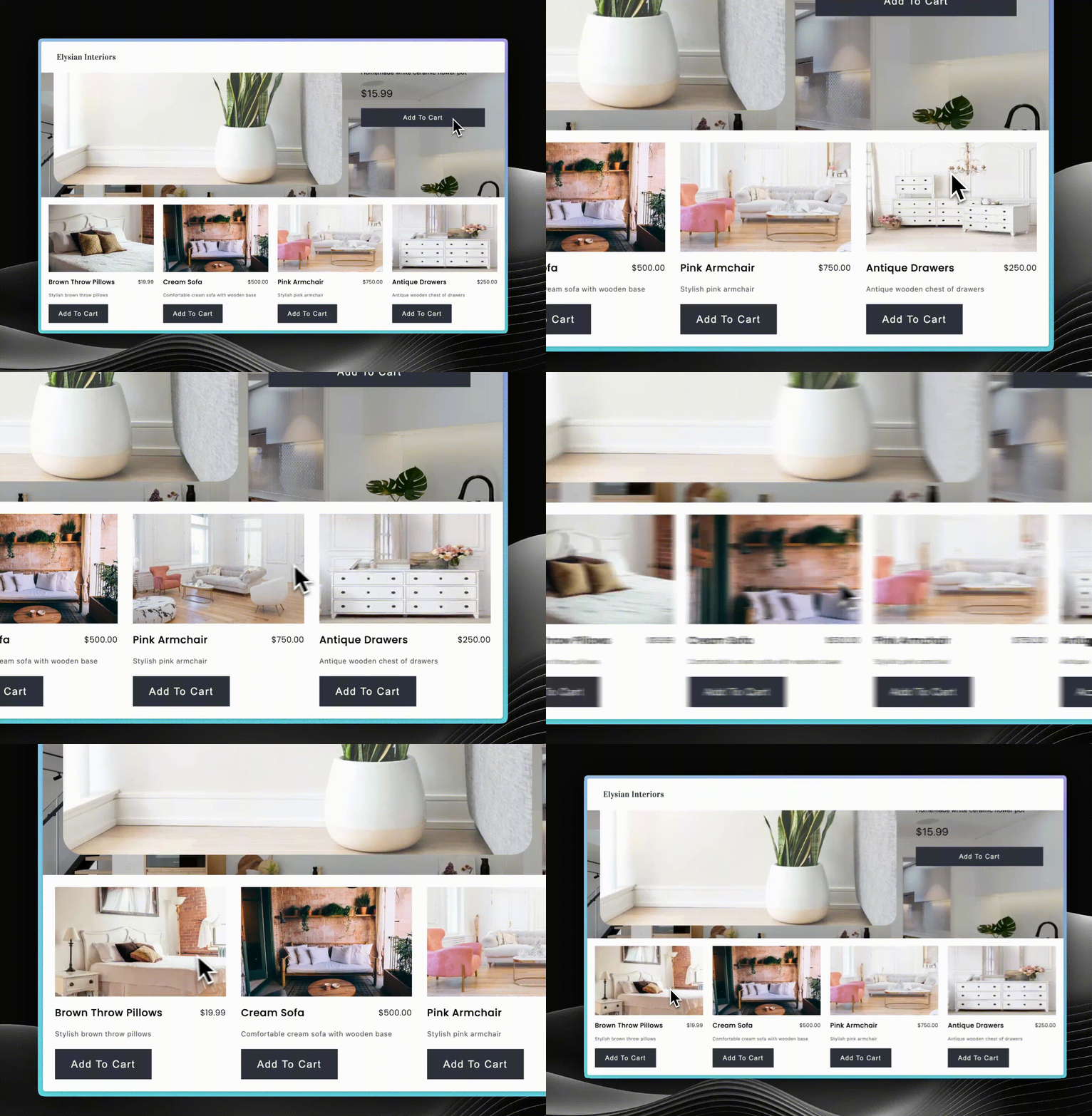
Building a Product Collection with a Hover Effect
Last updated: April 7, 2025
In this guide, you will learn how to build a product collection component in Replo that changes what product image is displayed when a customer hovers over it. This interactive feature enhances your store's experience by showing alternative images or angles.
How does the effect work
The effect can be broken up into three main parts, the product collection component, dynamic data, and states. The product component collection allows you to style and build the effect once and have that be applied to every product in the collection. Dynamic data is how Replo gets what images are available and other product information, directly from your Shopify store. Finally, states gives you the ability to change how a component looks depending on what state is active for the component.
Step-by-step guide
Add the product collection component
Open the components library and search for the product collection component
Drag and drop the component onto the page

Select the component and click the config tab on the right hand side. Feel free to add, remove, or re-order any of the products there.
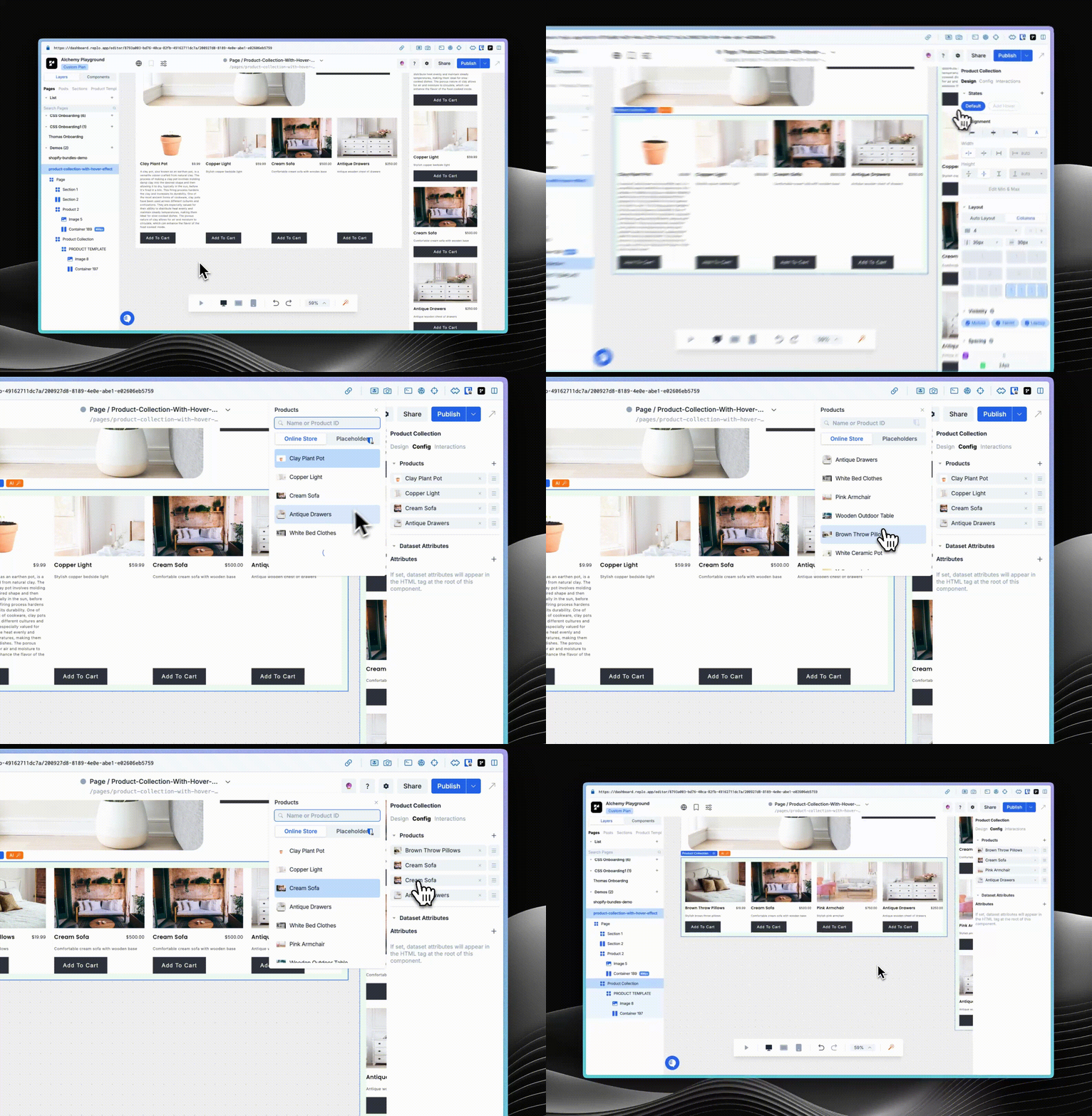
Check out this article for a more in-depth look at the Replo product collection component
Add a hover state
You'll need to adjust the product image's config to enable the hover state.
Start by selecting the first product image in the collection.
Under the States section on the right hand side of the screen, click the greyed out Add Hover button to add the state.
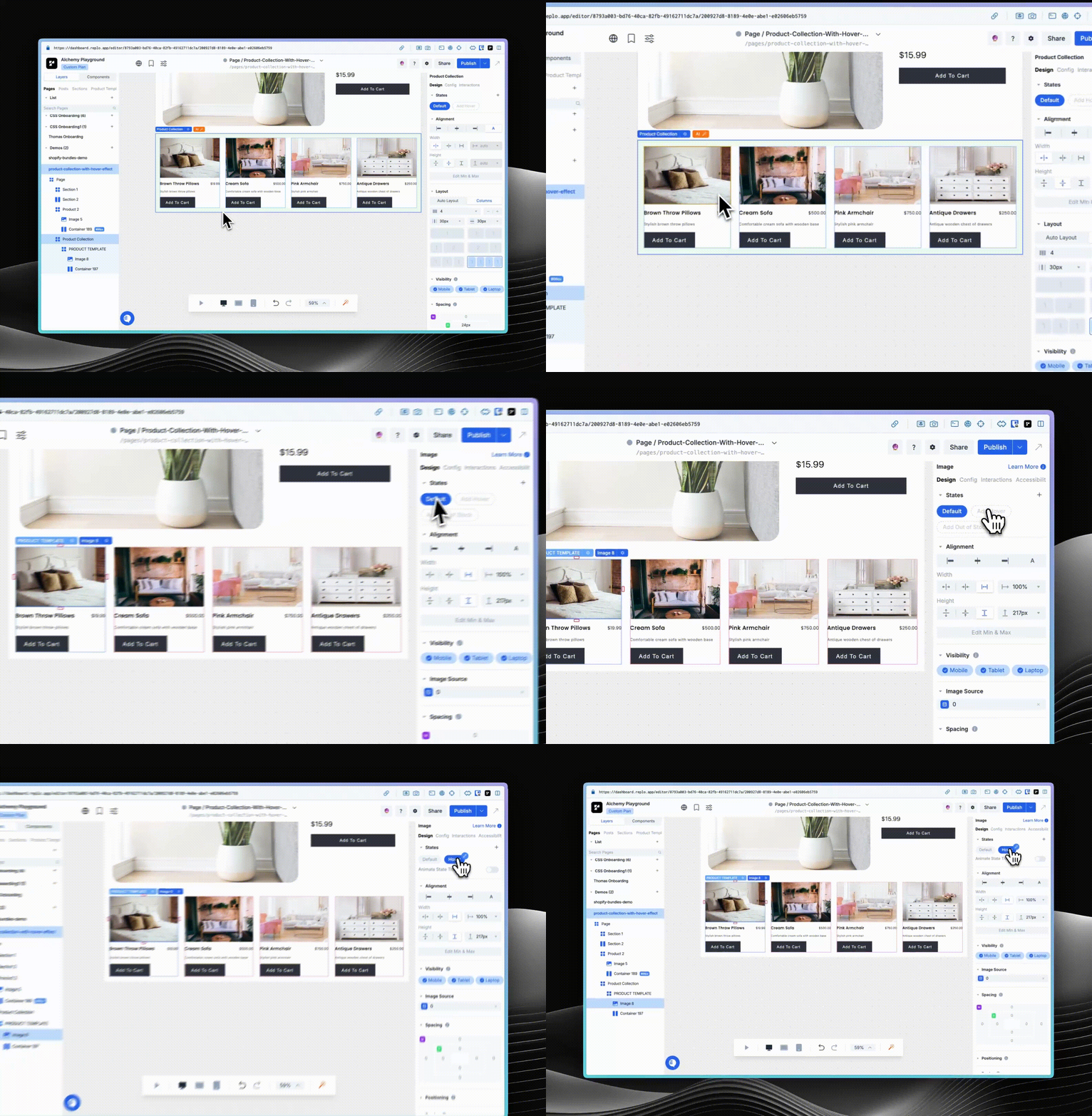
Configure the hover state
To change the image when a visitor hovers over a product:
Find the Image Source section on the right-side of the editor and click it to open the image properties panel
Within the image properties panel, click the Image Source field which will open the dynamic data popover. Here you can change the image source to be a different image. For example, to show a product's second image, select Current Product > Images and choose the second image from the list.
After selecting an image, click Use Dynamic Property to apply changes
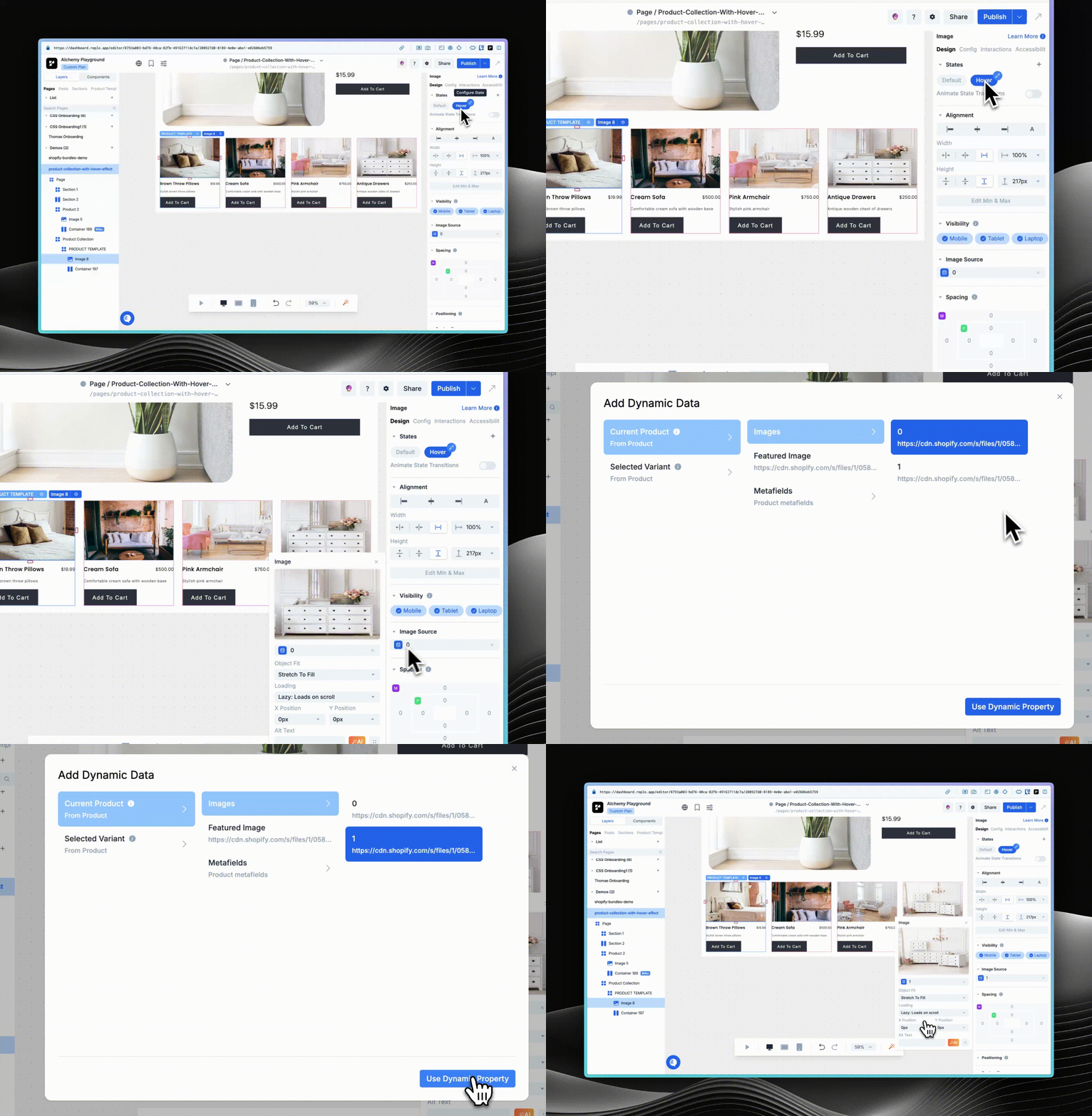
Testing the effect
Once you've configured the hover state, switch to Preview Mode or generate a new page preview to test it out.
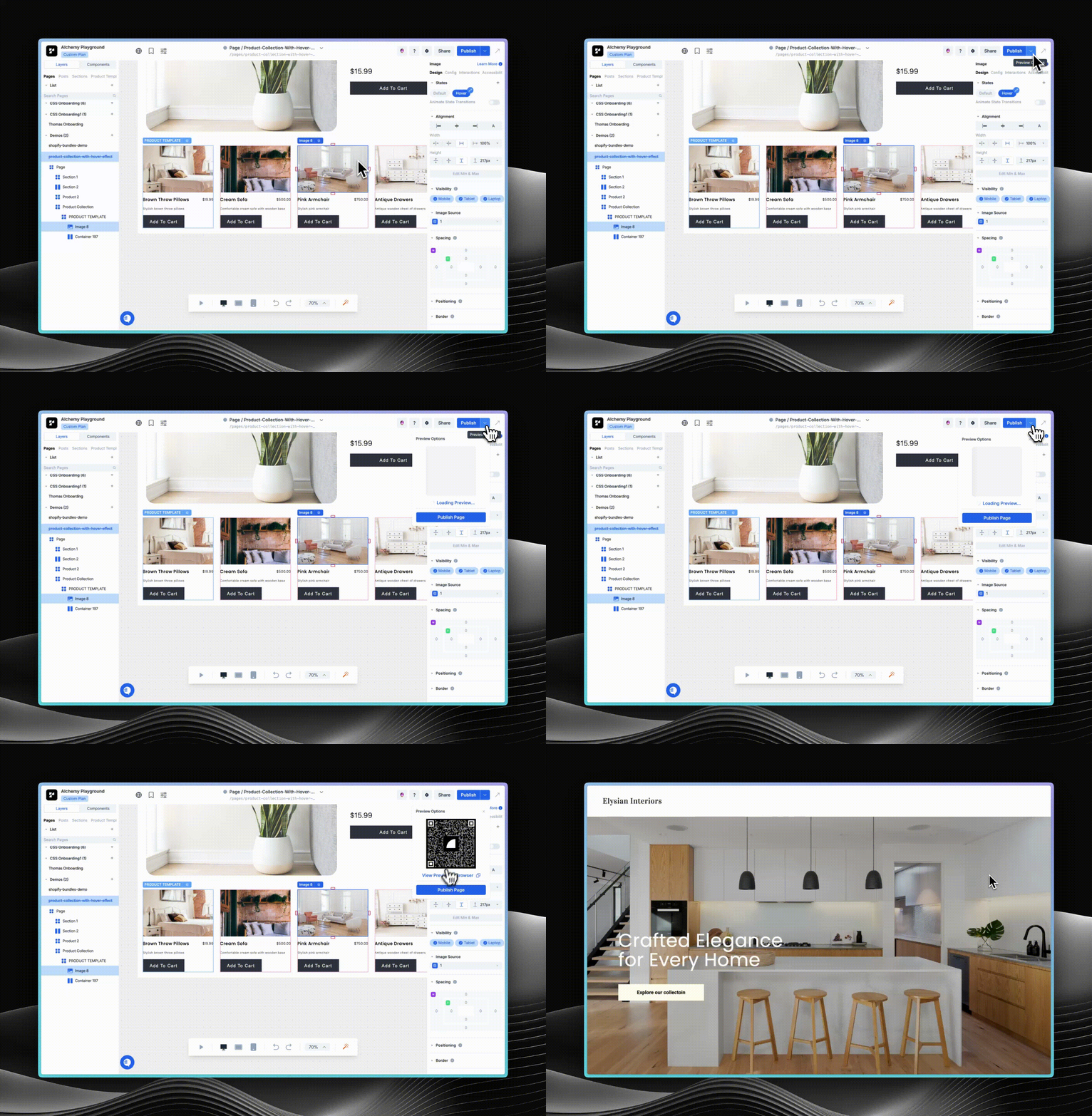
Hover over a product in the collection to see the image change.