Shopify Section Component
Last updated: May 21, 2026
This page is about the component in Replo that allows you to pull existing Shopify Sections from your Shopify store into Replo 📄 Pages. If you want to create new sections using Replo, see 📄 Shopify Sections
Sections are a huge part of building pages on Shopify. The ability to insert and remove sections on any page is important for merchants. This includes sections that contain Shopify apps, such as timers, inventory counters, and other third‑party app functionality.
After a Shopify section has been saved to your theme (including if it was build in Replo using the process at 📄 Shopify Sections), you can use the Shopify Section component in Replo to pull that section into any Replo page, post, or template.
Adding a Shopify Section
Navigate to the page you want to add the section to in the editor.
On the left side of the editor, click the "Components" toggle, then search for "Section" and drag the Shopify Section component into the page wherever you'd like.
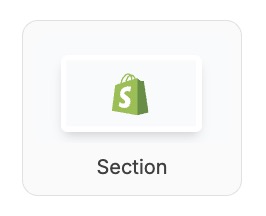
Open the component's Config tab in the right side nav and choose your section from the list of available sections in your theme.
Your section should appear in the editor right away and can be configured using the Shopify Theme Editor.
When you add a Shopify section to your page in the editor, it will appear as a placeholder on the canvas. To view the actual content of the section, you'll need to preview or publish the page.
Customizing Sections in the Shopify Theme Customizer
Most Shopify Sections have configurable settings which you can edit in the Shopify Theme Customizer. Usually, when you add a section from your Shopify theme into Replo, the section won't have any of its settings configured and you'll need to edit them in the Shopify Theme Customizer to make the section work as expected.
Sometimes, if you haven't edited section settings in the Shopify Theme Customizer, the section in Replo won't display, or might look "empty" — that's okay! The section will look correct after you configure it in the Theme Customizer.
You can find the page in the Theme Customizer by following these steps:
Open your store in Shopify Admin
On the left under Sales Channels, select Online Store, then select Pages
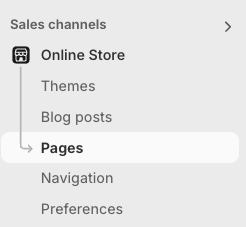
Find the page you created in Replo, then click on it
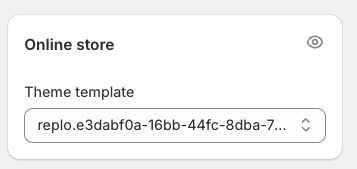
Under "Online Store" on the right, click the "eye" icon
Developer Notes
The Shopify Section component is equivalent to rendering in a section via the 📄 Custom HTML and Liquidcomponent using a {% section %} tag.
For sections that contain Shopify app blocks, note that while you can pull these sections into Replo pages using the Shopify Section component, the Shopify App Block component itself is only compatible with sections, not individual pages. If you need to integrate Shopify apps directly into Replo pages outside of sections, consider using the Custom HTML and Liquid component with the app's embed code.