Product Selection Component
Last updated: August 27, 2024
The Product Selection component in Replo allows you to add a selection interface on your Shopify page, enabling users to switch between different products in the single Product component. This component dynamically updates the displayed product details based on the selected option, making it ideal for pages that showcase multiple products.
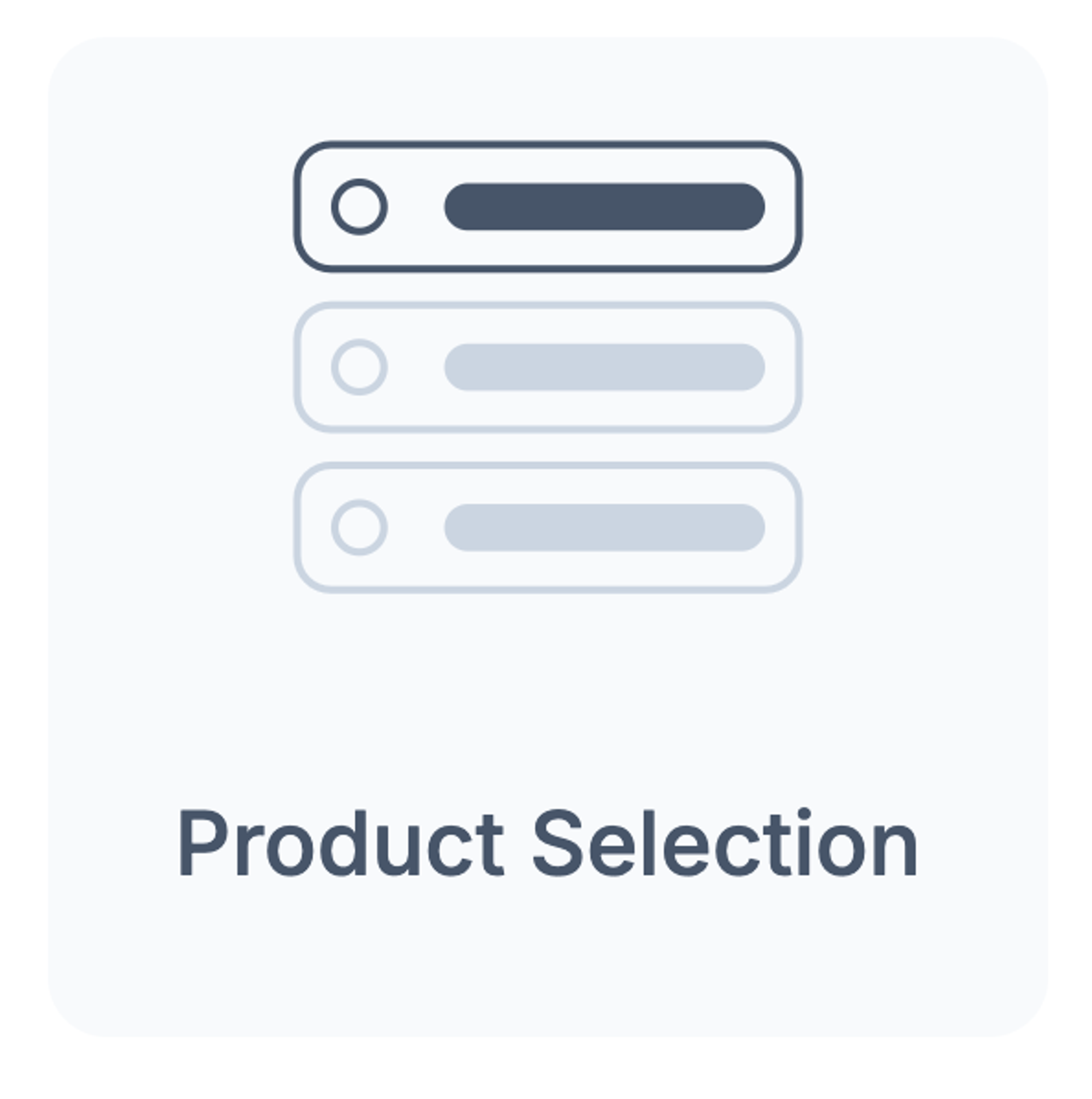
Adding the Product Selection Component
Locate the Component:
To add the Product Selection component, go to the components panel in Replo and search for "Product Selection." The components panel can be found by clicking on “Components” in the top-left corner of the project dashboard, next to the “Layers” selection.
Drag the component into your Product container. This ensures that the component automatically changes the selected product inside of the container.
Configuring the Buttons:
The Product Selection component includes multiple buttons by default. Each button represents a different product and has a default interaction set to "on Click, update the current product."
This interaction ensures that when a user clicks a button, the associated product details are loaded dynamically.
You will have to change the product selected from placeholders to ones in your own Shopify store.
To assign a specific product to each button, click on the button, and in the Container interactions in the menu on the right side, choose the product you want to link inside of the “On Click” Update Current Product interaction.
Dynamic Data Integration:
The Product Selection component is designed to work seamlessly with dynamic data. This means that once a product is selected, all linked data fields, such as images, descriptions, and prices, will automatically update to reflect the selected product.
Active and Inactive States
The Product Selection component is designed so that only one option can be active at a time. Each of the product options comes with a preset active (Selected List Item) and inactive (Default) state, and these states are interlocked with one another. This means that when a user selects a new product, the other products, if selected, are automatically deactivated. This feature helps avoid confusion and ensures that the selected product is always clear to the user.