Shopify Integration
Last updated: December 8, 2025
Integrating Replo with your Shopify store unlocks Replo's full value, allowing you to create and manage custom pages, sections, and templates seamlessly.
You can connect your store in two main ways:
By installing the Replo app from the Shopify App Store
By initiating the connection directly from your Replo dashboard.
For more details on setting up Shopify using either method, continue reading below for step-by-step instructions.
Note: There can only be one Replo shop associated to a Shopify store and vice-versa! Additionally, your Replo plan determines how many Shopify integrations you can have - the Starter plan allows only one Shopify Theme Editor shop. If you experience loading issues when trying to integrate a new store, check if you've reached your plan's shop limit.
Installing the Replo app from Shopify
To begin, you'll need to install the Replo Shopify integration from the Shopify App Store.
Note: For a smooth experience, create or log into your account on Replo before installing the Shopify App.
Visit the Shopify App Store: Search for "Replo" in the Shopify App Store and click on the app named Replo Landing Page Designer
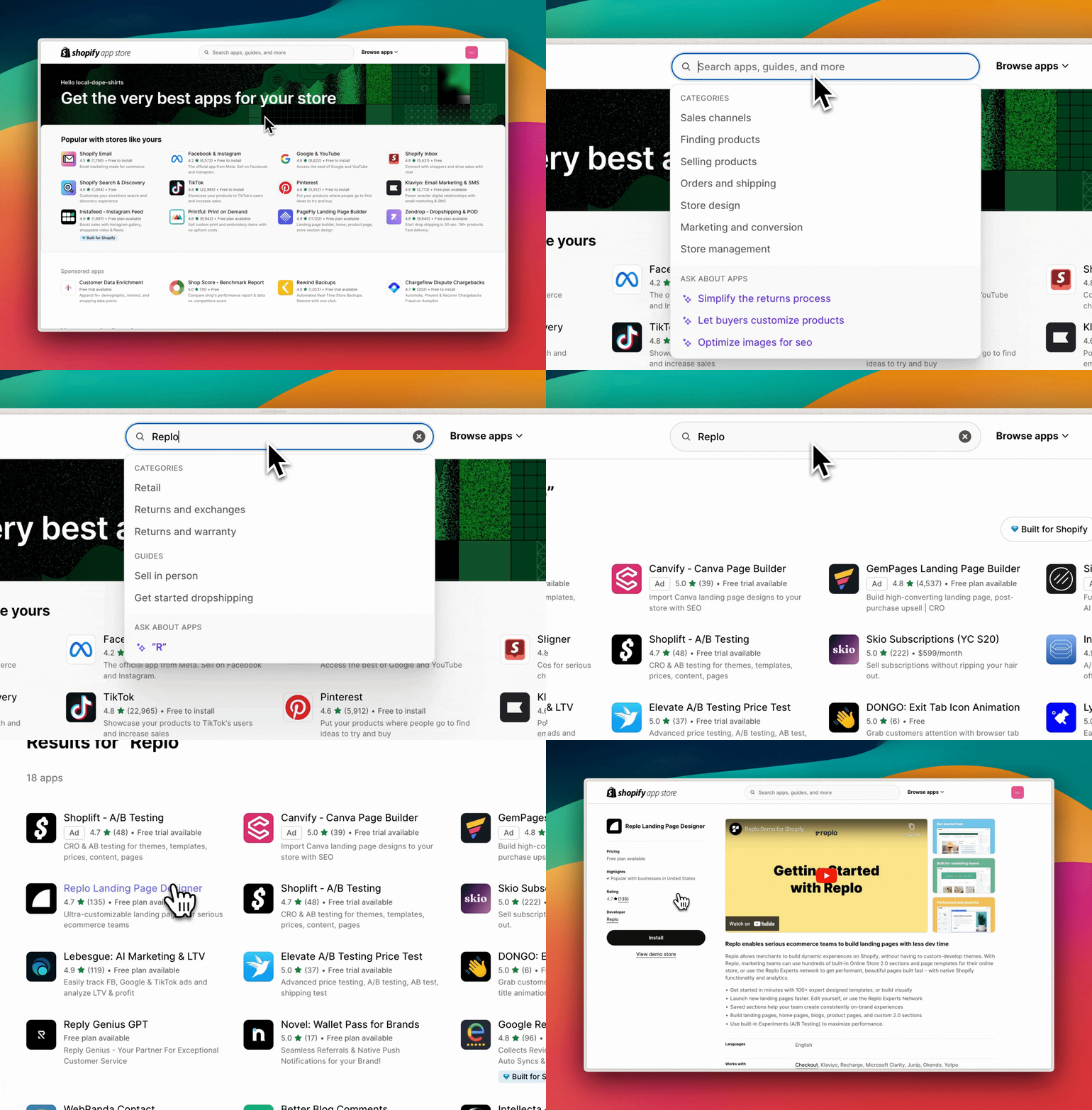
Install the Replo App: On the app page, click Install to add the Replo app to your Shopify Store. You will then be redirected to your Shopify admin dashboard to install the app.
Note: Make sure you install the Replo app on the correct store.Review permissions: Carefully review the permissions the Replo app requires. Once you've verified everything, click the Install button to proceed. This will redirect you back to your Replo dashboard.
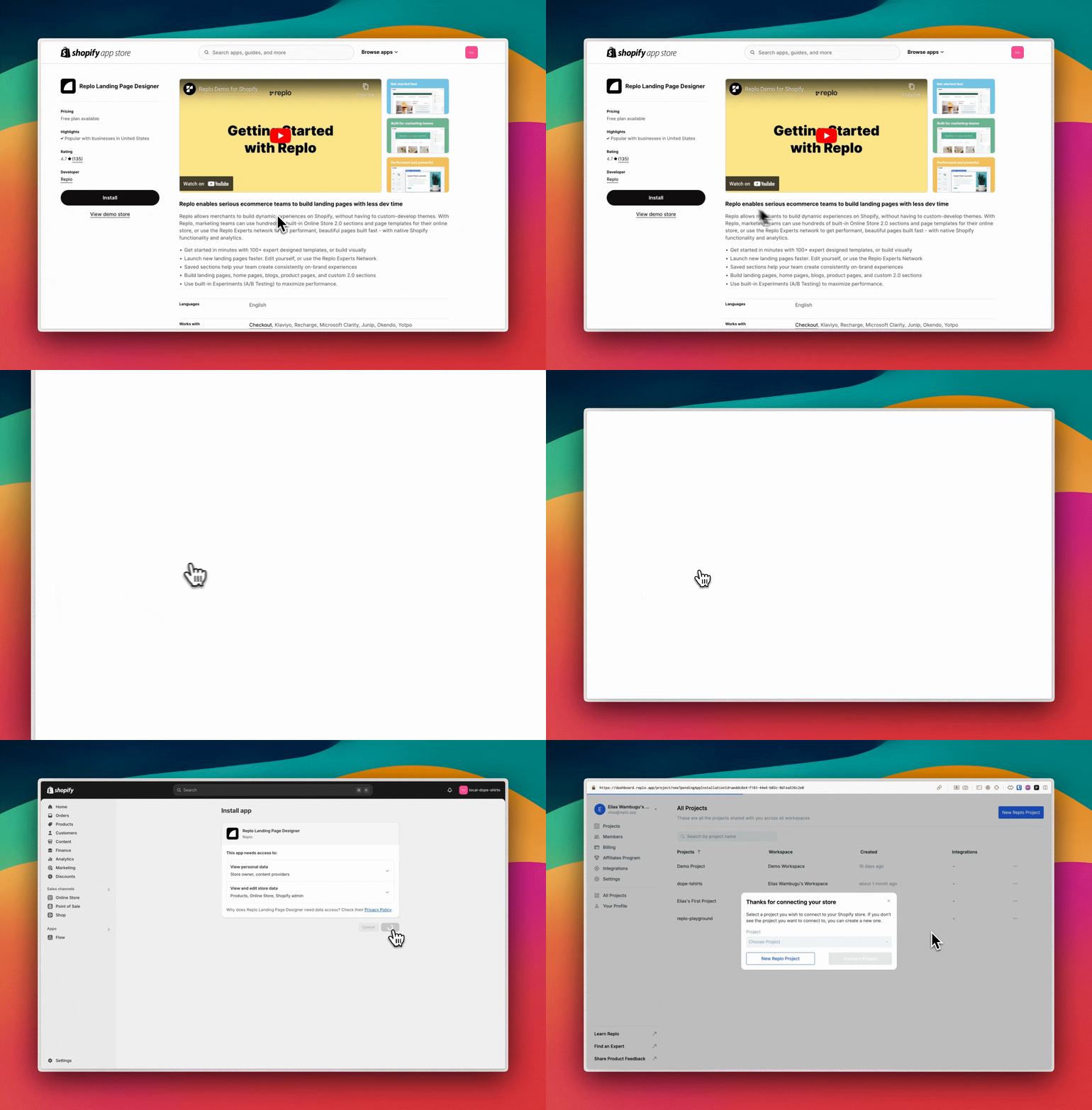
Create your First Replo Workspace and Shop: After installing the app, you be directed to our onboarding flow where you need to specific which Replo product you'd like to use. You need to choose between the Shopify Theme Editor and Replo Builder (Replo AI). Once you choose your preferred product, you can proceed to connect your Shopify store or start building first.
Connecting your Shopify store from the Replo app
To get started, head over to replo.app and either create or log into your account:
Integrations hub: On your replo dashboard, look for the Integrations tab on the left hand side and click on it. Using the integrations hub is the fastest way to get started with Shopify. You can read more about in this guide.
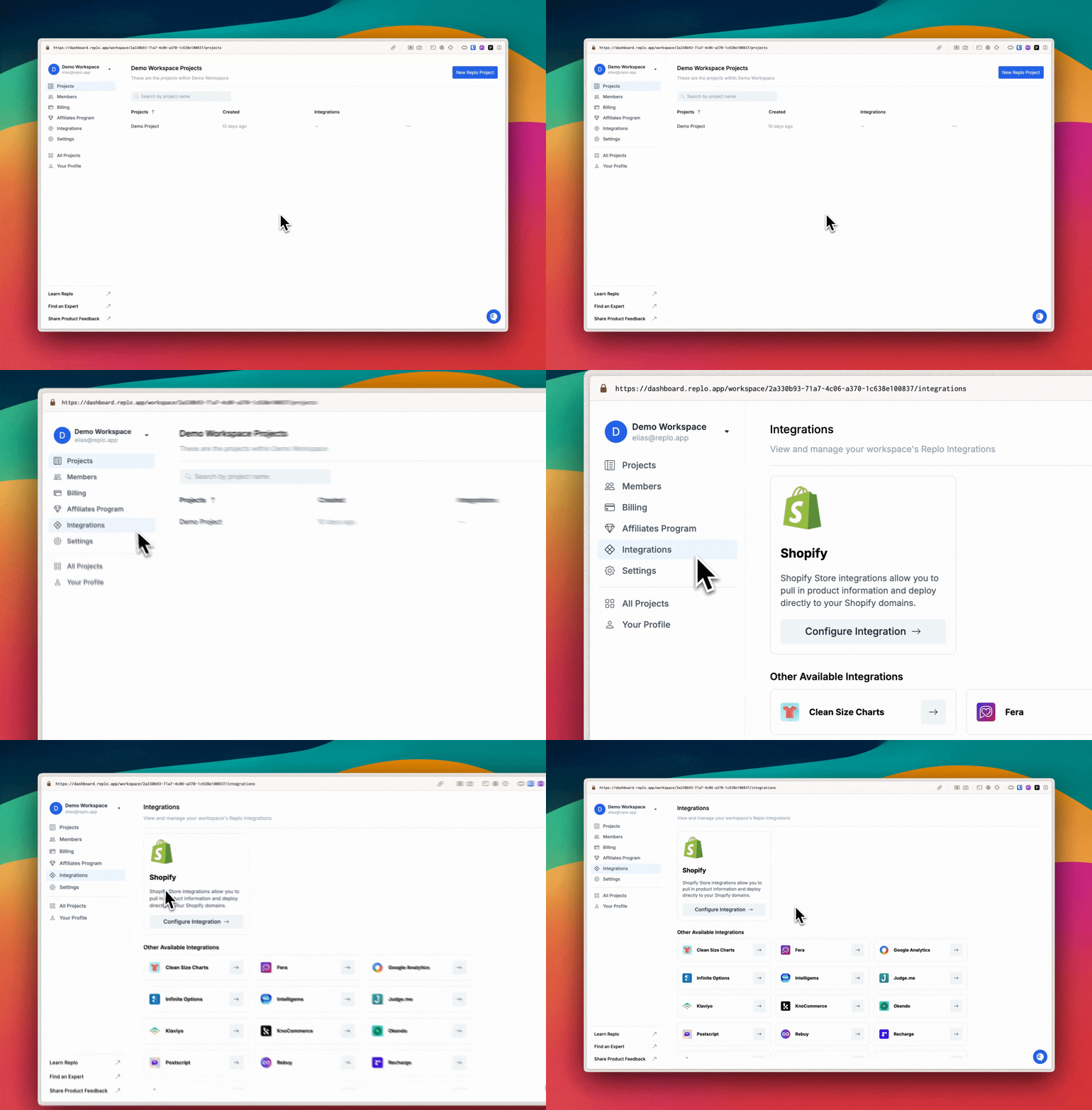
Shopify integration: Connect your Shopify Integration.
Install the Replo app: You will be redirected to the Shopify App Store. Before installing, make sure you're on the correct Shopify store. Click on the Install button on the left hand side whenever you're ready. After that, follow the instructions at Installing the Replo app from Shopify to connect your project.
Removing a Shopify integration
To remove a Shopify integration access the integrations hub in your workspace settings:
Remove integration: Disconnect your Shopify store.
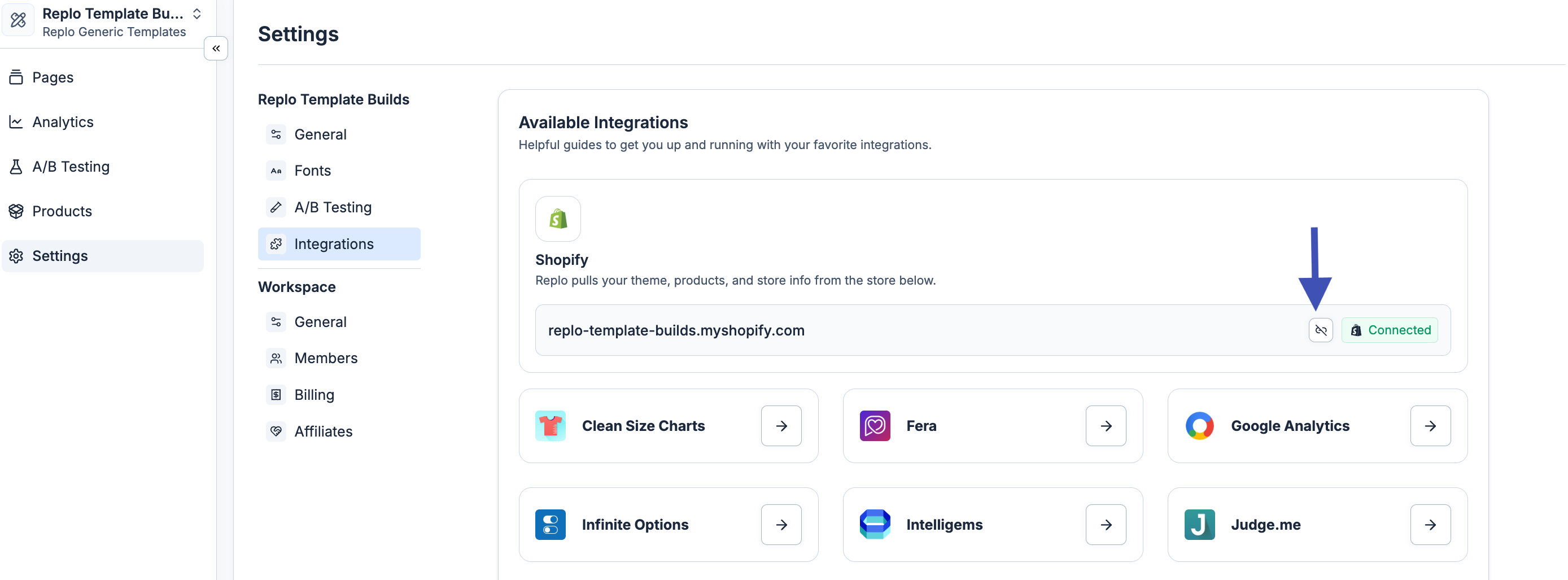
You can always re-connect your Shopify store after removing it, and you'll still be able to edit your content using the same Shopify data.
What Shopify permissions does Replo request?
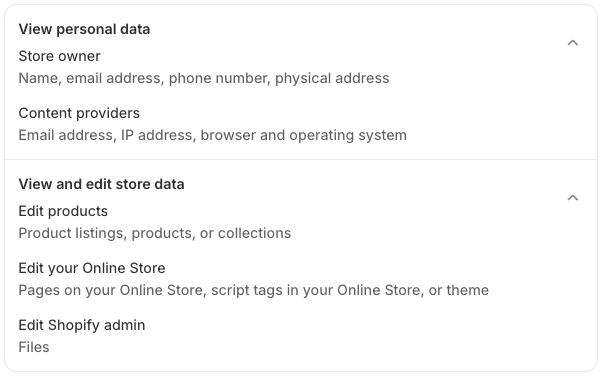
Replo requests various permissions from your Shopify store when you install the Replo Shopify app. In general, Replo only requests permissions for data that it needs to function.
A few permissions are required for Replo to be able to work with your Shopify store, so that Replo can connect your account, load product data and edit pages, and upload images/videos for the 📄 Images and 📄 Videos components:
A few additional permissions are required for 📄 Replo Analyticsto track analytics data:
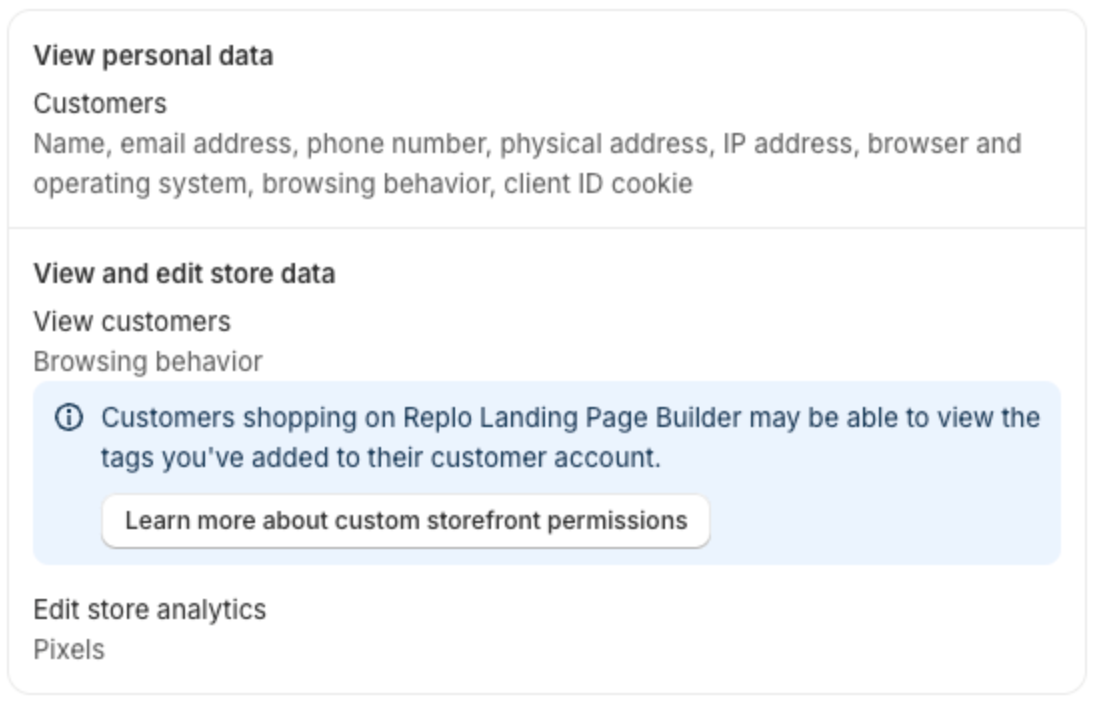
Please note that even though Shopify informs you that Replo needs permission to view a lot of data about customer interactions on your site, Replo does not collect any personally identifiable information about your site's visitors and does not collect any customer tag data. See What exact data does Replo collect? for more information on exactly what data is tracked by 📄 Replo Analytics.